
Your account is how TravelBreeze™ knows who you are. You only need an email address. There is no password to make up or remember.
A new account starts on the free plan.
Good to know: Did an agency invite you? Use the email address they sent the invitation to. Your invitation will be waiting for you.
Create Your Account Step By Step
-
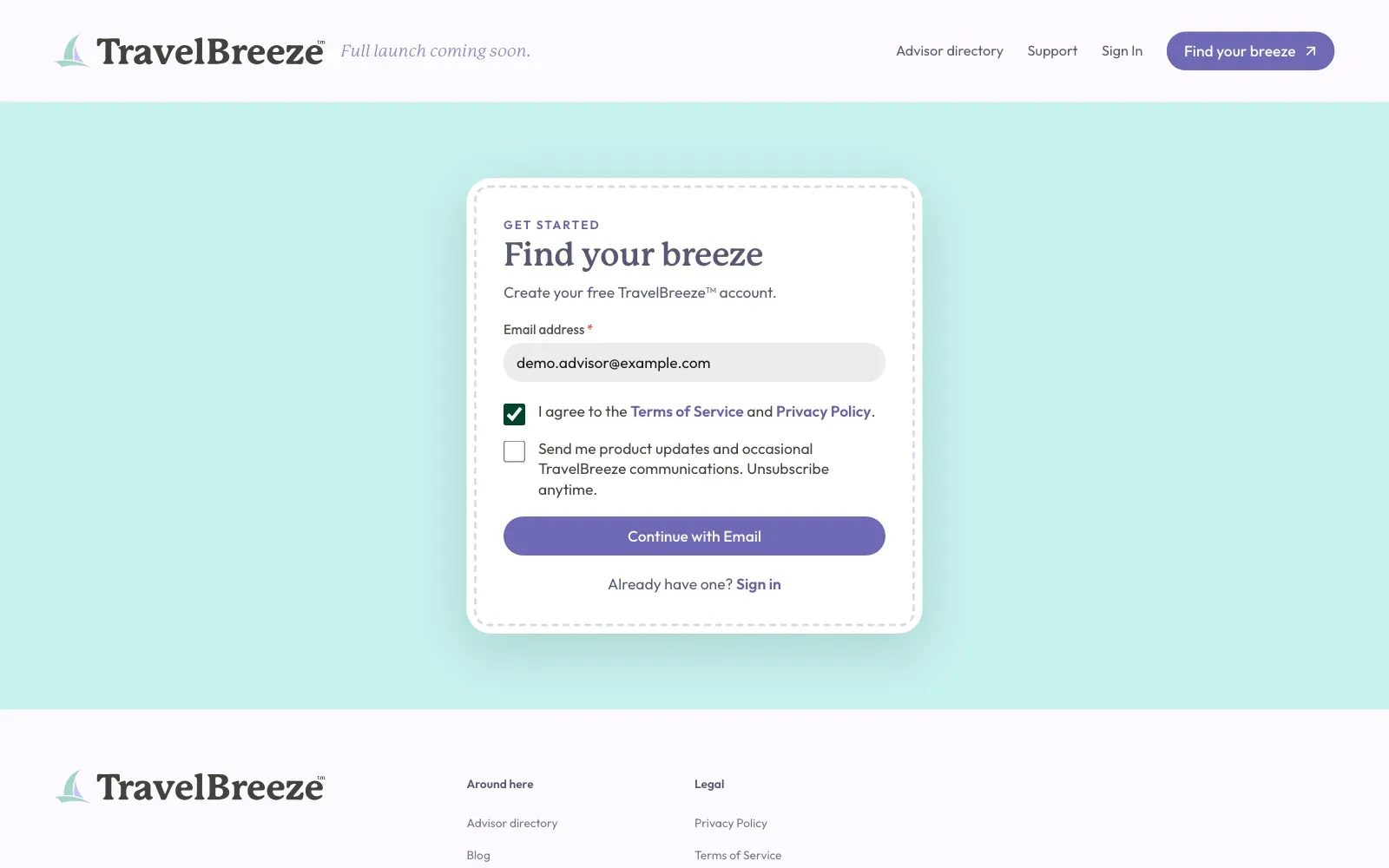
Go to the TravelBreeze™ website. Look at the top right corner of the page and click the Find your breeze button.

-
Find the box labeled Email address. Click inside the box and type your email address.
-
Click the small box next to I agree to the Terms of Service and Privacy Policy. A check mark appears. You must check this box to continue.
-
The second small box asks if you want product updates by email. This one is your choice.
-
Click the Continue with Email button under the check boxes.
-
Open your email in a new tab or on your phone. Look for a message from TravelBreeze™ titled "Your TravelBreeze™ sign-in code". The 6 numbers are in the title and inside the message.
-
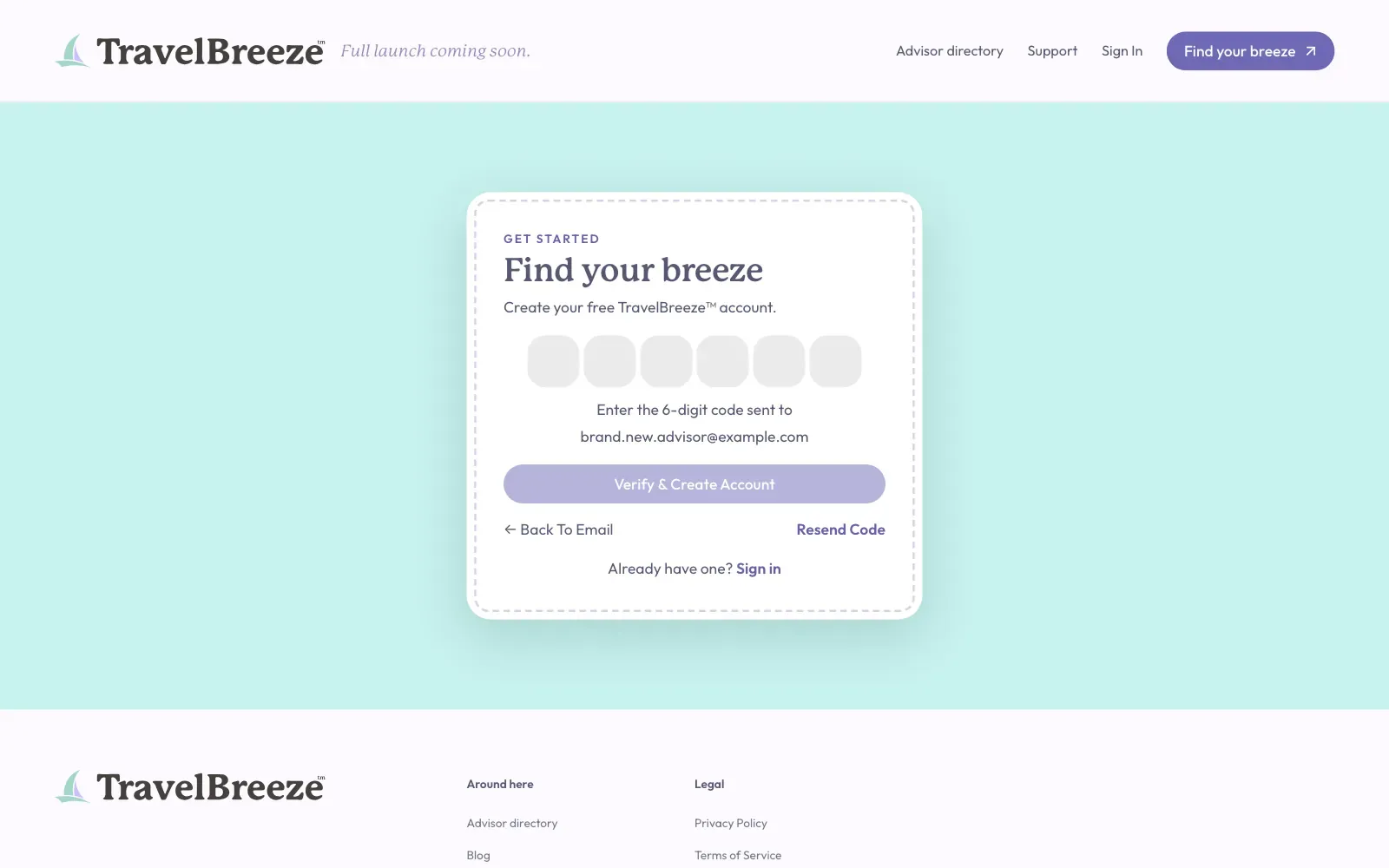
Go back to the TravelBreeze™ page. You will now see 6 small boxes. Type the 6 numbers from your email.
-
Click the Verify & Create Account button.
What You Should See Next
Your account is ready. TravelBreeze™ now takes you to a page about agencies. It has two tabs, Create a new agency and Join an existing agency.
You cannot skip this part. Every TravelBreeze™ user belongs to an agency, even people who work alone. The next step is to join or create your agency.
Stuck? If the email does not come, read I Didn't Get My Sign-In Code. If a red message mentions the Terms of Service, check the first small box. Then click Continue with Email again.