
Your profile is the page about you as a travel advisor. Only one thing is required at the start, which is your name. Everything else can wait.
What you see depends on your plan. Follow the part below that matches your screen.
If You See A Message That Blocks The Page
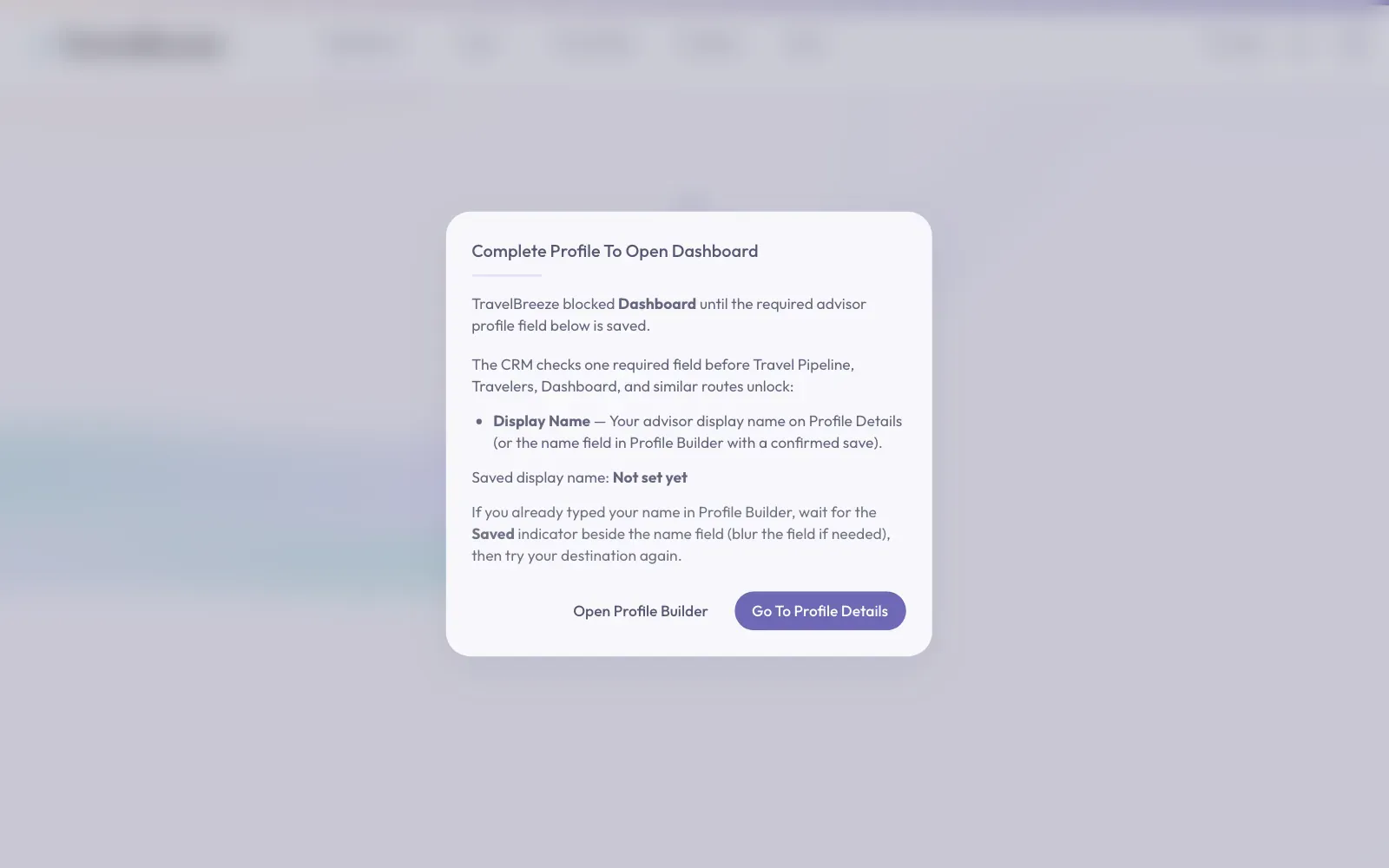
You may see a message with a title like Complete Profile To Open Dashboard. You have not broken anything. TravelBreeze™ just needs your name first.
Good to know: The message says Display Name. That means the box called Full Name on the next page.
-
Click the Go To Profile Details button at the bottom right of the message.
-
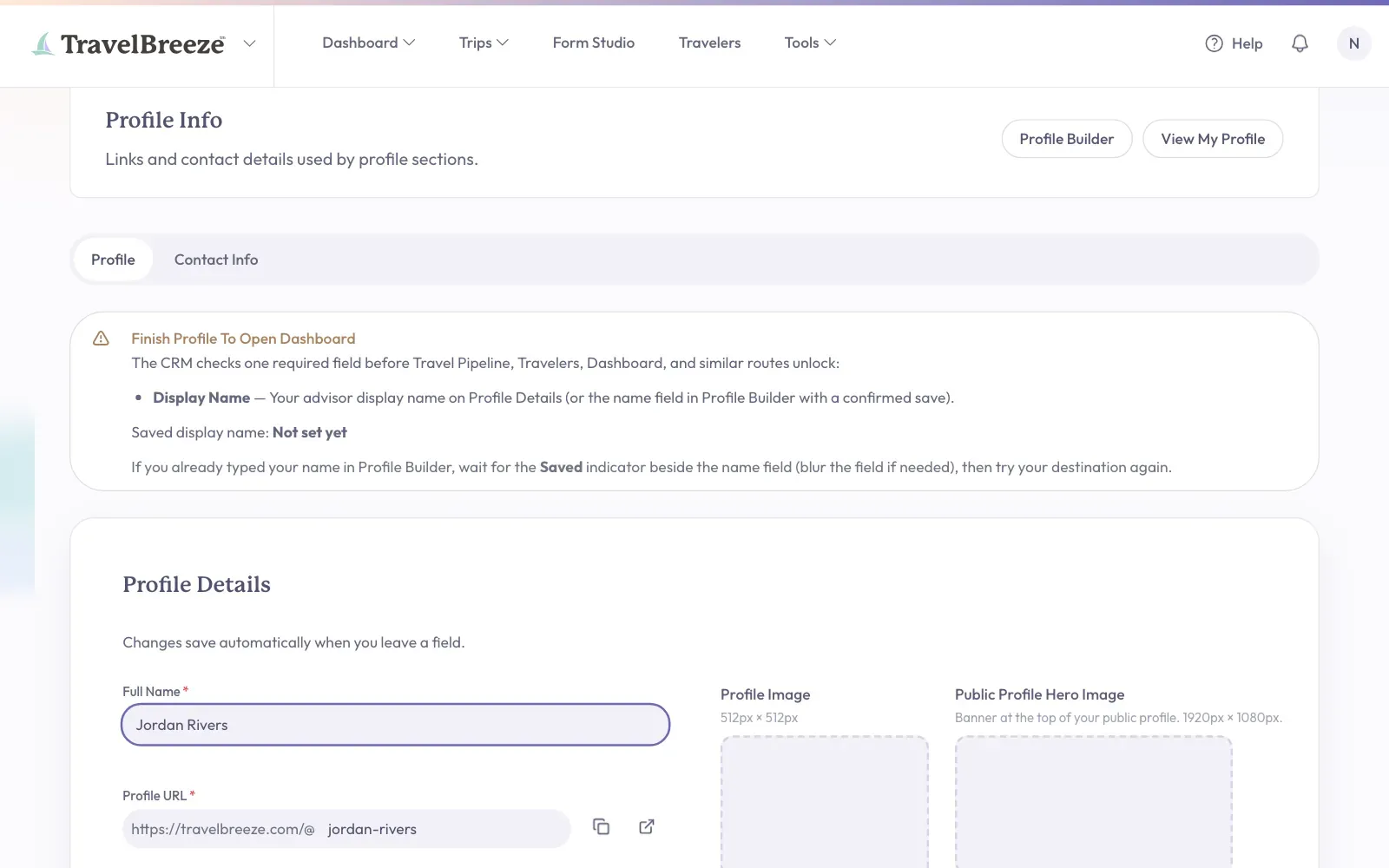
Find the box labeled Full Name near the top left of the page. Click inside it and type your name.
-
Click on an empty part of the page. This page saves by itself when you click away from a box. A small green check mark appears in the box.
-
Look at the top of the page. You should now see a green message that says Profile Name Saved.
-
Click the Continue To Dashboard button inside that green message.
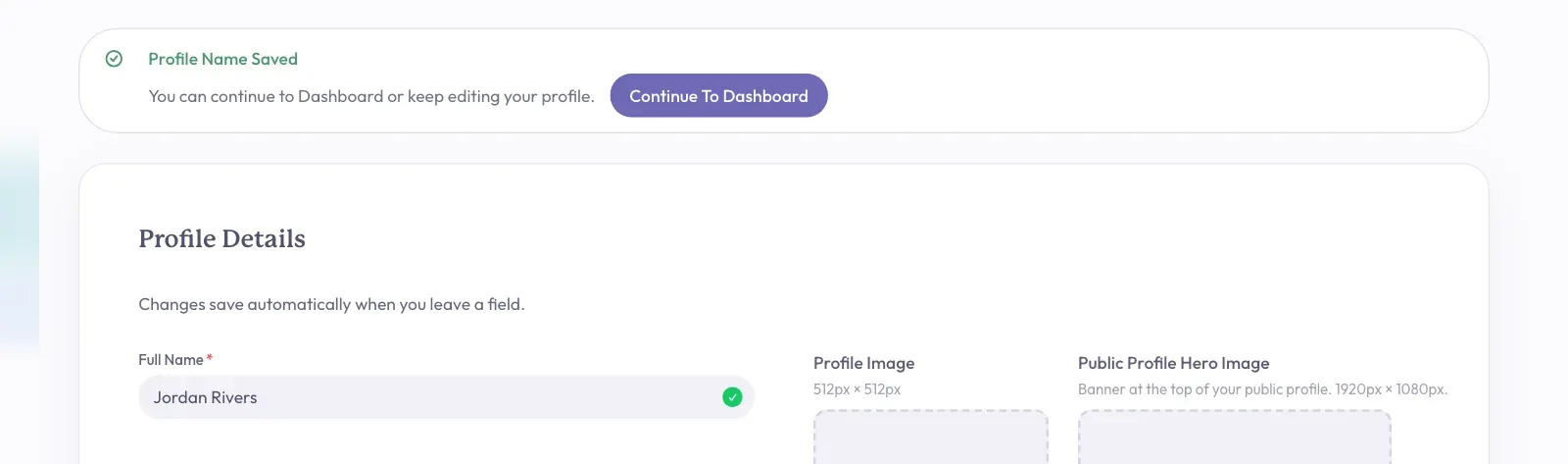
The button may name a different page, depending on where you were headed. Your dashboard is your home page in TravelBreeze™. You are all set.
If You Went Straight To The Profile Builder
On the free plan, TravelBreeze™ opens the Profile Builder after you sign in. No message blocks you here, so it is easy to miss your name.
-
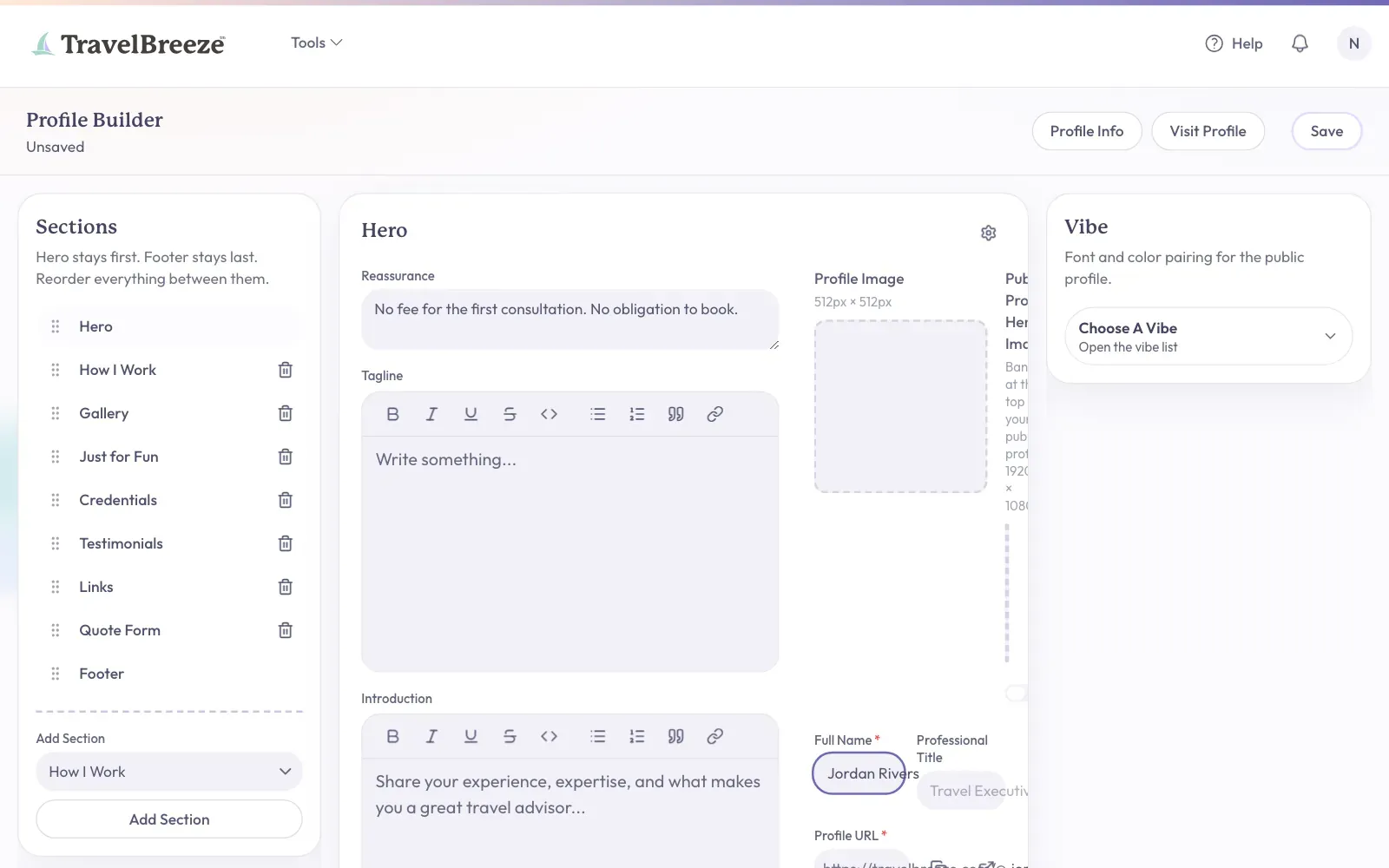
Look at the Sections list on the left. Click Hero at the top of the list. The Hero is the top part of your public page.
-
Find the box labeled Full Name in the middle of the page. Click inside it and type your name.
-
Click the Save button at the top right corner of the page.

You should see the words All changes saved near the top left, under Profile Builder.
Careful: The Profile Builder does not save by itself like the page above. If you see the word Unsaved near the top left, click Save before you leave.
What You Can Fill In Later
These are all optional. You can come back to them any time.
- Professional Title, such as your job title.
- Profile Image, a photo of you.
- Public Profile Hero Image, the large picture at the top of your public page.
- Introduction, a few words about you.
You will also see a box called Profile URL after you type your name. This is your own web address on TravelBreeze™. TravelBreeze™ fills it in from your name, and you can change it.
Good to know: Your public page does not exist until your name is saved. After that, anyone with the link can see it. To look at it yourself, open the Profile Builder and click Visit Profile at the top of the page.
To come back later, click the round circle with your initials at the top right corner of any page. Then click Profile.
Next, learn to find your way around TravelBreeze™.
Stuck? If the message keeps coming back after you typed your name, your name may not have saved yet. Click Go To Profile Details again and check the Full Name box. If it is empty, type your name and click away. Still stuck? Email us at [email protected].