
The main menu runs across the top of every page in TravelBreeze™. Once you know the menu, you can get anywhere. You cannot break anything by clicking around, so feel free to explore.
Good to know: You will not see every item below. What you see depends on your plan and your job in your agency. If something is missing, you have not done anything wrong.
The Top Of The Page

These items are in the middle of the menu, from left to right. Some open a short list when you click them.
- Dashboard opens a list. My Dashboard is your home page. It shows trips that need attention and upcoming travel. My Statistics and My Calendar show how things are going and what is coming up. Read See Your Statistics And Calendar. My Commissions shows what you can expect to earn. Traveler Map shows where your travelers are. Read See Your Travelers On A Map.
- Trips opens a list. Travel Pipeline is a board that moves each trip along, from first idea to after they travel. All Trips lists your trips.
- Form Studio is where you build forms and send them to your clients. Read What Form Studio Is And When To Use It.
- Travelers is your list of people and their details. Start with Create A Traveler.
- Tools opens a list. URL Shortener makes long web links short. Write-Offs keeps track of business receipts. Read Shorten A Link And Keep Track Of Write-Offs.
Good to know: On the free plan, you will only see Tools in the middle of the menu. The other items come with the Pro plan. Read Change Your Plan.
The Top Right Corner
- Help opens these help articles in a new tab. Your work stays safe in the first tab.
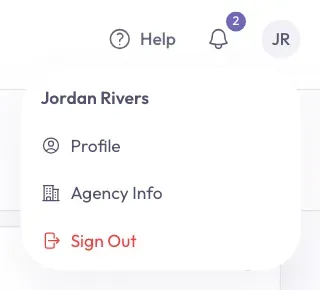
- The bell shows your notifications. A small number on the bell means you have new ones. Read Turn On Notifications And Text Alerts.
- The round circle with your initials opens a short list. It has Profile, Agency Info, and Sign Out.
The Two Menus
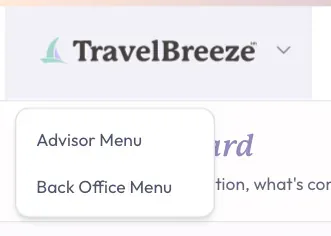
The logo at the top left corner of the page is also a button. It switches between two menus. You will only see this if your plan includes the full set of tools.
-
Click the logo at the top left corner of the page. A short list opens.
-
Click Back Office Menu to see the agency side of TravelBreeze™.
-
To go back, click the logo again and click Advisor Menu.
The Back Office Menu has these items:
- Suppliers is the list of companies your agency works with. Everyone can see this one.
- Traveler Map shows where your agency's travelers are. You'll only see this if you are an agency owner, admin, or staff member.
- Rewards is also only for an agency owner, admin, or staff member.
- Sales, Financials, Financials 2, and Team are only for an agency owner or admin.
- Agency opens a list with Settings, Preferences, and Form Studio Presets. These are also only for an agency owner or admin.
If You Are On A Phone
The menu is tucked away to save room. Tap the button with three lines at the top left of the page. The menu opens, with Help, the bell, and your initials at the bottom.
If You Do Not See A Menu Yet
Before you belong to an agency, you will only see Help and Sign Out at the top right. The menu appears after you join or create your agency.
Stuck? Click Help at any time, or email us at [email protected].