
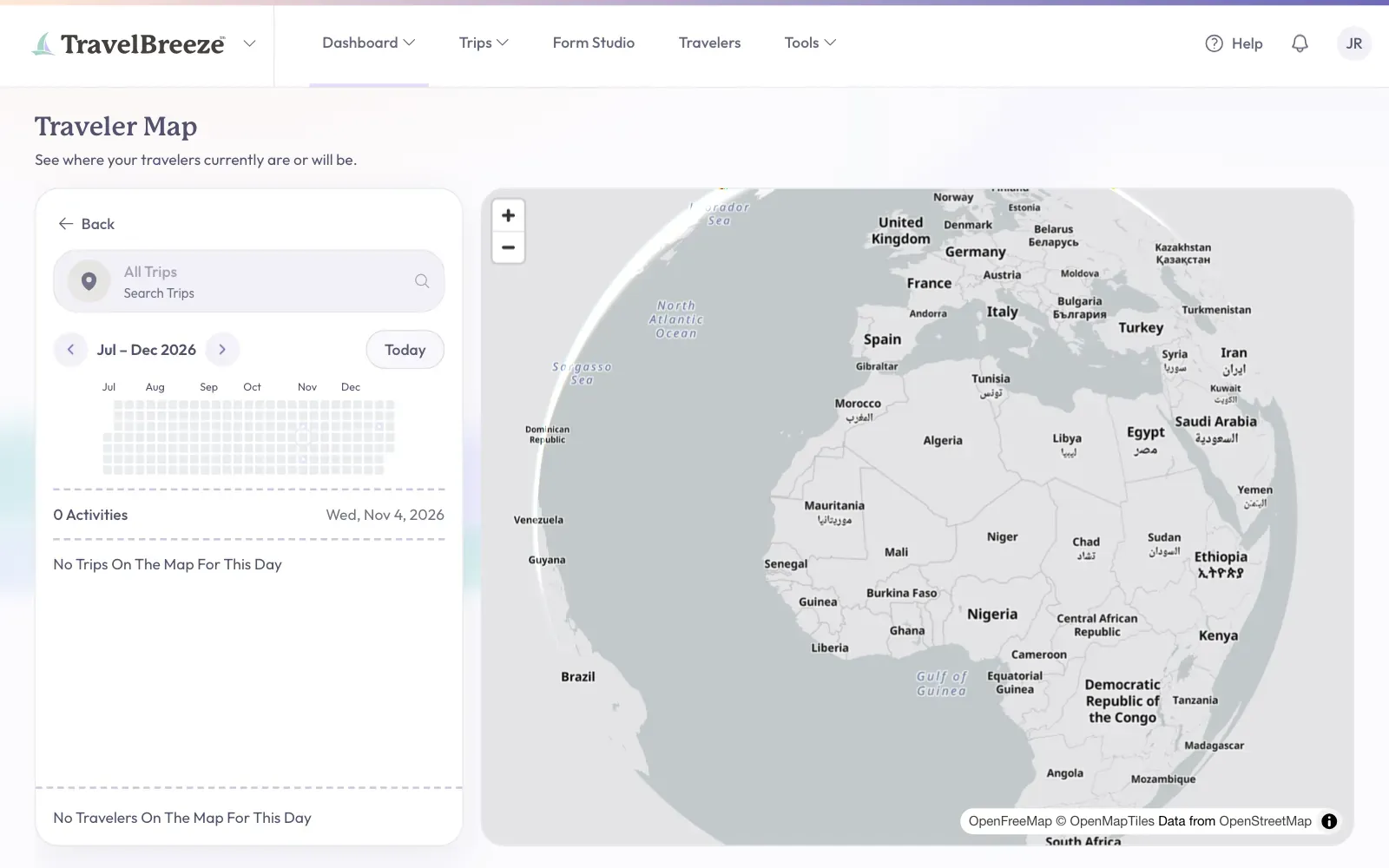
The Traveler Map shows where your travelers are, or will be, on any day. It is built from the trips you have in TravelBreeze™.
Open Your Map
-
Look at the top of the page and click Dashboard.
-
In the menu that opens, click Traveler Map.
Pick A Day
-
Find the grid of small squares on the left of the page. Each square is one day. Darker days have more travelers. Use the arrows above the grid to see other months.
-
Click a day. The map shows who is traveling that day.
-
Click a trip in the list to see it on the map. Click Select This Trip if you see it.
-
Use Previous Activity and Next Activity to move through that trip.
-
To open the trip itself, click Open Trip Workspace.
If you see No Trips On The Map For This Day, nobody has a trip with a location on that day.
See The Whole Agency
You will only see this if you are an agency owner, admin, or Staff member.
- Click Agency Map at the top of your Traveler Map page.
- Or switch to the Back Office Menu and click Traveler Map there.
Stuck? Not seeing a trip? Check that the trip has dates and activities with places in its schedule. Read Build The Trip Schedule.