
Removing a traveler takes them out of your agency's traveler list. You might do this if you created the same person twice.
Careful: There is no button to bring a removed traveler back. If you only want to stop working with someone, change their Client Status instead. Read Find And Update A Traveler.
Remove A Traveler Step By Step
-
Open the traveler you want to remove.
-
Look at the top right corner of the colored banner with their name. Click the gear button.

-
Click Remove Traveler at the bottom of the short list.
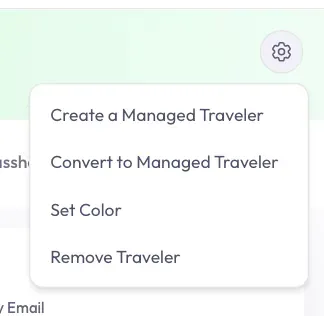
-
A small window asks if you are sure. Read the name in the window to check you have the right person.
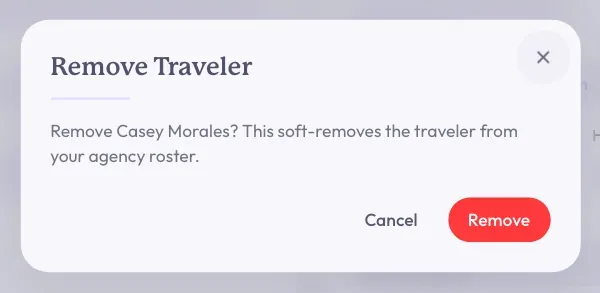
-
Click the red Remove button at the bottom right of the window.
If you change your mind in the small window, click Cancel. Nothing changes.
Good to know: The window says this "soft-removes" the traveler. That just means they leave your list. You do not need to do anything else.
What You Should See Next
A short message says the traveler was removed. You are back on the Travelers page, and the person is no longer in your list.
If TravelBreeze™ Will Not Let You
A Red Message Says This Traveler Manages Other People
This person is a manager. They look after someone else, such as a child. The message names those people. Take care of them first.
-
Open each person named in the message.
-
Click the gear button at the top right corner of their banner.
-
Click one of these:
- Change Manager to move them to a different manager.
- Promote to Independent Traveler to let them stand on their own.
- Remove Traveler to remove them too.
-
Go back to the first traveler and try again.
A Message Says You Do Not Have Permission
Advisors can usually only remove travelers they own or have been given access to. Agency owners, admins, and staff can remove any traveler in the agency. Ask one of them to help.
Stuck? Removed someone by mistake? Email us at [email protected] and tell us the traveler's name and your agency.