
Many clients book for other people, such as their children. TravelBreeze™ calls these people managed travelers. A managed traveler has their own full page, but they are listed under another traveler. That other traveler is called their manager.
Which One Do You Need?
- A managed traveler is someone looked after by another traveler, like a child or dependent. They do not need their own email address.
- A relationship is a connection between two people, like a husband and wife. Each person stays independent. Read the part called Connect Two Travelers below.
If you are not sure, a relationship is a safe place to start. You can change this later.
Create A Managed Traveler
-
Open the traveler who will be the manager. For example, open the parent's page.
-
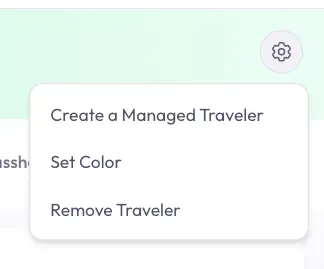
Look at the top right corner of the colored banner with their name. Click the gear button.

-
Click Create a Managed Traveler in the short list.
-
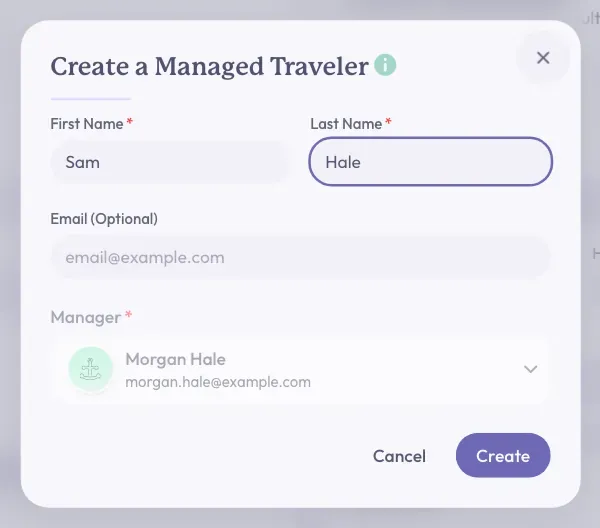
A small window opens. Type their name in the First Name and Last Name boxes.
-
The Email (Optional) box can stay empty.
-
Click the Create button at the bottom right of the window.
You should now see the new person's page. It says Managed by, followed by the manager's name, under their name. In the traveler list, they appear below their manager.
Good to know: You can also start from the Create Traveler button. Click the switch next to This Is a Managed Traveler, then choose someone in the Manager box.
Connect Two Travelers
Use this for a spouse, partner, friend, or any other connection.
-
Open one of the two travelers.
-
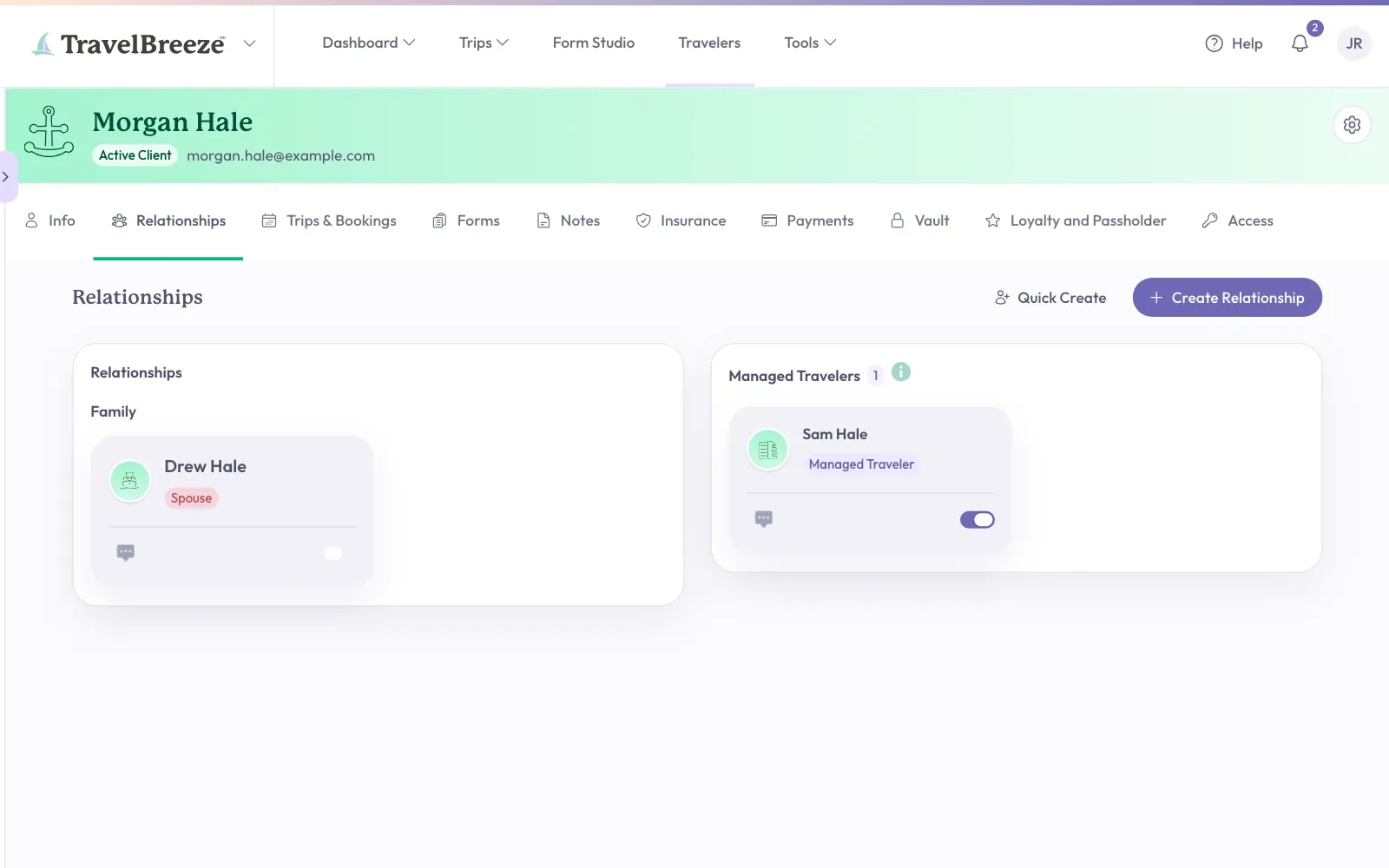
Click the Relationships tab in the row of tabs.
-
Look at the top right of the tab. Click one of these two buttons:
- Create Relationship if the other person is already in TravelBreeze™.
- Quick Create if the other person is new.
-
Choose the other person, or type their name if they are new.
-
Click the Relationship Type box and choose a word, such as Spouse or Child.
-
Click the button at the bottom right of the window. It says Create Relationship or Create & Link.
You should now see the person's name on the Relationships tab.
Good to know: The Quick Create window has a Managed Traveler switch. Turn it on to do both at once. The new person becomes both related and managed.
Make Changes Later
Open the traveler and click the gear button. What you see depends on the person.
- Convert to Managed Traveler puts this person under a manager.
- Change Manager moves a managed traveler to a different manager.
- Promote to Independent Traveler makes a managed traveler stand on their own. Click Promote to finish.
You can also see everyone a person manages on their Relationships tab. Look under Managed Travelers.
A Few Rules
- A managed traveler cannot manage anyone else.
- A traveler who already manages people cannot become managed.
- If an email address is used by another traveler in your agency, you cannot use it again. Leave the box empty.
Stuck? To remove a manager, first deal with the people they manage. Read Remove A Traveler.