
Notes help you remember the little things, like a favorite seat or a past phone call. Each note belongs to one traveler. People in your agency who can open this traveler can also see their notes.
Create A Note
-
Open the traveler.
-
Click the Notes tab in the row of tabs.
-
Click the Create Note button near the top left of the tab.
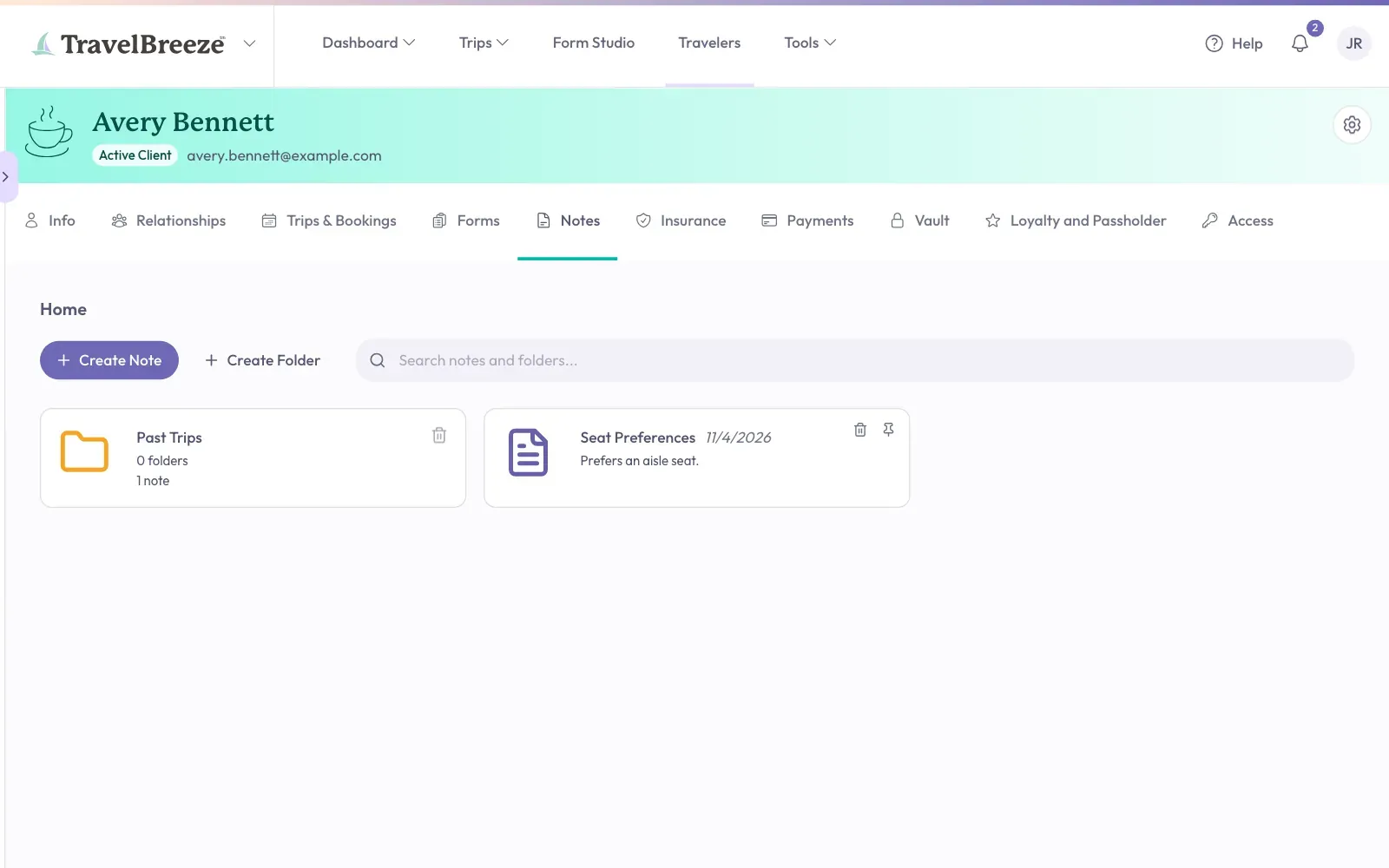
-
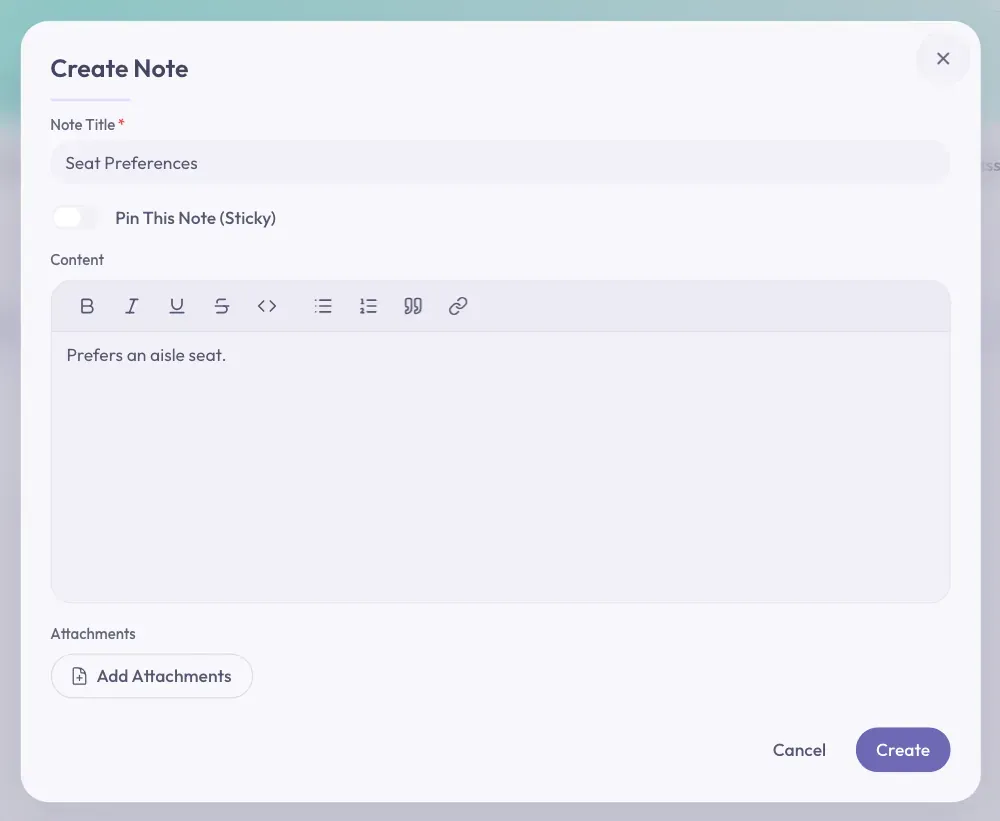
A window opens. Click inside the Note Title box and type a short title. This box is required.
-
Click inside the large box under Content and write your note.
-
To attach a file, click Add Attachments and choose the file from your computer. This is optional.
-
Click the Create button at the bottom right of the window.
You should now see your note as a small card on the Notes tab.
Read Or Update A Note
-
Click the note's card. The note opens.
-
Click the Update button at the bottom right of the window.
-
Change the writing.
-
Click the Save button at the bottom right of the window.
Good to know: You can change a note's writing, but not its title. To change a title, create a new note and remove the old one.
Pin An Important Note
A pinned note stays in a bar near the top of the traveler's page, on every tab. This is handy for things you must never forget, like an allergy.
-
Find the note's card on the Notes tab.
-
Click the small pin at the top right corner of the card. The pin turns yellow.
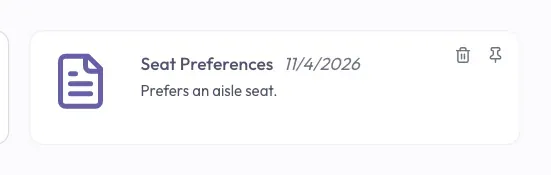
The note now shows at the top of the page. Click the pin again to unpin it.

You can also pin a new note as you write it. Click the switch next to Pin This Note (Sticky).
Keep Notes In Folders
Folders are optional. They help when a traveler has many notes.
-
Click the Create Folder button next to Create Note.
-
Type a name in the Folder Name box.
-
Click the Create button at the bottom right of the window.
-
To move a note, press and hold it with your mouse. Drag it onto the folder, then let go. A short message says the note moved.
To open a folder, click it. To go back, click Home near the top left of the tab.
Remove A Note
-
Click the small trash can at the top right corner of the note's card.
-
A small window asks if you are sure. Click the red Remove Note button.
A short message says Note removed.
Careful: A removed note cannot be brought back.
You can only remove a folder after it is empty. Move or remove its notes first. If the trash can on a folder looks gray, the folder still has something in it.
Stuck? Can't find a note? Click inside the box that says Search notes and folders... at the top right of the tab. Type a word from the note.