
Use this when you need to look someone up or change their details. For example, a client may have moved or changed their phone number.
Find A Traveler
-
Click Travelers in the main menu at the top of the page.
-
Look at the list on the left side of the page. Click inside the box that says Search travelers…
-
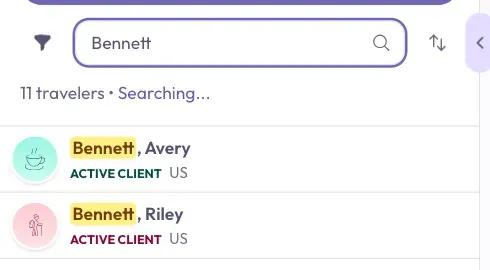
Type part of their name, email address, or phone number. The list gets shorter as you type.
-
Click the person's name in the list. Their page opens.
To Narrow The List
Two small buttons sit next to the search box.
- The funnel button, on the left, shows only some people. You can pick a status, such as VIP, or pick Managed Travelers Only.
- The arrows button, on the right, changes the order. You can pick Name (A–Z), Name (Z–A), Date Added (Newest), or Date Added (Oldest).
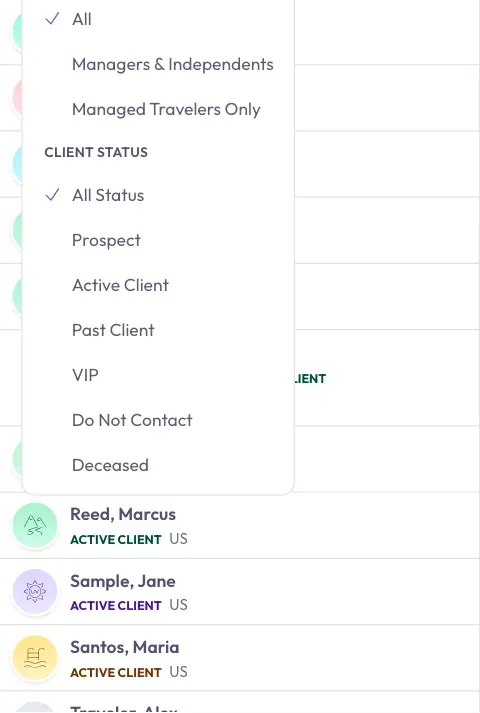
Stuck? If you see No travelers found, check the search box for a typing mistake. Then click the funnel button and pick All Status and All.
Good to know: Agency owners, admins, and staff also see an Agency View switch above the search box. Turn it on to see every traveler in your agency.
If The List Disappears
When you open a traveler on a computer, the list slides out of the way to give you more room. It has not gone anywhere.
-
Look for a small tab with an arrow on the left edge of the page.
-
Move your mouse over the tab. The list slides back.
-
To keep the list open, click the tab.

On a phone, tap Back To List at the top of the page instead.
Update A Traveler's Details
-
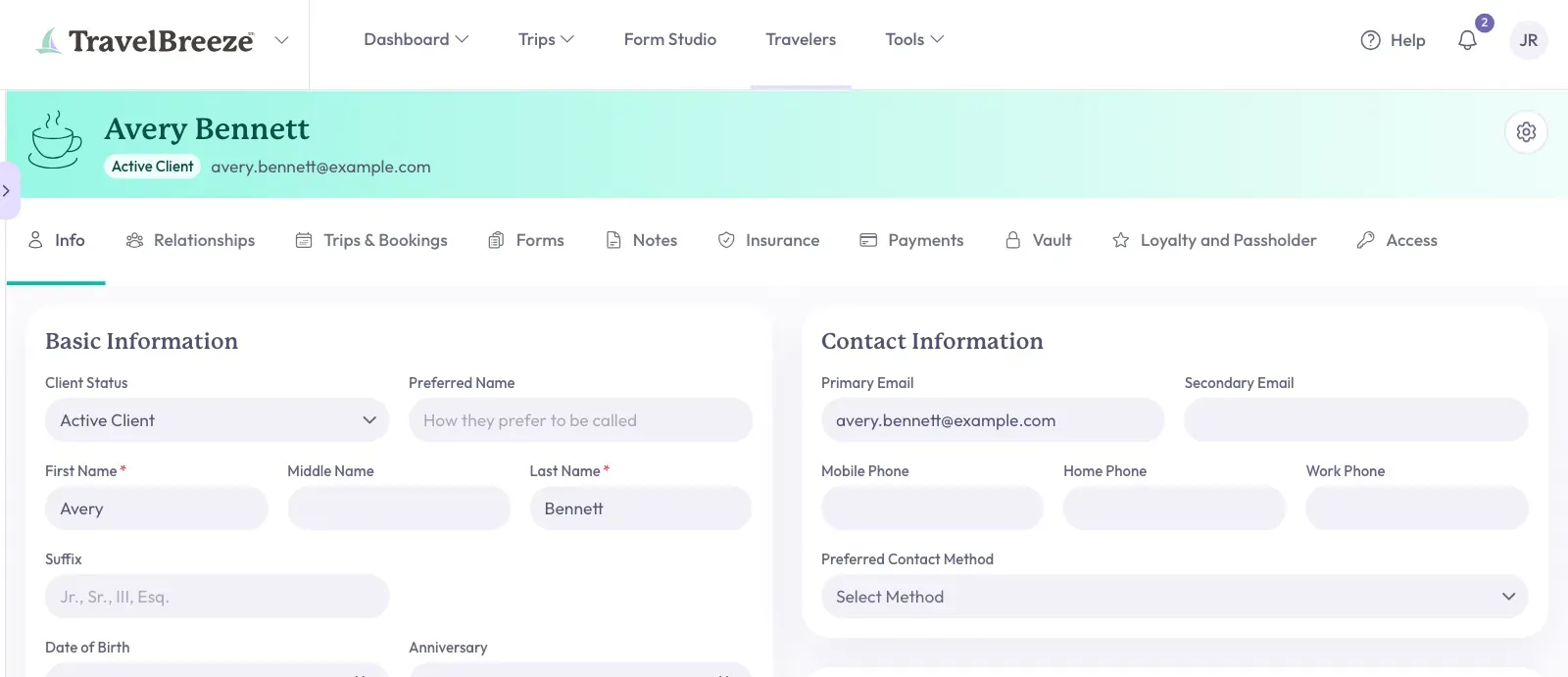
Open the traveler. Their name is at the top of the page, with a row of tabs under it.
-
Click the Info tab. It is the first tab, and it usually opens by itself.
-
Find the box you want to change. The details are grouped under titles such as Basic Information, Contact Information, and Address.
-
Click inside the box and type the new details.
-
Click on an empty part of the page. TravelBreeze™ saves your change by itself.
-
Look at the Save button at the bottom right of the page. It shows a check mark and says Saved.
You can also click Save yourself, any time you have made a change. Clicking Reset at the bottom left undoes changes that have not saved yet.
Careful: First Name and Last Name are required. If one of those boxes is empty, your changes will not save.
Change Their Status
Status tells you where a person stands with you. Find Client Status at the top of Basic Information, click it, and choose one:
- Prospect is a possible client. Every new traveler starts here.
- Active Client is someone you are working with.
- Past Client is someone you have worked with before.
- VIP is an important client.
- Do Not Contact is someone who should not be contacted.
- Deceased is someone who has passed away.
Good to know: When you add a traveler to a trip, their status changes to Active Client by itself. Do Not Contact and Deceased stay as they are.
The Other Tabs
The row of tabs holds everything else about this person. Click a tab to see that part. The tabs are Info, Relationships, Trips & Bookings, Forms, Notes, Insurance, Payments, Vault, Loyalty and Passholder, and Access.
To learn more, read Keep Notes On A Traveler.
Stuck? If a message says you do not have permission, the traveler may belong to another advisor. Ask them or your agency admin for help.