
The Schedule tab is a calendar for one trip. It shows the plans, bookings, tasks, and payments in one place, so you can see each day at a glance.
An activity is one item on that calendar, such as a dinner, a tour, or a hotel check-in.
Open The Schedule
Open the trip. Look at the row of tabs under the trip name and click Schedule. You will see one of three things.
- Set Up The Trip Schedule means the trip has no dates and nothing scheduled yet.
- Your Schedule Is Ready means the trip has dates, but nothing is scheduled yet.
- A calendar means something is already scheduled.
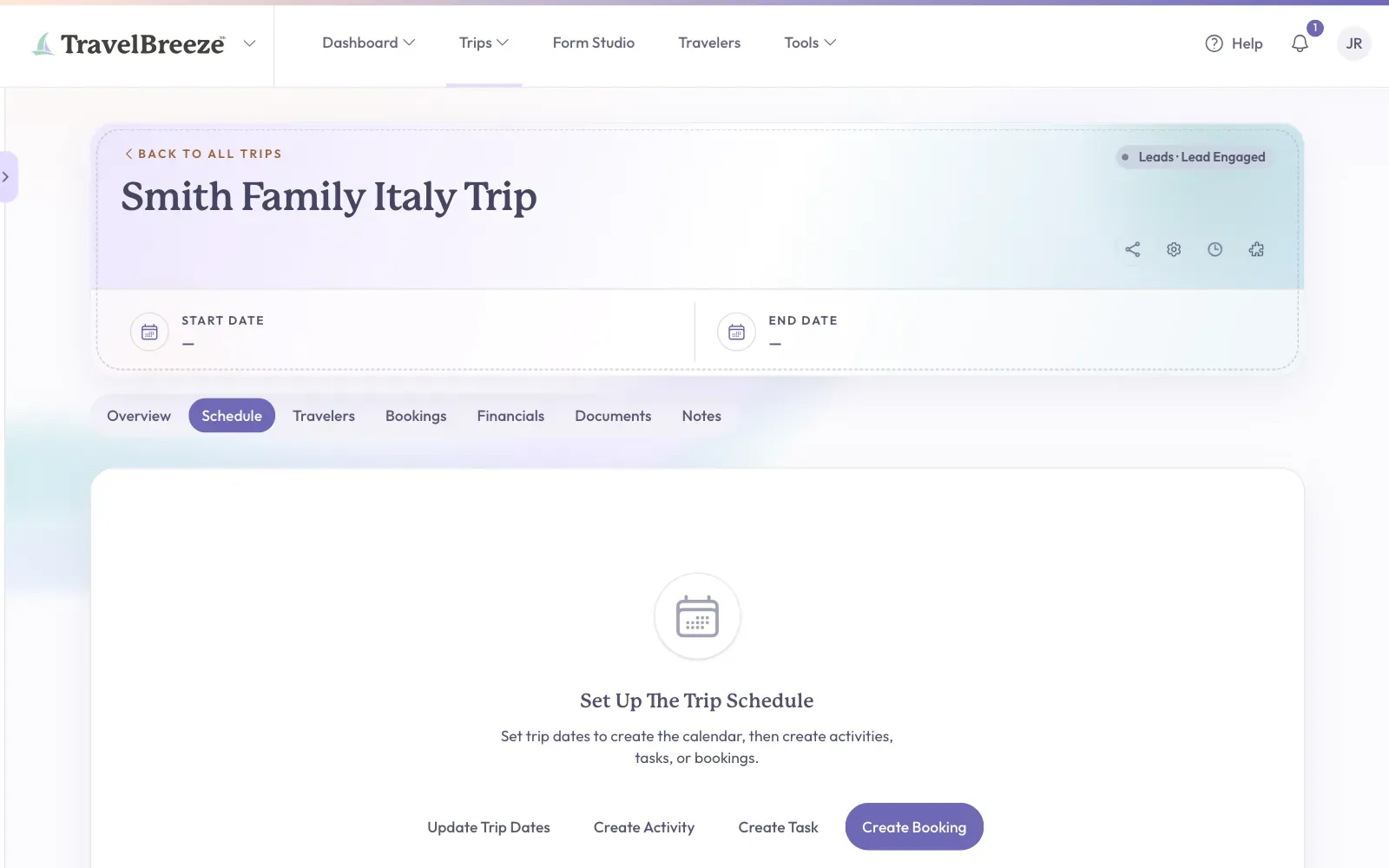
Good to know: You can set the trip dates from here. On the Set Up The Trip Schedule message, click Update Trip Dates. Choose the dates, then click Save Settings.
Create An Activity
-
On the Schedule tab, find the way to start.
- If you see a message, click Create Activity.
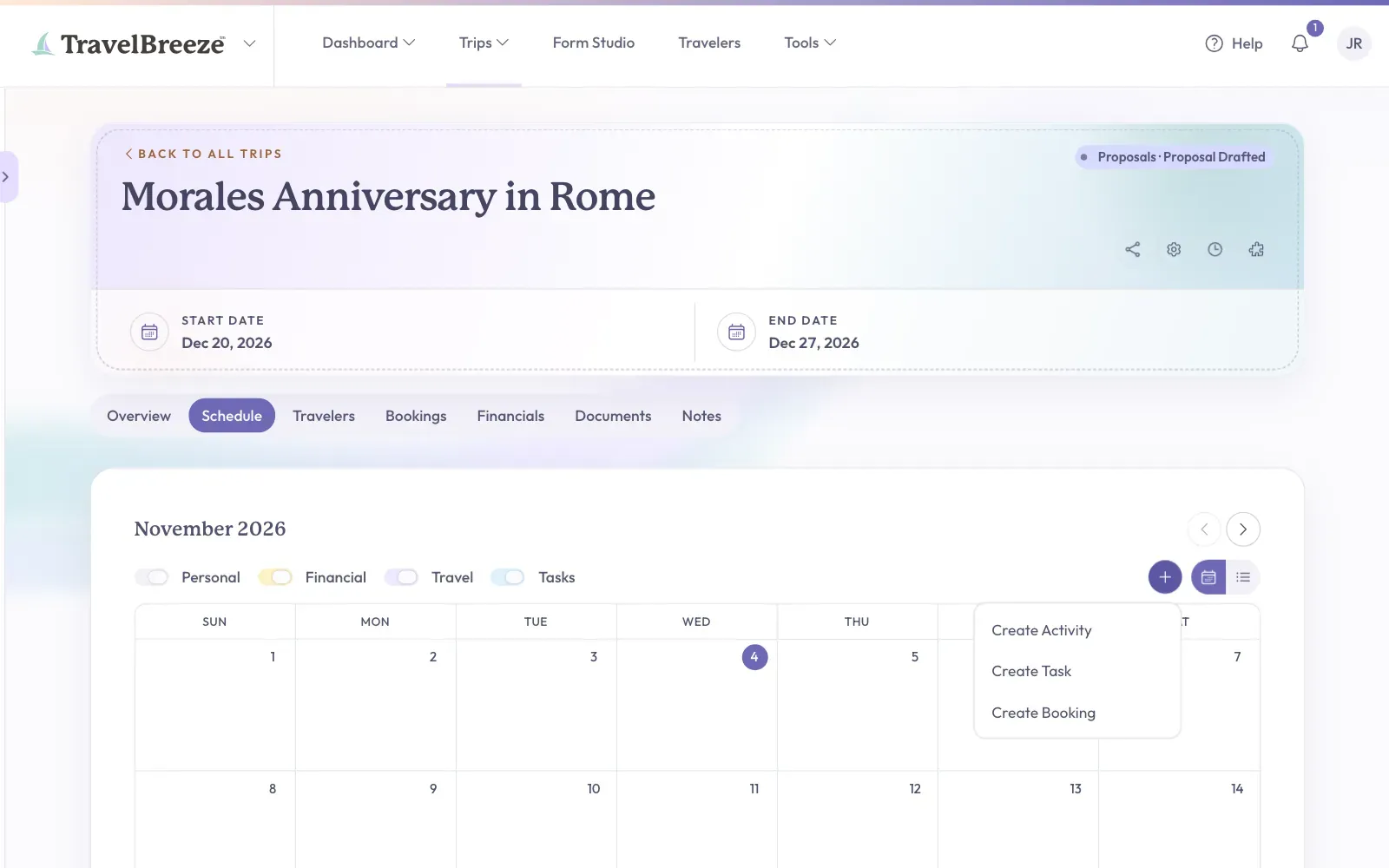
- If you see a calendar, click the small plus button at the top of the calendar. Then click Create Activity.
-
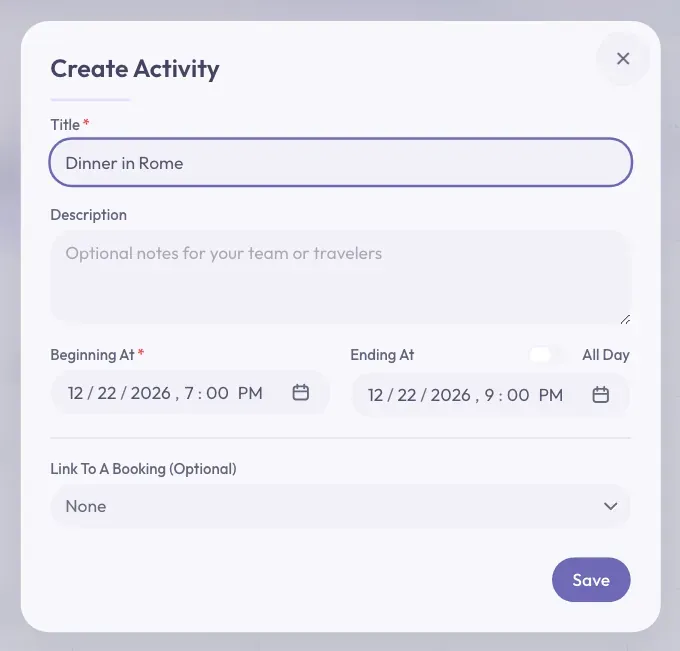
A window called Create Activity opens. Click the Title box and type a short name. For example, "Dinner in Rome".
-
The Description box is optional. Use it for extra details.
-
Click the Beginning At box. Choose the date and time it starts.
-
If you know when it ends, click the Ending At box and choose that too.
-
Click Save at the bottom right of the window.
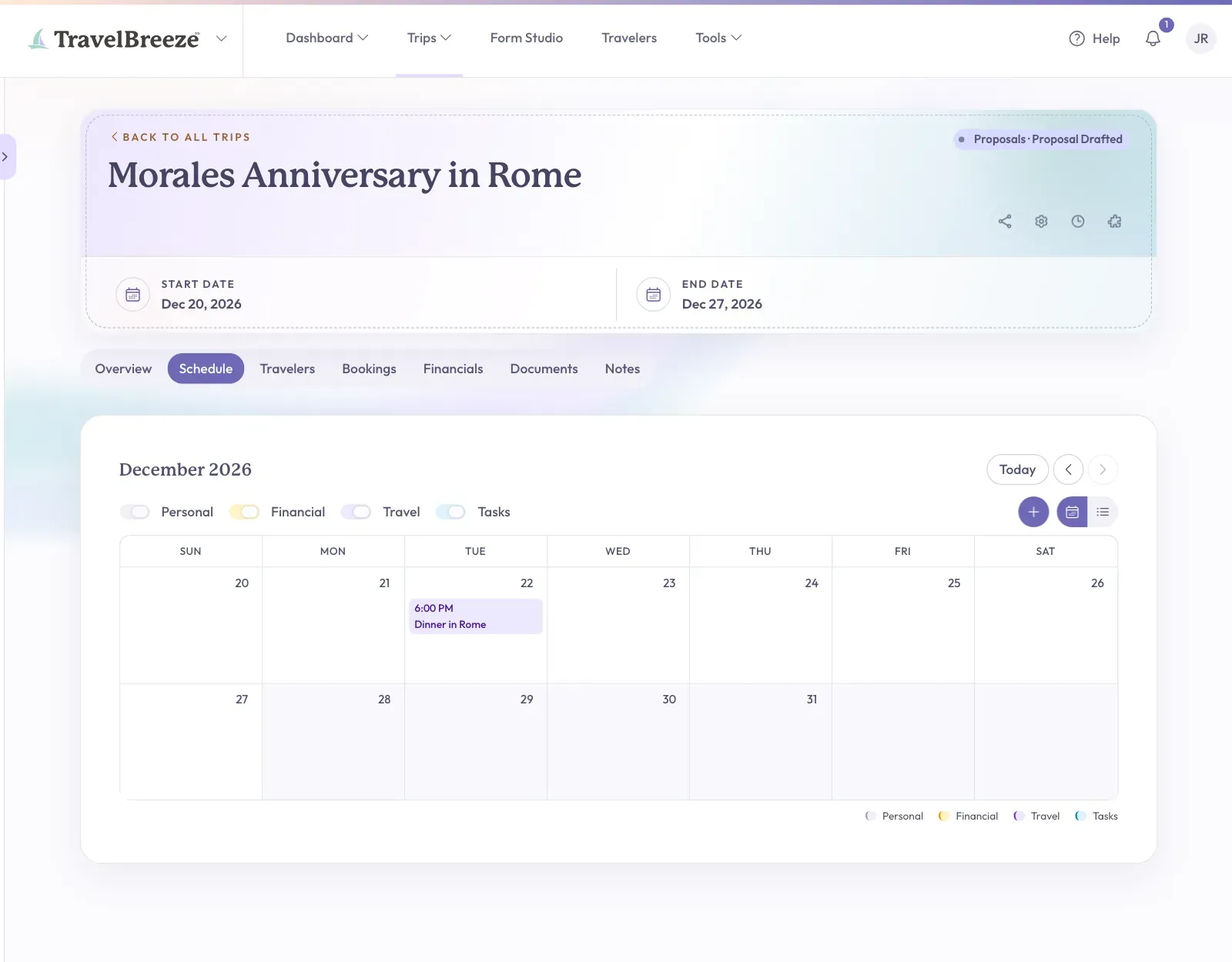
You will see a short message that says "Activity created". The activity now shows on the calendar.
Good to know: For something that lasts the whole day, turn on the All Day switch above Ending At. You then pick a date with no times.
Good to know: If this activity is part of a booking, choose that booking in Link To A Booking (Optional).
Careful: Activities and their descriptions show on the trip page you share with your traveler. Do not put private notes in Description. An activity linked to a draft booking stays hidden from them.
Stuck? If you see "Title is required.", type a title. Beginning At is required too. If you choose Ending At, it must be after Beginning At.
Change Or Remove An Activity
-
On the calendar, click the activity. A window called Update Activity opens.
-
To change it, make your changes and click Save. You will see "Activity saved".
-
To remove it, click Remove at the bottom left of the window.
-
Your web browser asks "Remove this activity?". Click OK.
You will see "Activity removed", and it leaves the calendar.
Read The Calendar
The calendar shows more than activities. Above the calendar are switches you can turn on and off:
- Personal: birthdays, anniversaries, and other special dates for travelers on this trip.
- Financial: payments that are due or paid.
- Travel: activities and bookings.
- Tasks: your to-do items for this trip.
Clicking an item does different things, depending on what it is:
- An activity opens Update Activity.
- A task opens its details.
- A booking takes you to the Bookings tab.
- A payment opens its invoice.
- A personal date opens the traveler's profile.
Good to know: Bookings can create activities too. When you make a booking, the activities you enter there also show here. See Create A Booking.
Stuck? Cannot find something on the calendar? Use the arrows at the top to change the month. Items with no date do not appear. Insurance bookings and cancelled bookings do not appear either.