
The Travel Pipeline is a board that shows all your trips, sorted by where they stand. Moving a trip across the board helps you see what needs your attention next.
Open The Board
-
Click Trips in the menu at the top of the page.
-
Click Travel Pipeline.
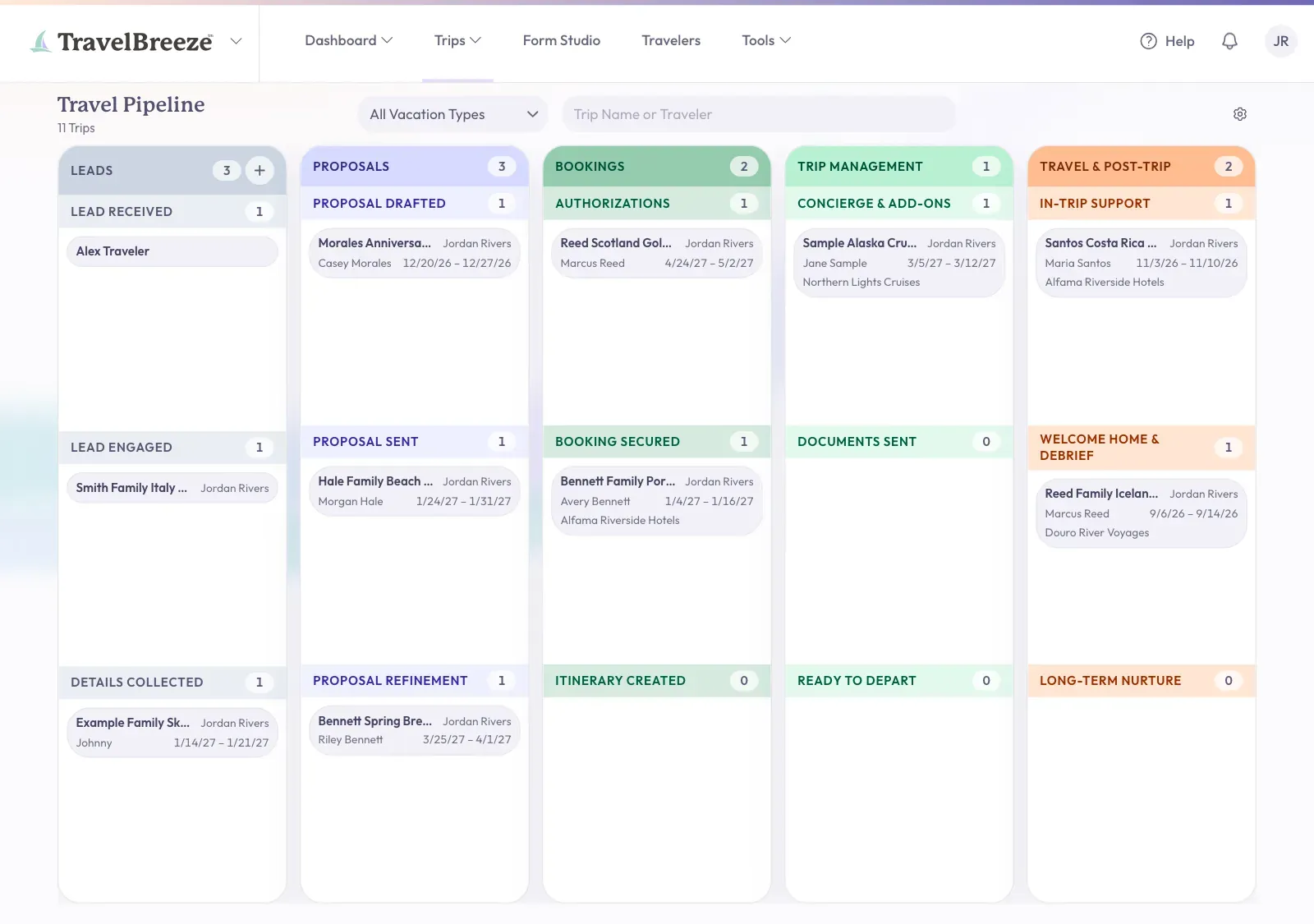
You should now see the words Travel Pipeline at the top left, with five columns below. Each small box in a column is called a card. One card is one trip.
What The Columns Mean
Each column is a big stage. Each column is split into three smaller steps.
- Leads: Lead Received, Lead Engaged, Details Collected.
- Proposals: Proposal Drafted, Proposal Sent, Proposal Refinement.
- Bookings: Authorizations, Booking Secured, Itinerary Created.
- Trip Management: Concierge & Add-Ons, Documents Sent, Ready To Depart.
- Travel & Post-Trip: In-Trip Support, Welcome Home & Debrief, Long-Term Nurture.
Every new trip starts in Leads, under Lead Received.
Good to know: You cannot rename the columns or steps. They are the same for everyone in your agency.
Move A Trip By Dragging It
This works on a computer with a large screen.
-
Find the trip's card on the board.
-
Click and hold the card with your mouse.
-
Keep holding, and move the card to the step you want. Dashed lines show where it can go.
-
Let go of the mouse button.
The card stays in its new place. If it jumps back, you will see a message that says "Could not update process stage". Try again, or use the steps below.
Stuck? Cannot drag a card? Look under the words Travel Pipeline. If you see Clear Filters To Reorder, empty the search box. Then set the vacation type back to All Vacation Types. In Agency View, also set Primary Advisor back to All Advisors.
Move A Trip Without Dragging
This is the easiest way on a phone or a small screen.
-
Click the trip's card. A panel slides in from the right side of the screen.
-
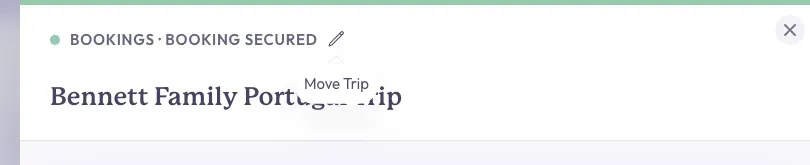
Look at the top of the panel, above the trip name. You will see the stage, such as "Leads · Lead Received". Click the small pencil next to it.
-
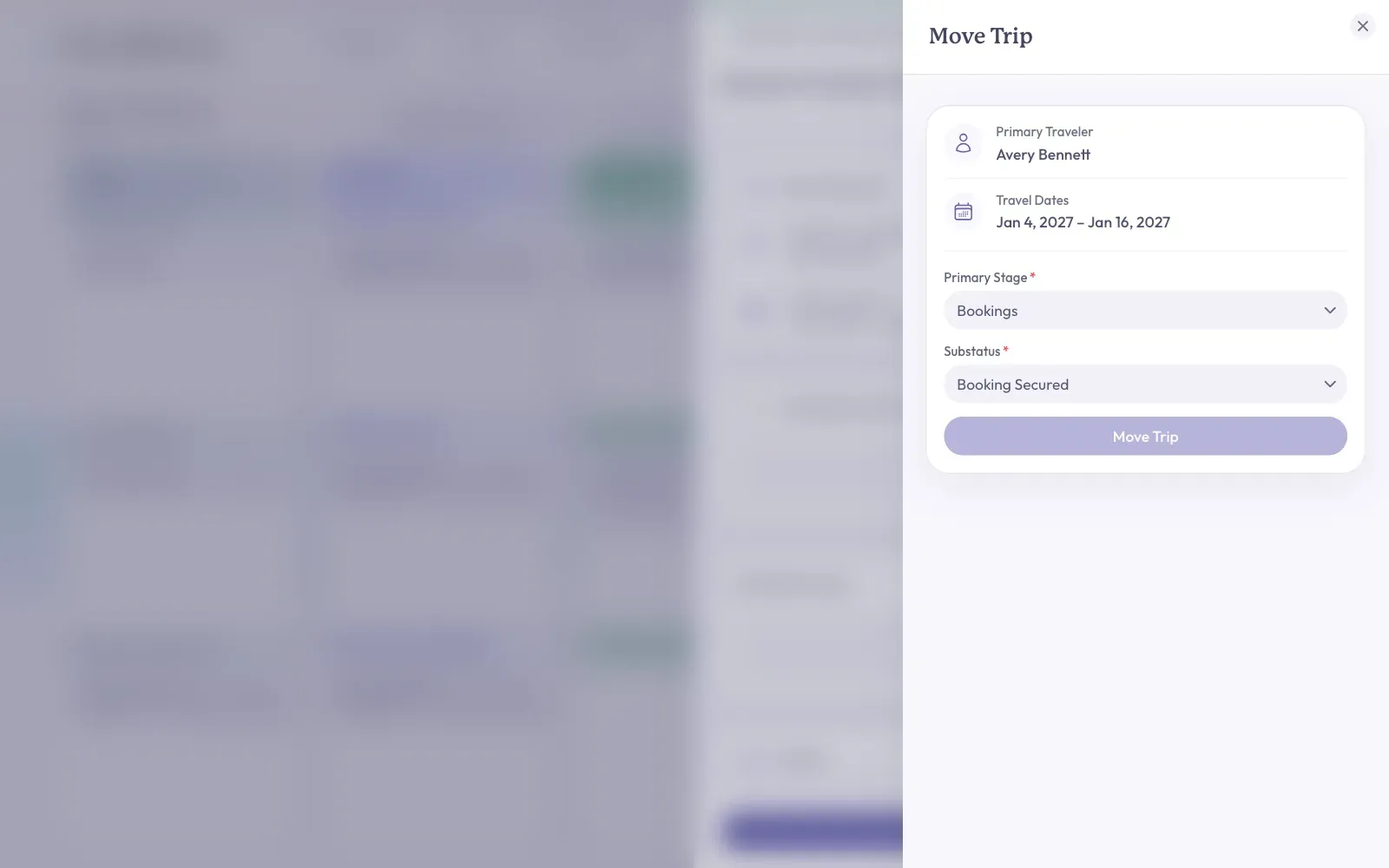
A second panel called Move Trip opens. Click Primary Stage and choose the column.
-
Click Substatus and choose the step.
-
Click the Move Trip button.
The button shows a check mark and says Saved. Your trip is now in its new place.
Good to know: You can only move a trip if you have permission to change it.
Good to know: You can also change this from the trip page. Click the gear button under the trip name. Then change Status and Substatus, and click Save Settings.
Create A New Lead
A lead is someone who might book a trip with you. This is a quick way to create a trip and a traveler at the same time.
-
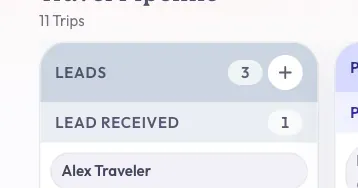
Find the Leads column on the far left of the board.
-
Click the small plus button at the top right of that column. Its label is Add Lead.
-
A window called New Lead opens. If the person is already in TravelBreeze™, choose them under Traveler.
-
If they are new, type their First Name and Last Name.
-
Click Create Lead at the bottom right of the window.
You will see a short message that says "Lead Created". A new card appears under Lead Received, showing the traveler's name.
Look Inside A Trip Card
Click any card to open a panel about that trip. You do not leave the board. The panel shows:
- Trip Overview: the primary traveler, the type of trip, and travel dates once the trip is past Leads.
- Communications: a record of your emails, texts, and social messages with this client.
- Booking Holds: anything you are holding with a supplier, and when the hold ends.
- Quote Form URL: a link you can send so the client can share what they want. You only see this while the form is waiting to be filled in.
- Notes: your notes about the trip.
To see the full trip, click Open Trip Workspace at the bottom of the panel.
Find A Trip On The Board
Use the two boxes at the top of the board. On a phone, they are under the gear button.
- Type in the Trip Name or Traveler box to search.
- Use the box showing All Vacation Types to see only one kind of trip.
Good to know: Are you an owner, admin, or staff member? The gear button at the top right also has Agency View. Turn it on to see trips across your agency.
Stuck? Canceled and archived trips do not appear on this board. Look for them under All Trips. See Create A Trip.