
Linking a traveler tells TravelBreeze™ who is going on this trip. The traveler then appears on the trip page, and you can choose them when you create a booking.
Link Someone Who Is Already In TravelBreeze™
-
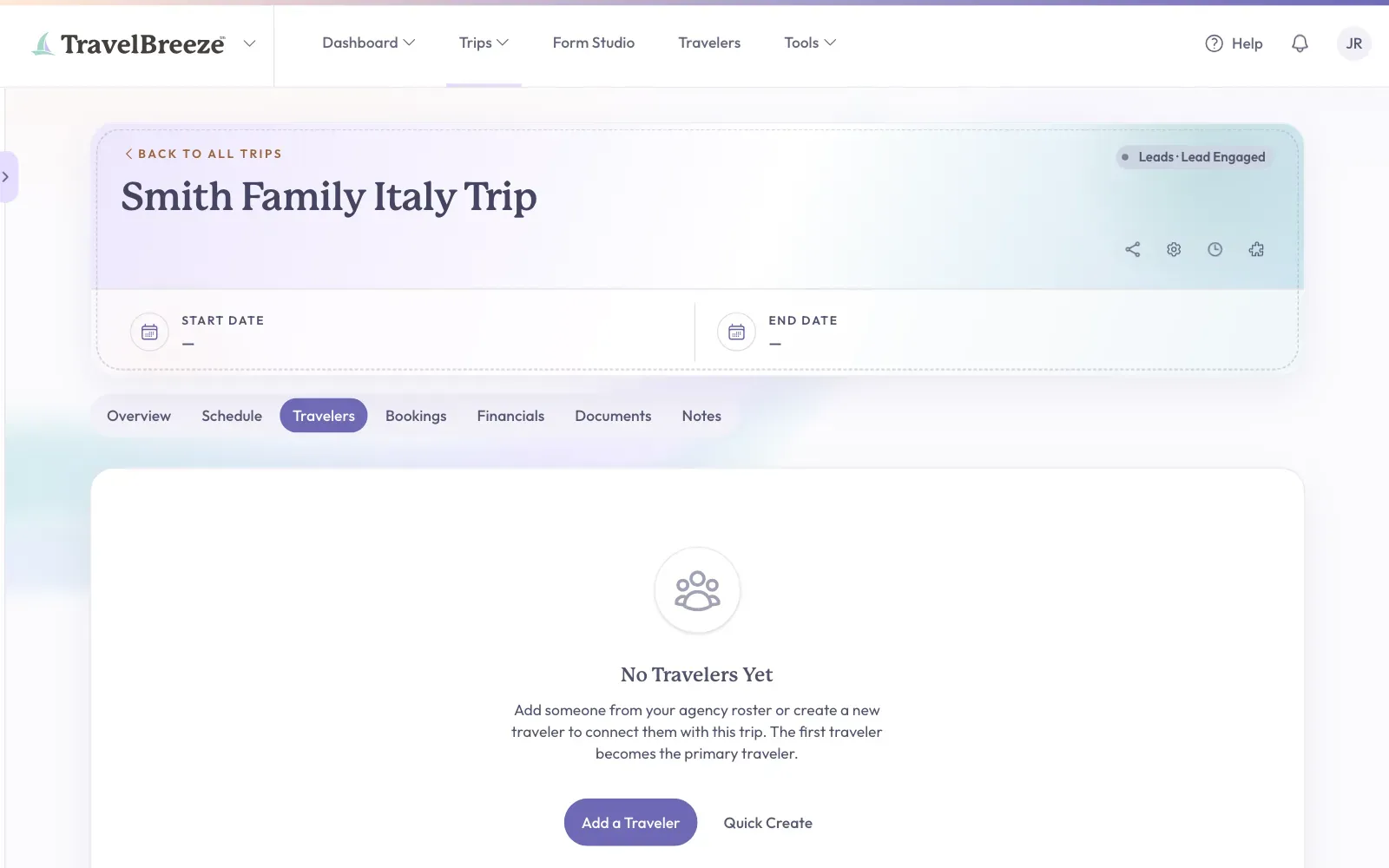
Open the trip. Look at the row of tabs under the trip name and click Travelers.
-
Click the Add a Traveler button. On a trip with no travelers, it is in the middle of the page. Otherwise, it is at the top right of the Trip Travelers card.
-
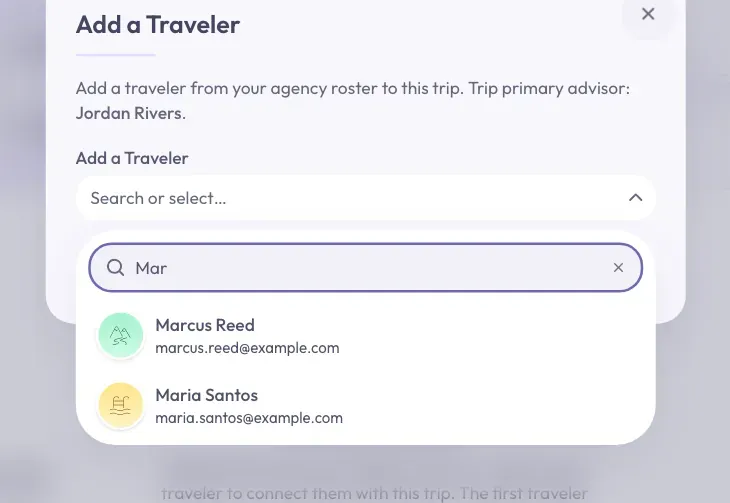
A window opens. Click the box labeled Add a Traveler.
-
Type part of the person's name in the Search travelers… box.
-
Click the person's name in the list.
-
Click Link To Trip at the bottom right of the window.
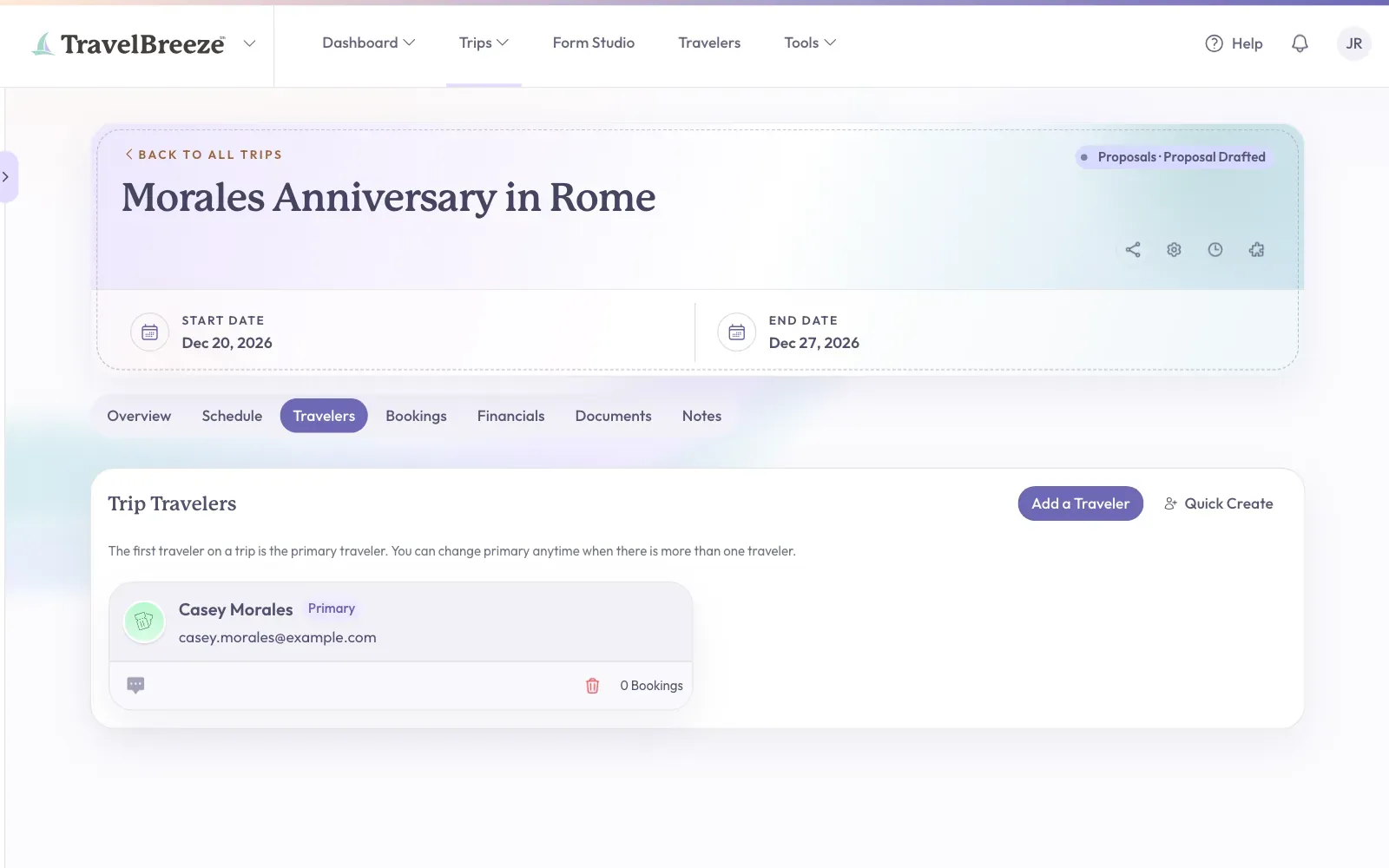
You will see a short message that says "Traveler linked to trip". The person now has a card on the page.
Good to know: If two travelers share the same name, a Confirm traveler window asks you to check. Click Yes, link to trip if you chose the right one. Click No, go back if you did not.
Stuck? If you are an advisor, the list shows your own travelers. Owners, admins, and staff see all the travelers in the agency. If someone is missing, create them with the steps below.
Create A New Traveler From The Trip
Use this when the person is not in TravelBreeze™ yet. If you see No Agency Travelers Available, this is the way to start.
-
On the Travelers tab, click Quick Create. It sits next to Add a Traveler.
-
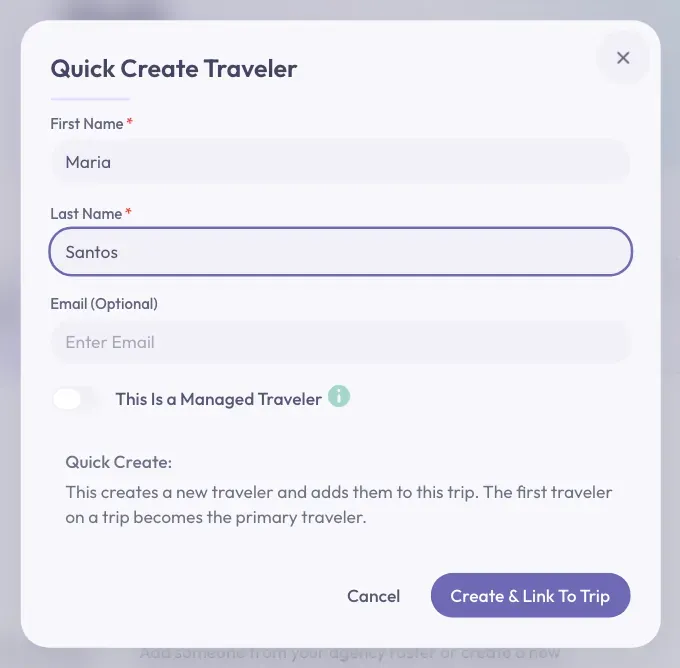
A window called Quick Create Traveler opens. Type the person's name in First Name and Last Name. Both are required.
-
If you have their email address, type it in Email (Optional).
-
Click Create & Link To Trip at the bottom right of the window.
The new traveler now has a card on the trip.
Good to know: This Is a Managed Traveler is for someone looked after by another traveler, such as a child or dependent. Leave this switch alone if you are not sure.
Choose The Primary Traveler
The primary traveler is the main person on the trip. The first traveler you link becomes the primary traveler, and their card shows Primary.
You can change this when a trip has more than one traveler.
-
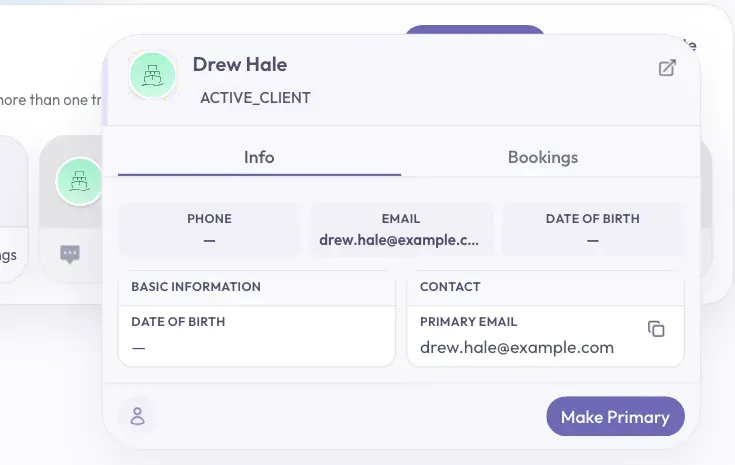
Find the card of the person you want. Look at the bottom left corner of the card for the small speech bubble icon.
-
Point your mouse at that icon. A small box with their details opens.
-
Click Make Primary at the bottom of that box.
You will see a short message that says "Primary traveler updated". The Primary label moves to this person's card.
Take Someone Off A Trip
-
Find the person's card on the Travelers tab.
-
Look at the bottom right corner of the card and click the trash can icon.
-
A window called Remove Traveler asks if you are sure. Click Remove From Trip.
The traveler is off this trip, but they stay in your list of travelers.
Stuck? No trash can icon? That means the person is on a booking. The card shows how many, such as 1 Booking. Take them off that booking first, then come back. See Update Or Cancel A Booking.