
A task is a to-do item with a date, such as "Call about the hotel" or "Send the final documents". Tasks help you remember what needs doing, and when. Your travelers never see them.
Create A Task
-
Open the trip. Stay on the Overview tab, which opens first.
-
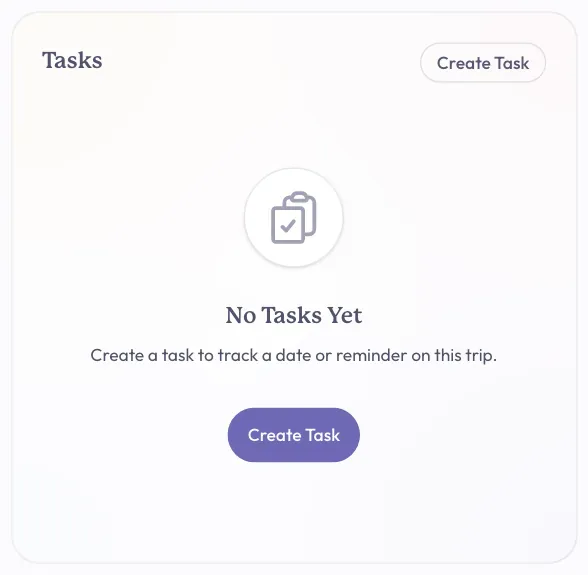
Find the Tasks card on the right side of the page. Click Create Task.
-
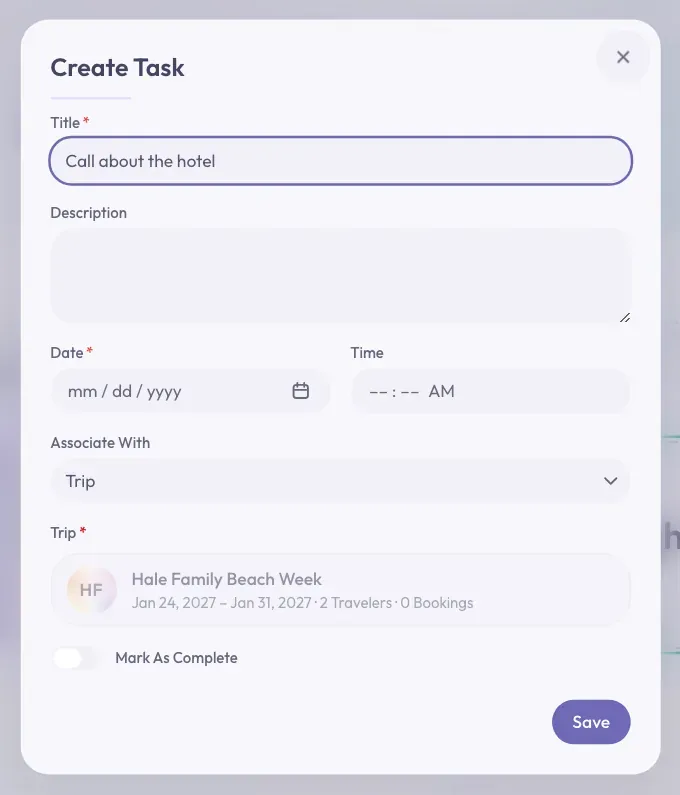
A window called Create Task opens. Click the Title box and type what needs doing.
-
The Description box is optional. Use it for extra details.
-
Click the Date box and choose the day it is due. A Time is optional.
-
Look at Associate With. It is already set to Trip, with this trip chosen. You can leave it.
-
Click Save at the bottom right of the window.
You will see a short message that says "Task created". The task now shows on the Tasks card.
Good to know: You can change Associate With to Booking or Traveler. Then the task belongs to that booking or person on this trip. Choose Nothing if it does not belong to anything.
Stuck? If you see "Title is required." or "Date is required.", fill in that box and click Save again.
Mark A Task As Complete
-
On the Tasks card, click the task. A window called Update Task opens.
-
Click the Mark As Complete switch to turn it on.
-
Click Save.
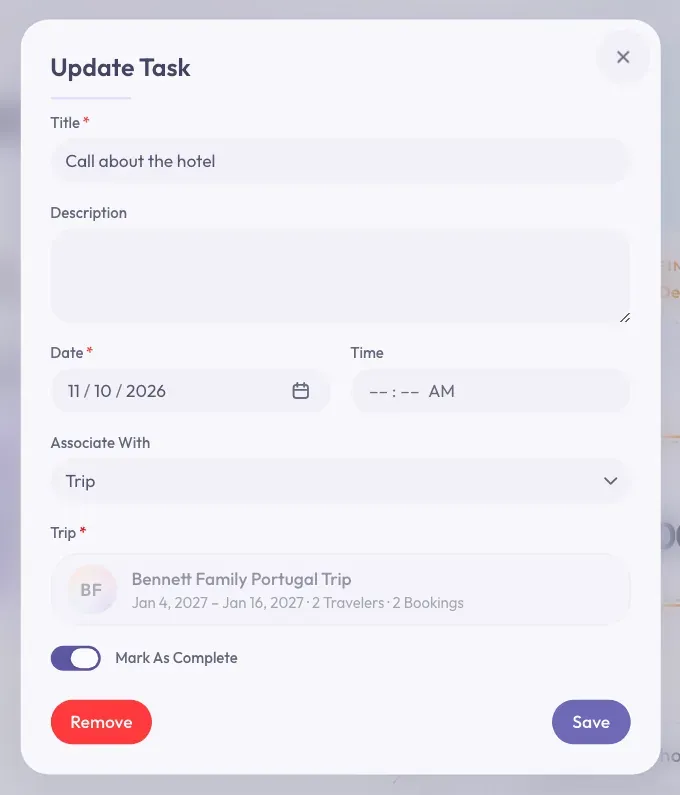
The task now has a line through it. It stays on the trip so you can see what was done.
Good to know: There is another way from the calendar. On the Schedule tab, click the task. In the window that opens, click Mark As Complete.
Change Or Remove A Task
-
On the Tasks card, click the task to open Update Task.
-
To change it, make your changes and click Save.
-
To remove it, click Remove at the bottom left of the window.
-
A window called Remove This Task? asks if you are sure. Click Remove.
You will see a short message that says "Task removed".
Where Else Your Tasks Show Up
- Schedule tab: Tasks show on the trip's calendar. Turn on the Tasks switch if you do not see them. You can also create one with the plus button above the calendar.
- My Calendar: Click Dashboard at the top of the page, then My Calendar. Your tasks show there too.
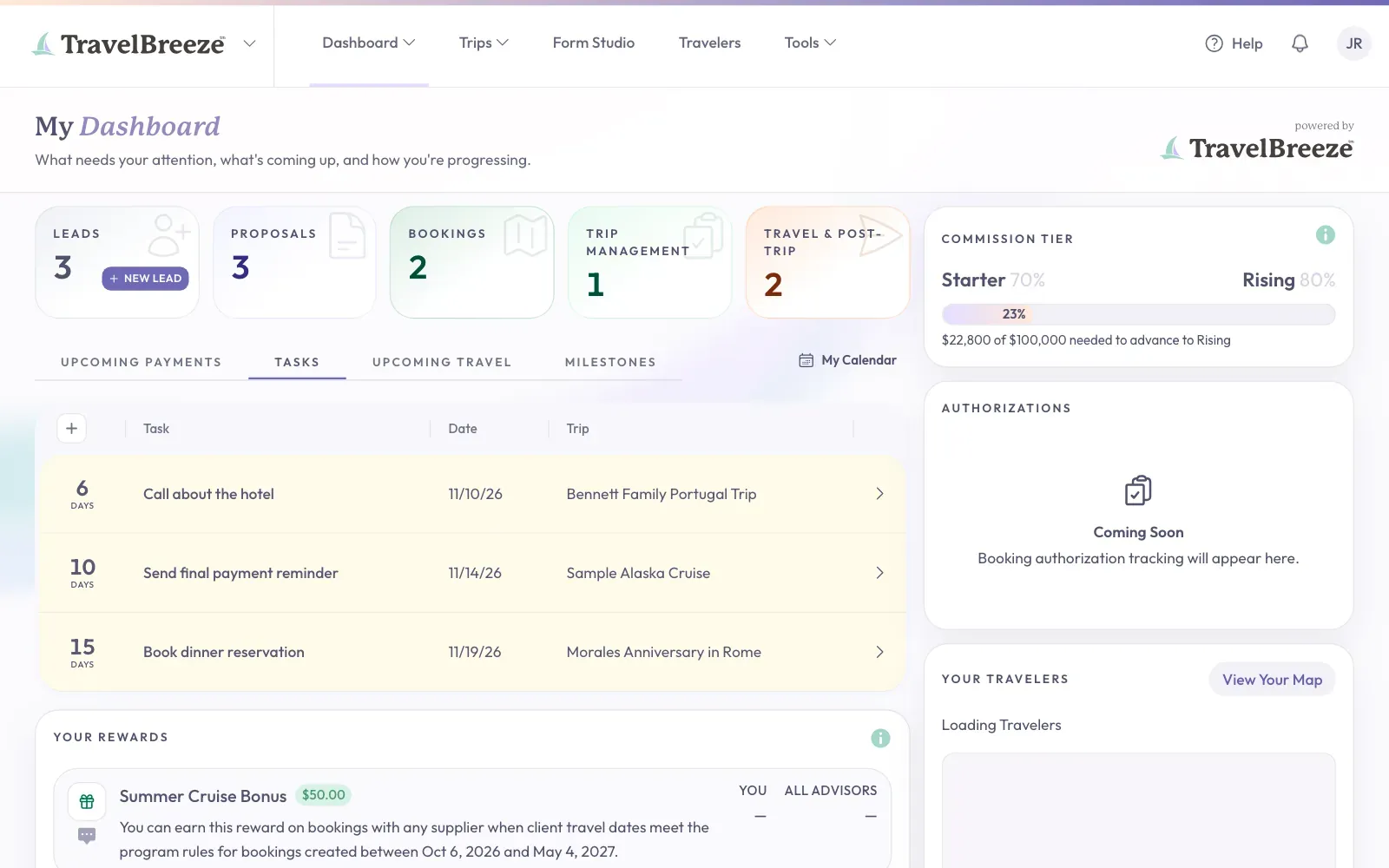
- My Dashboard: The Tasks tab lists what is coming up. Completed tasks drop off this list.
Good to know: You can create a task on a trip only if you have permission to change that trip.