
Every trip can have its own private page for your traveler. It shows their schedule, bookings, payments, and documents, so they do not need to call you to check a date.
Your traveler needs two things to open it: a link and a password. Both come from the trip page.
Get The Link And Password
-
Open the trip.
-
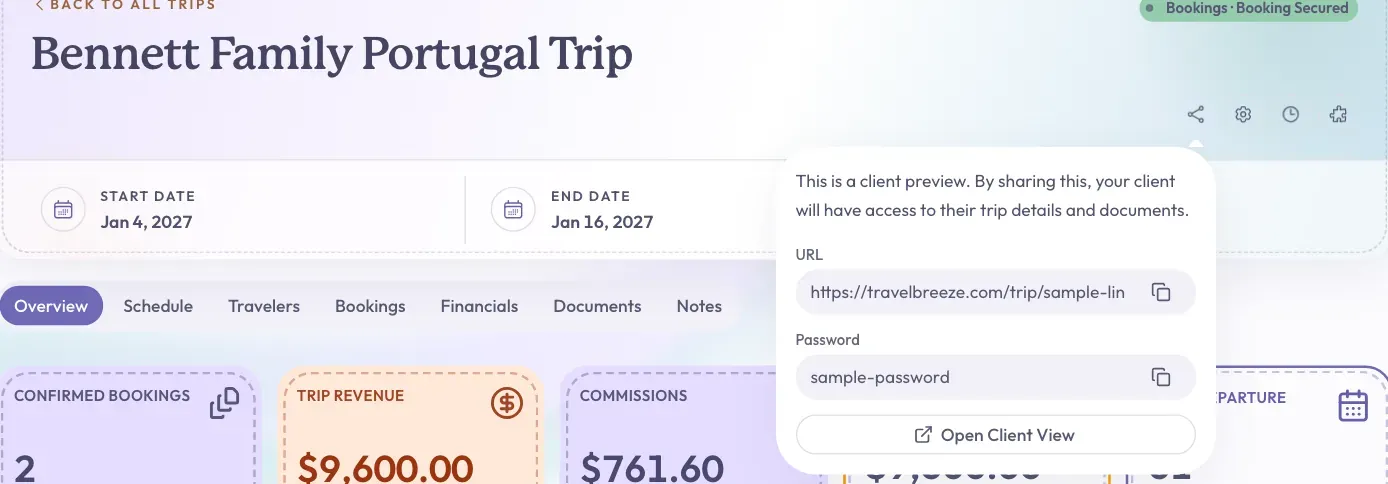
Look under the trip name, on the right side. Point your mouse at the share button, or click it. The button shows three dots joined by lines. Its label is "Share Client Trip Summary".
-
A small box opens with a URL and a Password. The URL is the link to the page. Move your mouse into this box to keep it open.
-
To check the page yourself first, click Open Client View. It opens in a new tab.
Send It To Your Traveler
-
Find the small copy button at the end of the URL box. Click it. You will see "URL copied to clipboard".
-
Go to your email and start a new message to your traveler.
-
Paste the link into your message. To paste, hold Ctrl and press V. On a Mac, hold Command and press V.
-
Go back to TravelBreeze™ and click the copy button at the end of the Password box.
-
Paste the password into your message, then send it.
Good to know: Nothing goes to your traveler by itself. They only get the page when you send them the link and password.
Careful: Check the page before you send it. Your traveler can see the trip name, dates, and the Notes from Trip Settings. Open Trip Settings with the gear button if you need to change those.
What Your Traveler Sees
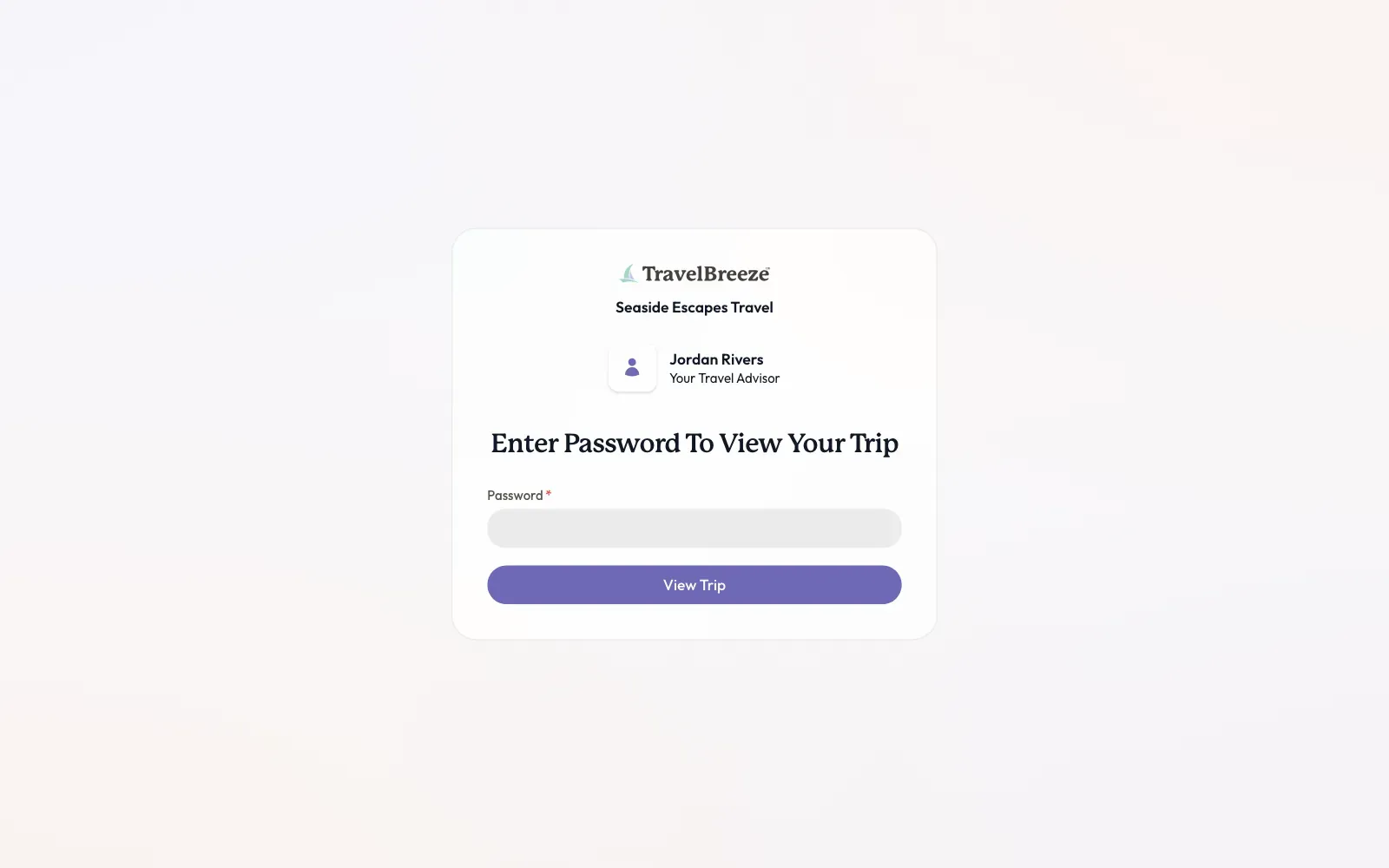
Your traveler clicks the link and sees Enter Password To View Your Trip. They type the password and click View Trip.
Their page then has these tabs:
- Overview: the main trip details.
- Itinerary: their dated activities. This shows only when there are some.
- Schedule: a calendar they can read but not change.
- Bookings: their booking details.
- Payments: what is due and what is paid.
- Documents: files you chose to share. This shows only when there are some.
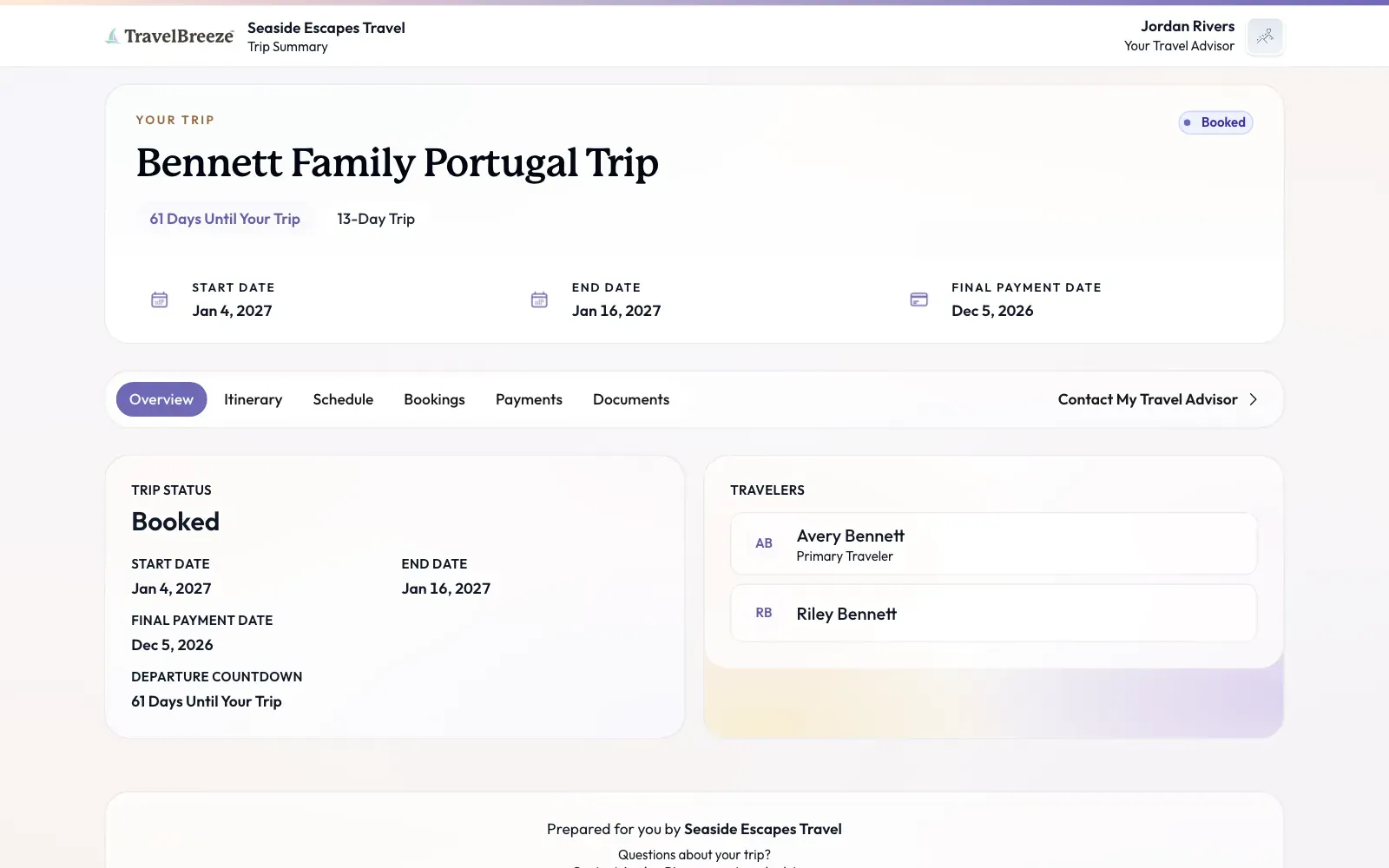
They can also click Contact My Travel Advisor to send you a message.
They do not see your commission, your tasks, or the trip's activity log. Draft and demo bookings stay hidden from them too. Your email address stays hidden as well.
Good to know: Documents stay hidden until you set Traveler Can View to Yes on each one. See Upload Documents To A Trip.
Choose The Status Your Traveler Sees
The page shows your traveler a status label at the top. You can choose what it says.
-
Click the gear button under the trip name.
-
On the Details tab, click Public Trip Status and choose a status.
-
Click Save Settings at the bottom right of the panel.
Careful: There is no button to turn a shared page off, and the password cannot be changed. If you sent it to the wrong person, email us at [email protected].
Stuck? Your traveler may see "Incorrect password". Ask them to copy and paste it instead of typing it. After too many tries they will see "Too many attempts. Please try again later." They should wait 15 minutes. If they come back after 30 days, they will need the password again.