
Your plan decides which parts of TravelBreeze™ you can use. Here is what each plan includes, and how to change yours today.
What Each Plan Includes
- Free includes your advisor profile, a listing in our advisor directory, short links, and write-offs. This is what every new account starts on.
- Pro includes everything in Free. It also adds your dashboard, trips, travelers, forms, and commission tracking.
If You Want To Change Your Plan
Right now, there is no page where you can change your plan by yourself. This includes moving up to Pro, moving down to Free, and canceling. Please email us at [email protected]. Tell us your name, your agency, and the plan you want.
Good to know: Some buttons look like they should change your plan. These include Get started with Pro on our pricing page, and Manage Subscription on the agency settings page. For now, these bring you back to your home page. You have not done anything wrong.
There are two exceptions, explained below. One is for advisors who get a special message. The other is for agencies that pay for their advisors.
If Your Agency Recommends Pro
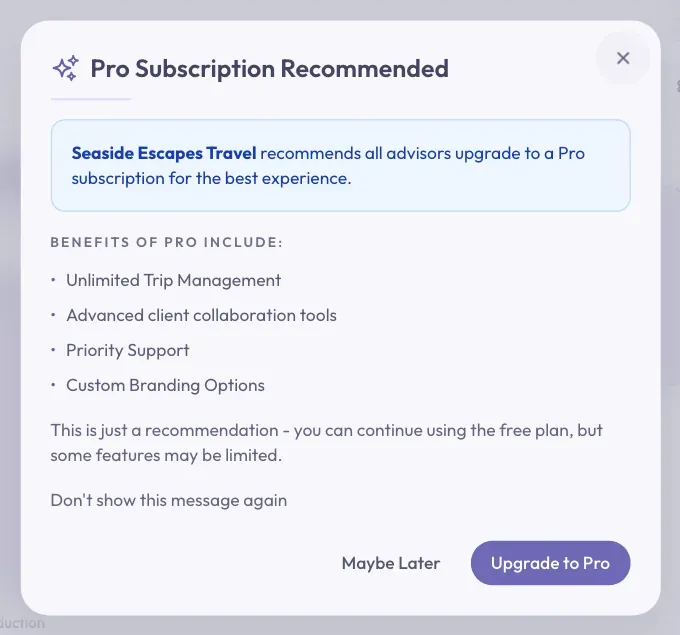
Your agency may recommend the Pro plan. If you are on the Free plan, you may see a message called Pro Subscription Recommended after you sign in.
-
Click the Upgrade to Pro button at the bottom right of the message.
-
A payment page opens. It is run by Stripe, the company that handles our card payments. Follow the steps on that page.
After you pay, you come back to TravelBreeze™.
This is only a recommendation. If you would rather wait, click Maybe Later. To stop seeing the message, first click the box next to Don't show this message again.
If Your Agency Pays For Its Advisors
You'll only see this if you are an agency owner or admin. Your plan must also include the full set of tools. Your agency buys seats, and you give one to each advisor. A seat is a place for one person on the Pro plan.
-
Click the logo at the top left corner of the page.
-
Click Back Office Menu.
-
Click Agency in the menu at the top of the page.
-
Click Settings.
-
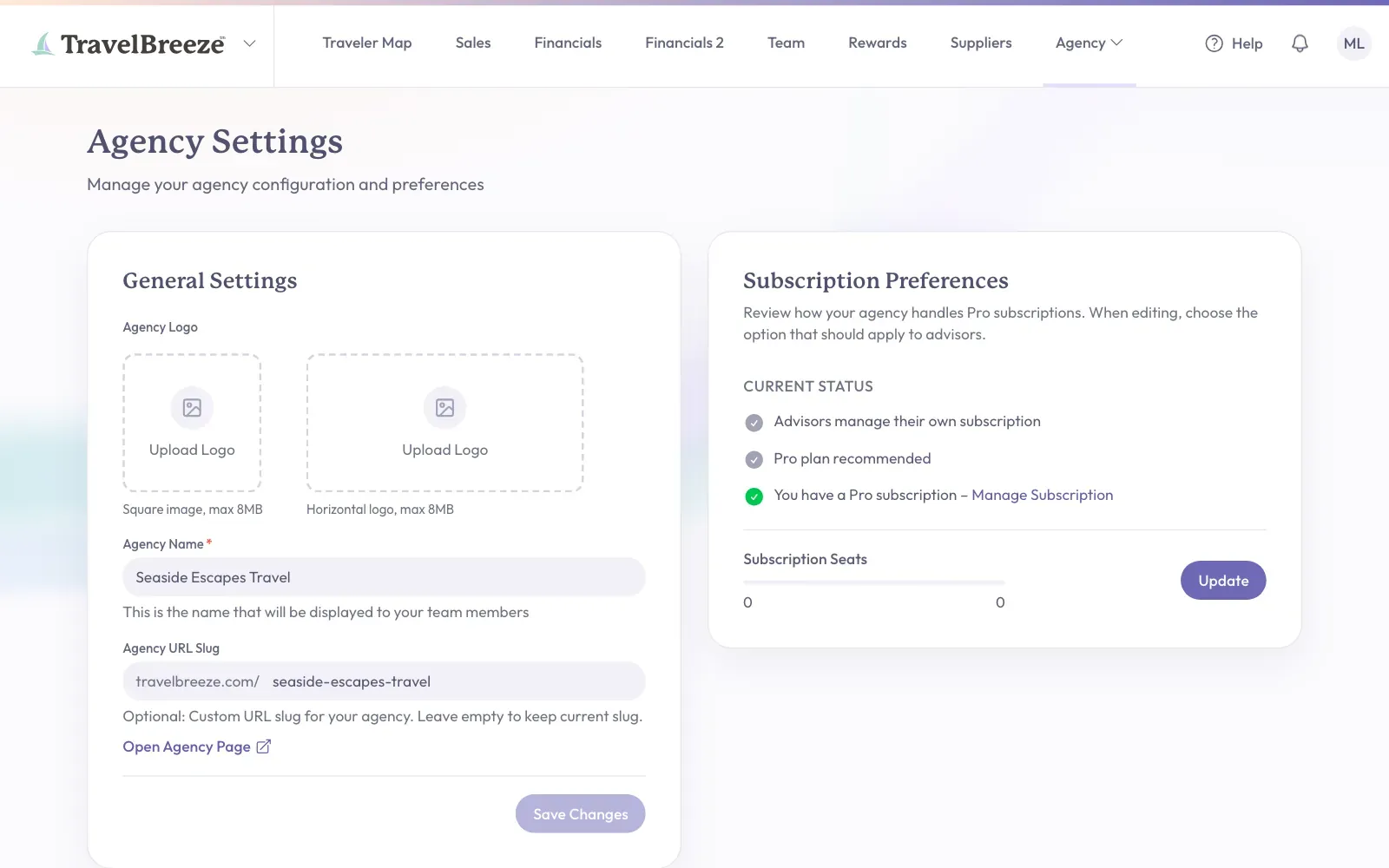
Find the box called Subscription Preferences. Click the Update button at the bottom right of that box.
-
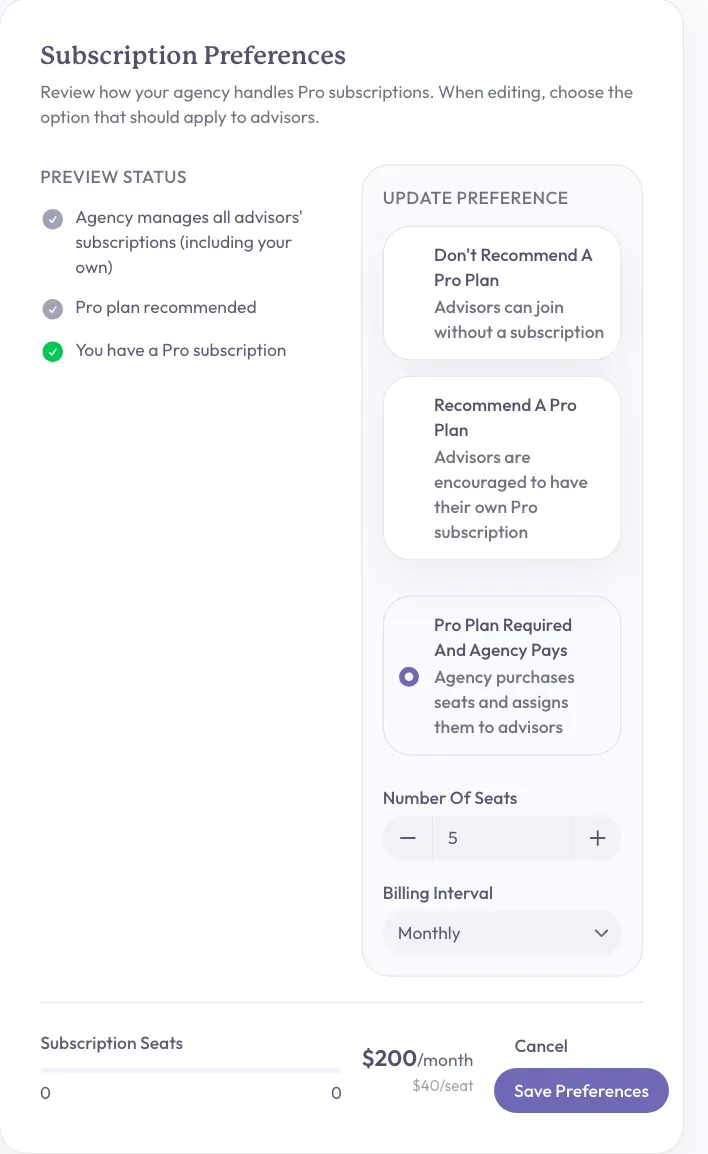
Click Pro Plan Required And Agency Pays.
-
Choose how many seats you need in the Number Of Seats box.
-
Choose how often to pay in the Billing Interval box.
-
Click the Save Preferences button. A payment page opens. Follow the steps on that page.
After you pay, you come back to TravelBreeze™. To learn more about seats, read Manage Your Team's Subscription Seats.
If Your Agency Offers To Pay For You
You may see a message called Your Agency Wants to Pay for Your Subscription. Read it, and follow the buttons in the message. It explains what happens to any plan you already have.
Stuck? Not sure which plan you have? If Tools is the only item in the middle of the main menu, you are on the Free plan. Otherwise, email us at [email protected].