
Your agency decides who pays for the Pro plan. Your agency can pay for everyone, or each advisor can pay for themselves.
If your agency pays, you buy seats. A seat is one paid spot for one advisor.
Good to know: You'll only see this if you are an owner or an admin of your agency. Your plan must also include the agency menus.
Choose Who Pays
-
Look at the top left corner of the page. Click the logo, then click Back Office Menu.
-
Look along the top of the page and click Agency.
-
Click Settings in the small menu.
-
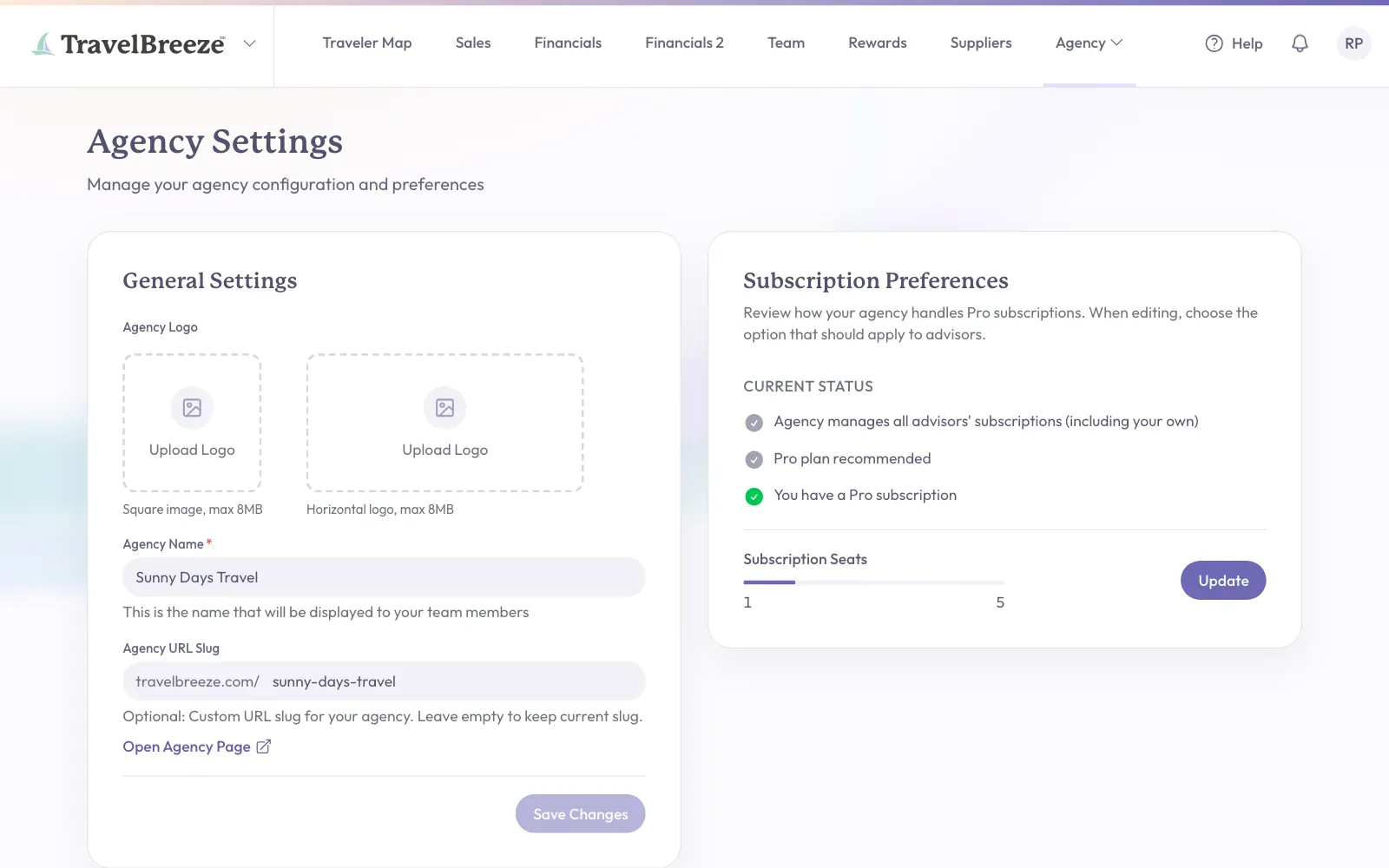
Find Subscription Preferences on the right of the page. Current Status shows how your agency is set up now.
-
Click Update at the bottom of that card.
-
Under Update Preference, click one of the three choices:
- Don't Recommend A Pro Plan means advisors can join without a subscription.
- Recommend A Pro Plan encourages advisors to buy their own. It does not force them.
- Pro Plan Required And Agency Pays means your agency buys seats for your team.
- Click Save Preferences at the bottom of the card.
Buy Seats For Your Team
-
Follow the steps above and click Pro Plan Required And Agency Pays.
-
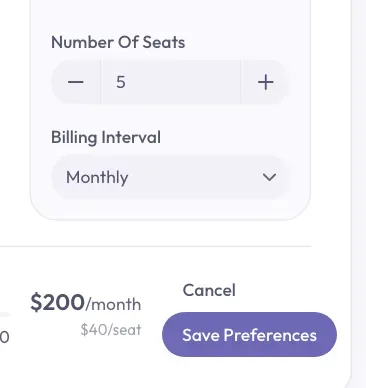
Find Number Of Seats below the choices. Click the plus or minus button to pick a number.
-
Click the Billing Interval list. Pick Monthly or Annual (Save ~25%).
-
Look at the bottom of the card. The price updates as you choose.
-
Click Save Preferences.
-
A payment page from Stripe opens. Stripe is the company that handles our card payments. Type your card details there and finish paying.
You come back to a page saying Agency Subscription Successful! It then takes you to Agency Settings.
Good to know: Seats fill up automatically, up to the number you bought. You do not hand them out one by one. Advisors in your agency get a seat. Each new invitation holds one until it is accepted or ends.
See How Many Seats Are Left
-
Look at the top left corner of the page. Click the logo, then click Back Office Menu.
-
Look along the top of the page and click Team.
-
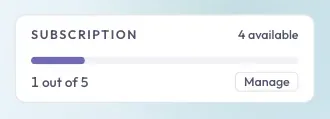
Look at the top right of the page. The Subscription box shows how many seats are in use and how many are available. You'll only see this box if your agency pays for seats.
-
Click Manage in that box to open the Agency Subscription page.
That page shows your plan, your seats, your next billing date, and your costs.
Good to know: Ghost Advisors do not use a seat. Open invitations that hold a seat do count until they are accepted or end.
Change Your Billing
-
Open the Agency Subscription page, using the steps above.
-
Find Billing Details and click Manage Billing in Stripe.
Stripe opens in the same window, where you can manage your payment details.
Stuck? Need a different number of seats? Look for that choice in Stripe first. Changing Number Of Seats on Agency Settings only works when you first switch to agency pays. If you don't see a way, email us at [email protected] and we will help.
If You Run Out Of Seats
- Invite Advisor turns gray in the Add Advisor menu until a seat is free.
- If you have more advisors than seats, owners and admins see a Seat Overage message at the top of the page.
- The newest advisors may lose access until you have enough seats. They see a message titled "Agency needs more seats".
To free a seat, you can remove an advisor or revoke an open invitation.
Stop Paying For Your Team
-
Open Subscription Preferences and click Update.
-
Click Recommend A Pro Plan or Don't Recommend A Pro Plan.
-
Click Save Preferences.
Your agency's subscription keeps running until the end of the period you already paid for. Then it stops, so advisors need their own plan to keep Pro.
What Advisors See
An advisor with their own paid plan may see Your Agency Wants to Pay for Your Subscription when they sign in. They can accept the seat or keep their own plan.