
A Ghost Advisor is a placeholder name in your agency. No real person signs in as a Ghost Advisor. It simply holds trips and bookings under a name.
Here is when you would use one:
- You want to plan trips for someone who has not joined yet.
- An advisor left, and their trips need to stay with your agency.
A Ghost Advisor does not use a subscription seat.
Good to know: You'll only see this if you are an owner or an admin of your agency. Your plan must also include the agency menus.
Create A Ghost Advisor
-
Look at the top left corner of the page. Click the logo, then click Back Office Menu.
-
Look along the top of the page and click Team. The Team Management page opens.
-
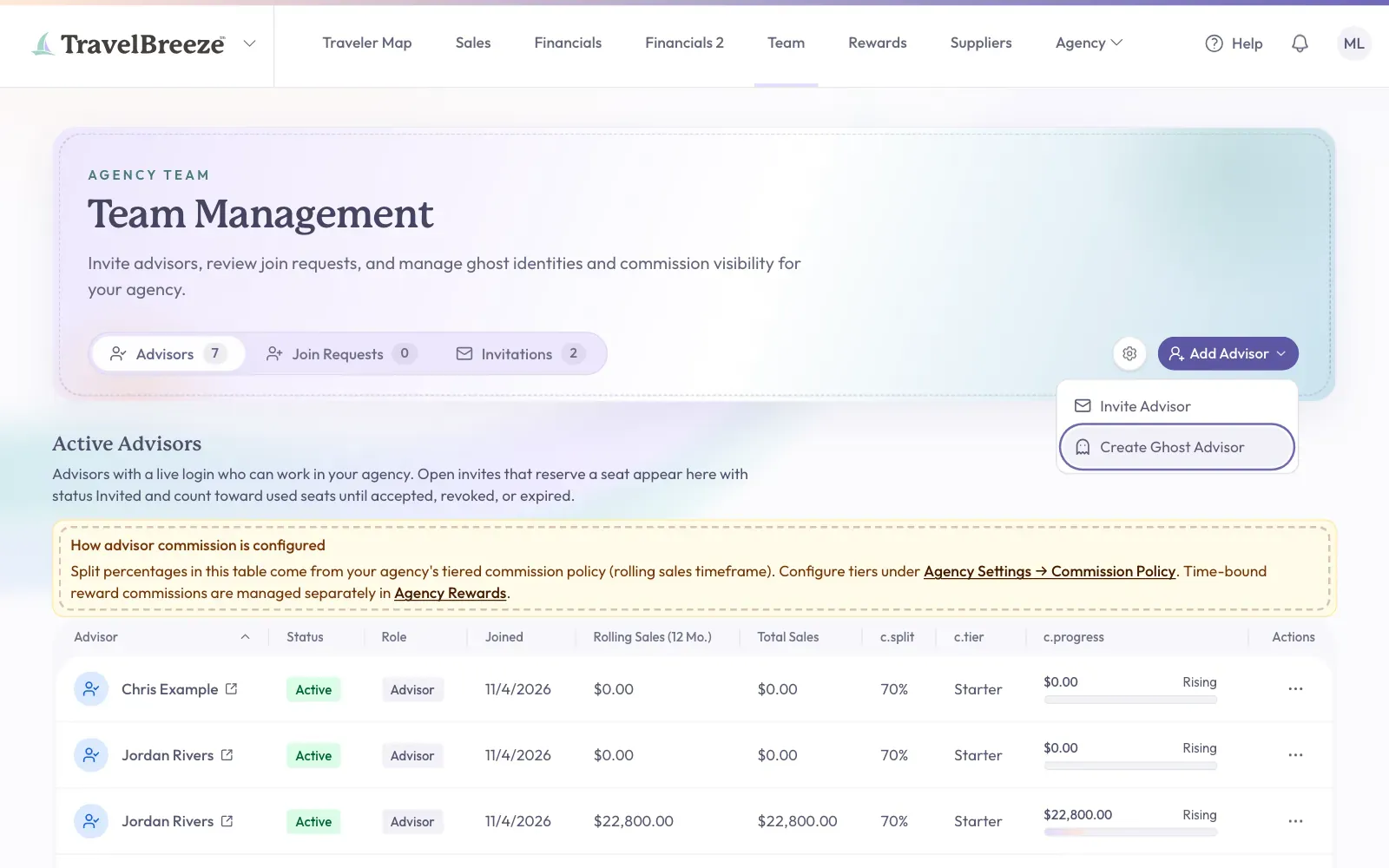
On the right of the page, click Add Advisor.
-
Click Create Ghost Advisor in the menu.
-
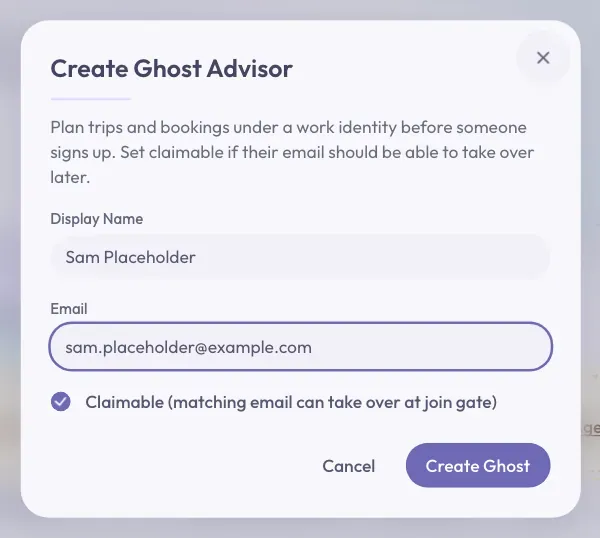
Click the Display Name box. Type the name you want to see on trips.
-
Click the Email box. Type an email address for this advisor.
-
Look at the check box starting with Claimable. Leave it checked if a real person with this email may take over later. Click it to uncheck it if not.
-
Click Create Ghost at the bottom of the window.
Good to know: Create Ghost stays gray until both Display Name and Email are filled in.
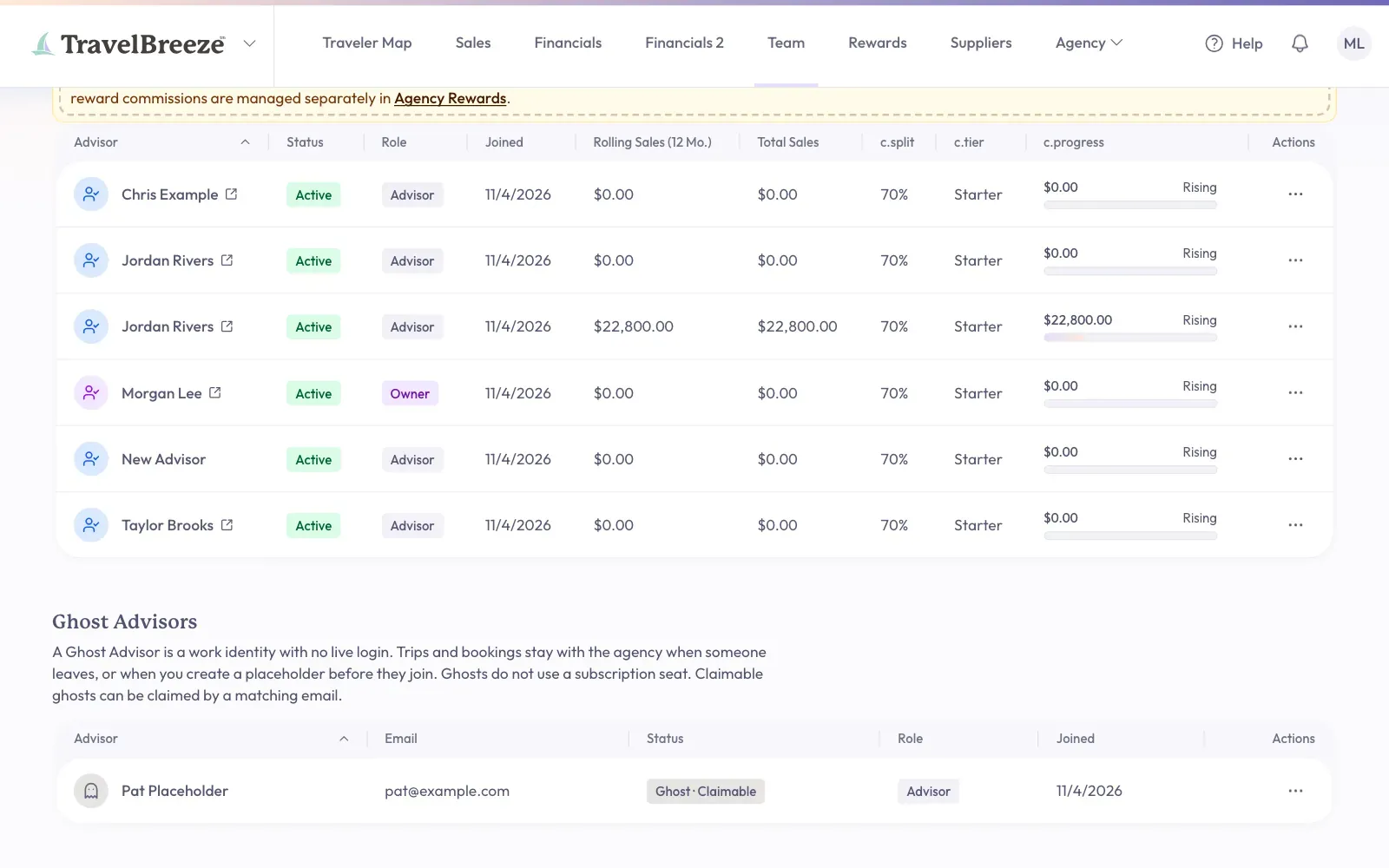
The window closes. Scroll down the page to Ghost Advisors. You should see the new name in the list.
The Status column says Ghost · Claimable if a person can take it over. It says Ghost if not.
Change A Ghost Advisor
-
Find the name in the Ghost Advisors list.
-
Click the button with three dots at the end of the row.
-
Click what you need:
- Update Advisor changes the Display Name or the Role. Click Save Changes when you finish.
- Mark Claimable lets a person with the matching email take over.
- Make Unclaimable stops that from happening.
How A Real Person Takes Over
There are two ways.
Invite them. Send an invitation to the same email address as the Ghost Advisor. When they accept, they take over its trips and bookings.
Let them claim it. This needs the status Ghost · Claimable.
-
The person signs in with the matching email address.
-
If they are not in an agency yet, they see Take Over An Existing Advisor Profile?
-
They click Accept & join.
Careful: A person who takes over gets that Ghost Advisor's work. Check the email address before you create a Ghost Advisor or mark one claimable.
See A Ghost Advisor's Trips
The Travel Pipeline hides Ghost Advisor trips in the agency view at first. To show them:
-
Open Trips, then Travel Pipeline. You may need to click the logo and pick Advisor Menu first.
-
Click the small gear button at the top right of the board. A small Settings box opens.
-
Click the Agency View switch so it is enabled.
-
Click the Hide Ghost Advisors switch so it is disabled.
Good to know: When you remove an advisor from your agency, they become a Ghost Advisor. Their trips and bookings stay with your agency. See Change What Someone Can Do In Your Agency.