
Each person in your agency has a role. Their role decides what they can see and do.
Good to know: Only an owner or an admin can change roles. Anyone can see their own role. Click the small circle at the top right of the page, then click Agency Info.
What Each Role Can Do
Owner. There is only one. The owner can do everything an admin can. The owner also controls billing and can hand ownership to someone else.
Admin. Admins run the agency. They can open Team, Sales, Financials, Financials 2, Rewards, Suppliers, and Traveler Map. They can also open Settings, Preferences, and Form Studio Presets under the Agency menu.
Staff. Staff help run the agency's day-to-day work. They can open Rewards, Suppliers, and Traveler Map. They can also create and update suppliers. They cannot open Team, Sales, Financials, Financials 2, or Settings.
Advisor. Advisors work on their own trips and bookings. In the back office they can only browse Suppliers. They cannot see the agency's money pages.
Good to know: By default, Staff can also work on other advisors' trips and bookings. An owner or admin can disable this under Preferences.
Good to know: The screen says "Staff can manage members but not settings." Today, the Team page only opens for owners and admins.
Change Someone's Role
-
Look at the top left corner of the page. Click the logo, then click Back Office Menu.
-
Look along the top of the page and click Team.
-
Find the person under Active Advisors.
-
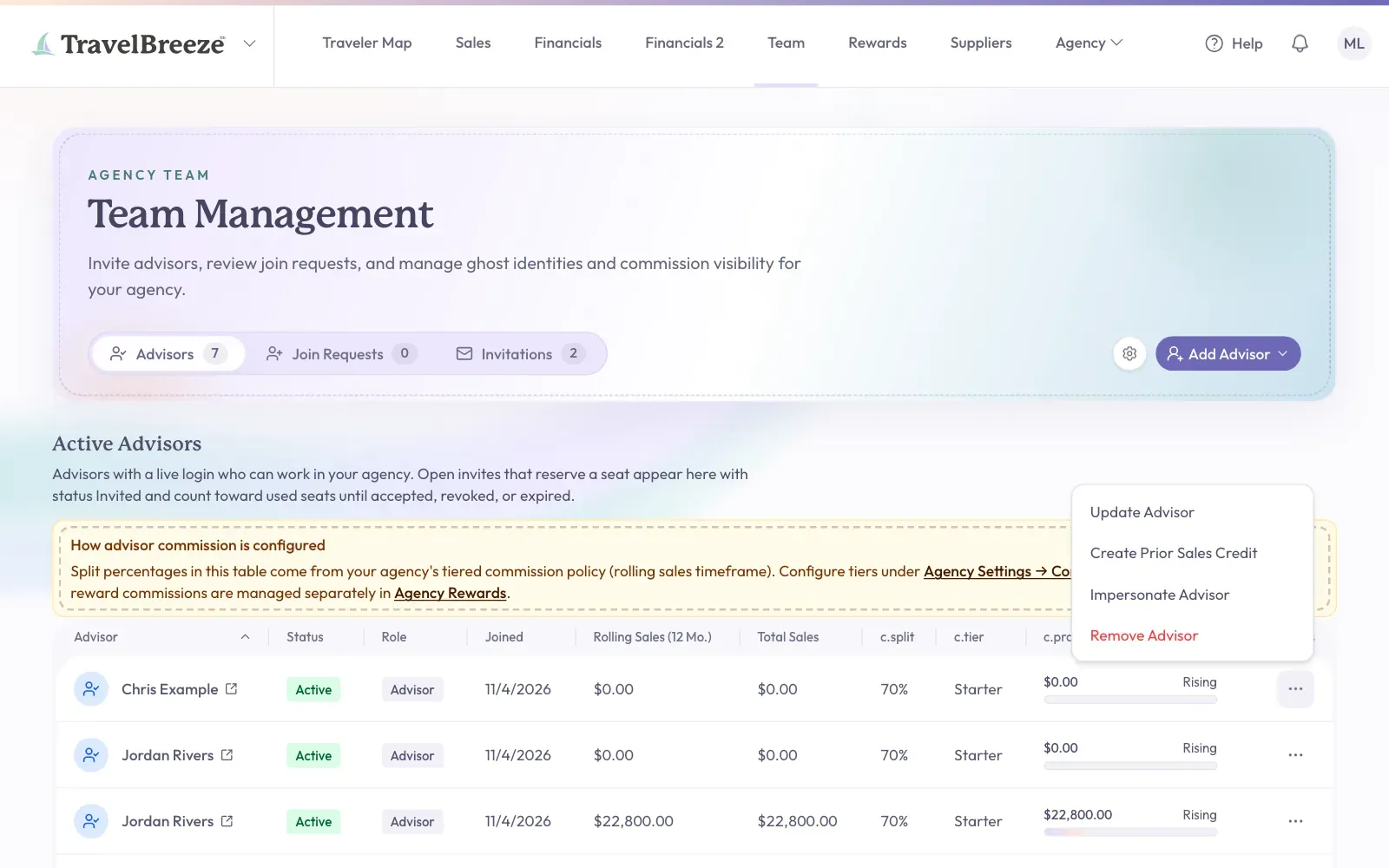
Click the button with three dots at the end of their row.
-
Click Update Advisor.
-
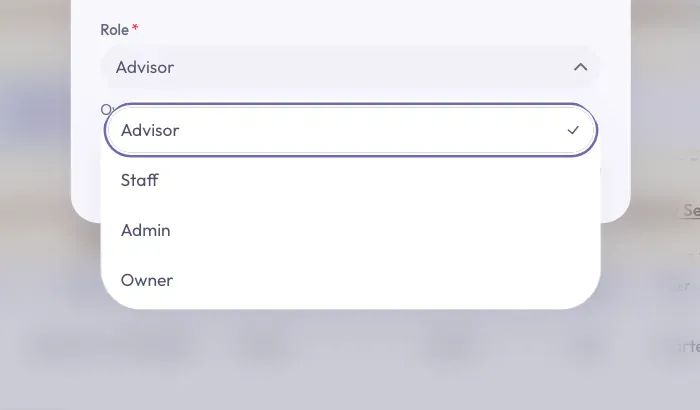
Click the Role list and pick a new role.
-
Click Save Changes at the bottom of the window.
The button shows Saved and the window closes. Their new role shows in the Role column.
Stuck? No Update Advisor in the menu? That person is the owner. The owner's role changes only when ownership moves to someone else.
Change The Role On An Invitation
Someone who has not accepted yet shows as Invited in the Active Advisors list, if their invitation holds a seat.
-
Click the button with three dots at the end of their row.
-
Click Update Role.
-
Pick a new role and click Save Changes.
Hand The Agency To A New Owner
You'll only see this if you are the current owner.
-
Open Update Advisor for the new owner, using the steps above.
-
Click the Role list and pick Owner.
-
Read the warning in the window. You will become an Admin. If the agency pays for seats, billing moves to this advisor.
-
Click Transfer Ownership.
Careful: After this, only the new owner can give ownership back to you.
Remove Someone From Your Agency
-
Find the person under Active Advisors. Click the button with three dots at the end of their row.
-
Click Remove Advisor.
-
Read the window, then click Remove Advisor at the bottom.
You should see "Advisor converted to Ghost — trips stay with the agency".
This means their trips and bookings stay with your agency under a placeholder name called a Ghost Advisor. That person can no longer work in your agency.
Careful: You cannot remove the owner, and you cannot remove yourself this way.
Leave An Agency Yourself
-
Click the small circle at the top right of the page.
-
Click Agency Info.
-
Click Leave Agency on the right of the page, then follow the window that opens.
Careful: If you are the owner and others are in your agency, hand ownership to someone else first.