
This article is only for agency owners and admins. Nobody else can open these pages. Staff and advisors see Financials Access Required instead, and advisors never see incoming payments.
Here you keep track of your agency's commission money. You record what suppliers paid you, then record what you paid your advisors.
Open Financials
-
Look at the top left corner of the page. Click the logo. It has a small arrow next to it.
-
Click Back Office Menu.
-
Look along the top of the page and click Financials.
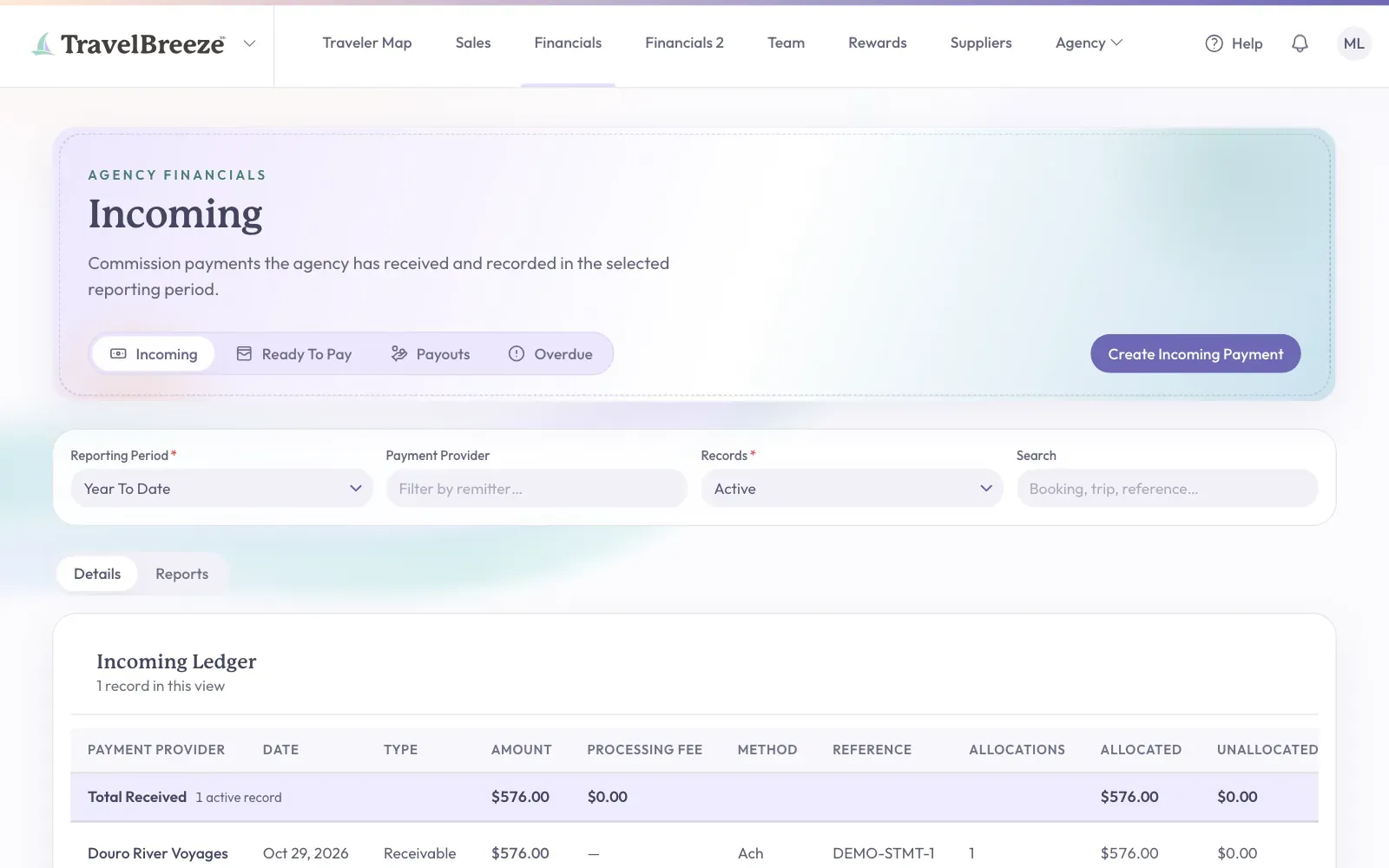
You will see four tabs:
- Incoming lists commission payments your agency received.
- Ready To Pay lists advisors you can pay from money already received.
- Payouts lists what your agency paid to advisors.
- Overdue lists bookings with no commission received yet.
Stuck? Can't find a record? Look at Reporting Period in the filters and pick a longer period of time.
Good to know: You may also see Financials 2 in the same menu. It is another way to look at the same money. Read about it at the end of this page.
Record A Payment Your Agency Received
Use this when a cruise line, hotel, or other supplier pays you commission.
-
Click the Incoming tab.
-
Click Create Incoming Payment on the right of the page, level with the tabs.
-
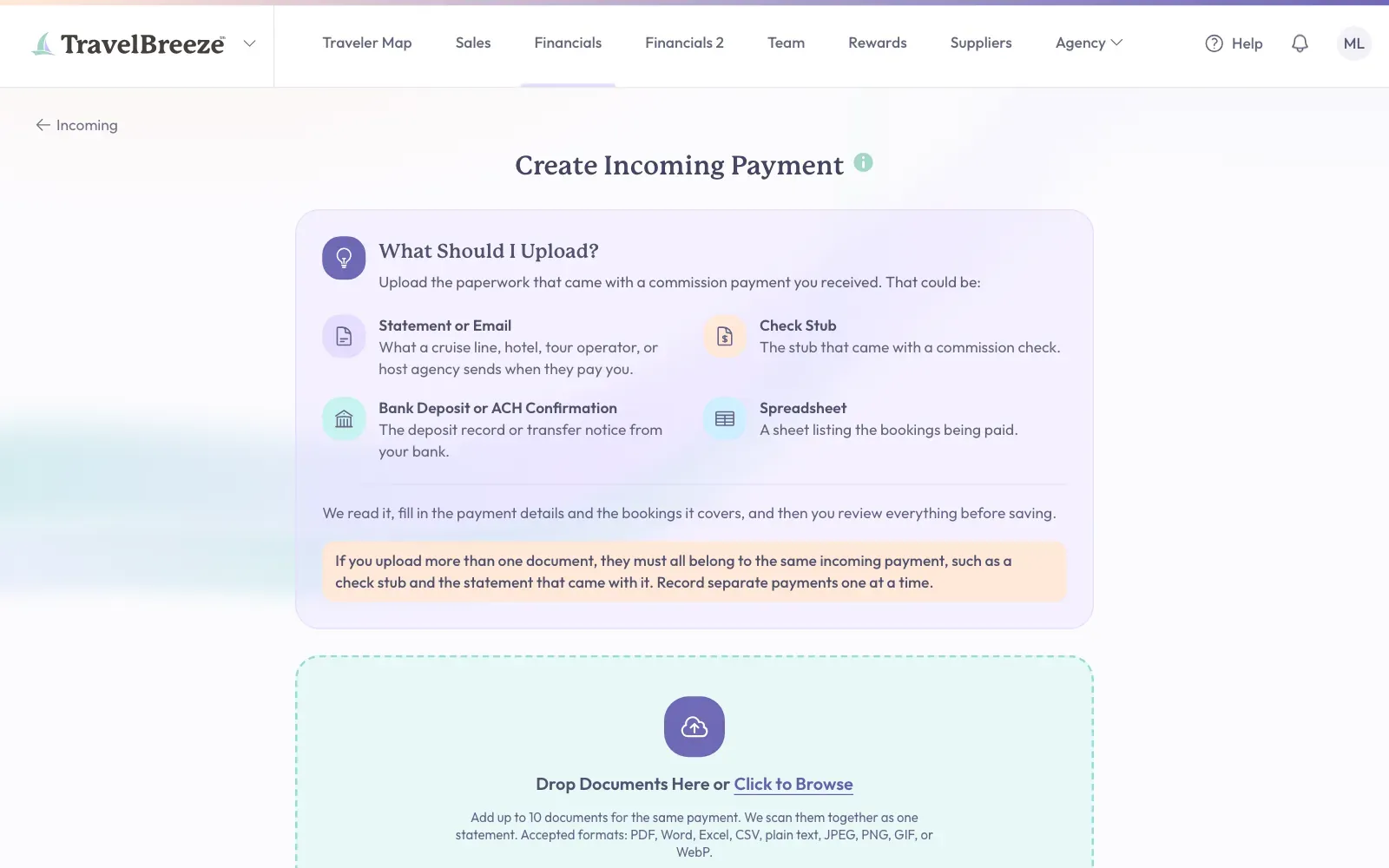
Read What Should I Upload? It lists the paperwork you can use, such as a statement or a check stub.
-
Click Click to Browse in the big box.
-
Click your document, then click Open.
-
Wait while TravelBreeze™ reads your document and fills in what it can.
-
Check every box on the right against your paperwork. Fix anything that is wrong.
-
Click Create Incoming Payment to save.
Good to know: No paperwork? Click Skip under the big box and type the details yourself.
Careful: If you upload more than one document, they must all belong to the same payment. Record separate payments one at a time.
Good to know: If you left without saving, you will see Unsaved Incoming Payment next time. Click Resume Draft to continue, or Discard Draft to start over.
What To Fill In
- Payment Provider / Remitter is who paid you.
- Received Date is the day you got the money.
- Total Amount is how much you got.
- Processing Fee is anything taken out as a fee, if there was one.
- Add Booking lets you match the money to each booking it pays for.
The amounts for your bookings must add up to the total, minus any processing fee.
Pay An Advisor
-
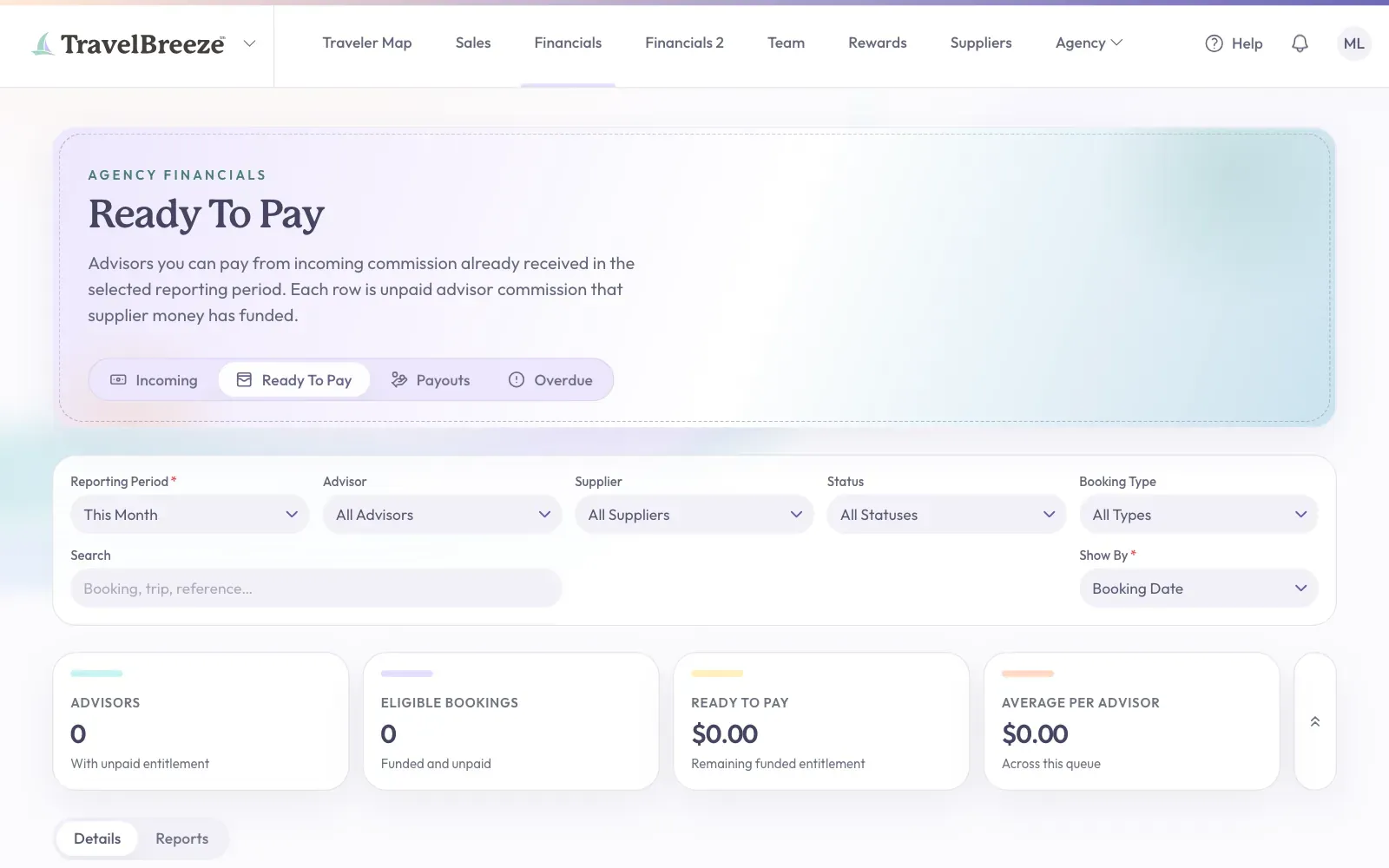
Click the Ready To Pay tab. Each row shows an advisor and the amount ready for them.
-
Click Create Payout at the end of the advisor's row. A panel opens with Payee filled in. The payee is the person you are paying.
-
Click Paid Date and pick the day you paid them.
-
Click Payment Method and pick how you paid.
-
Check Total Amount and the bookings listed below it. They must add up to the same number.
-
Click Create Payout at the bottom of the panel.
Careful: This only records a payment. TravelBreeze™ does not send the money. Pay your advisor the way you normally do.
Good to know: If you pay more than you have received for a booking, you will see Confirm Over-Payout. Stop and check the numbers. To continue anyway, you must confirm and give a reason.
Fix A Record
-
Click the Incoming tab or the Payouts tab.
-
Find the record in the list. Click Update at the end of its row.
-
Make your change and click Save Changes.
Change When A Booking Counts As Overdue
-
Click the Overdue tab.
-
Find the sentence explaining the rule at the top of the page. Click Change This.
-
Click the Overdue Starts list and pick a time.
-
Click Save at the bottom of the window.
You should see your new rule at the top of the Overdue tab.
What You Should See
New incoming payments appear in the Incoming tab. New payouts appear in the Payouts tab. As you record incoming money, the amounts in Ready To Pay update.
Stuck? Email us at [email protected] and tell us which tab you are on.
Look At Financials 2
Financials 2 shows your agency's bookings and commission in other ways. Only an owner or admin can open it.
-
Look at the top left corner of the page. Click the logo.
-
Click Back Office Menu.
-
Look along the top of the page and click Financials 2.
-
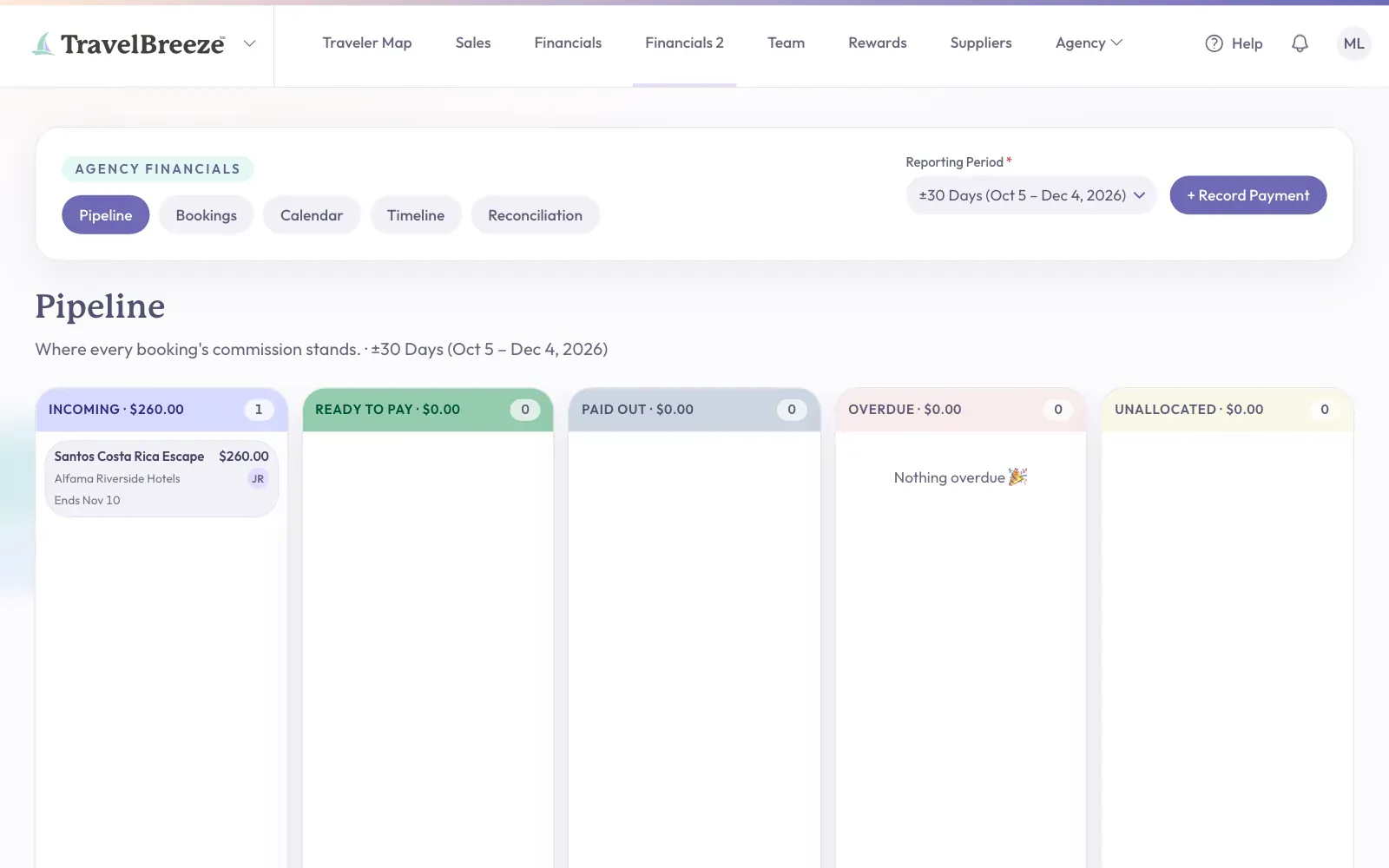
Click a tab to choose a view. They are Pipeline, Bookings, Calendar, Timeline, and Reconciliation.
-
To see a different stretch of time, use Reporting Period on the right of the page.
Reconciliation shows how much of each payment has been matched to bookings. To record money, use Financials, as shown above.