
A supplier is a company you book travel with, such as a cruise line or a hotel. Your agency keeps its list of suppliers in one place.
Everyone in the agency can browse this list. You'll only be able to create, update, or remove suppliers if you are an owner, admin, or staff.
Open Your Suppliers
-
Look at the top left corner of the page. Click the logo. It has a small arrow next to it.
-
Click Back Office Menu.
-
Look along the top of the page and click Suppliers. The Agency Suppliers page opens.
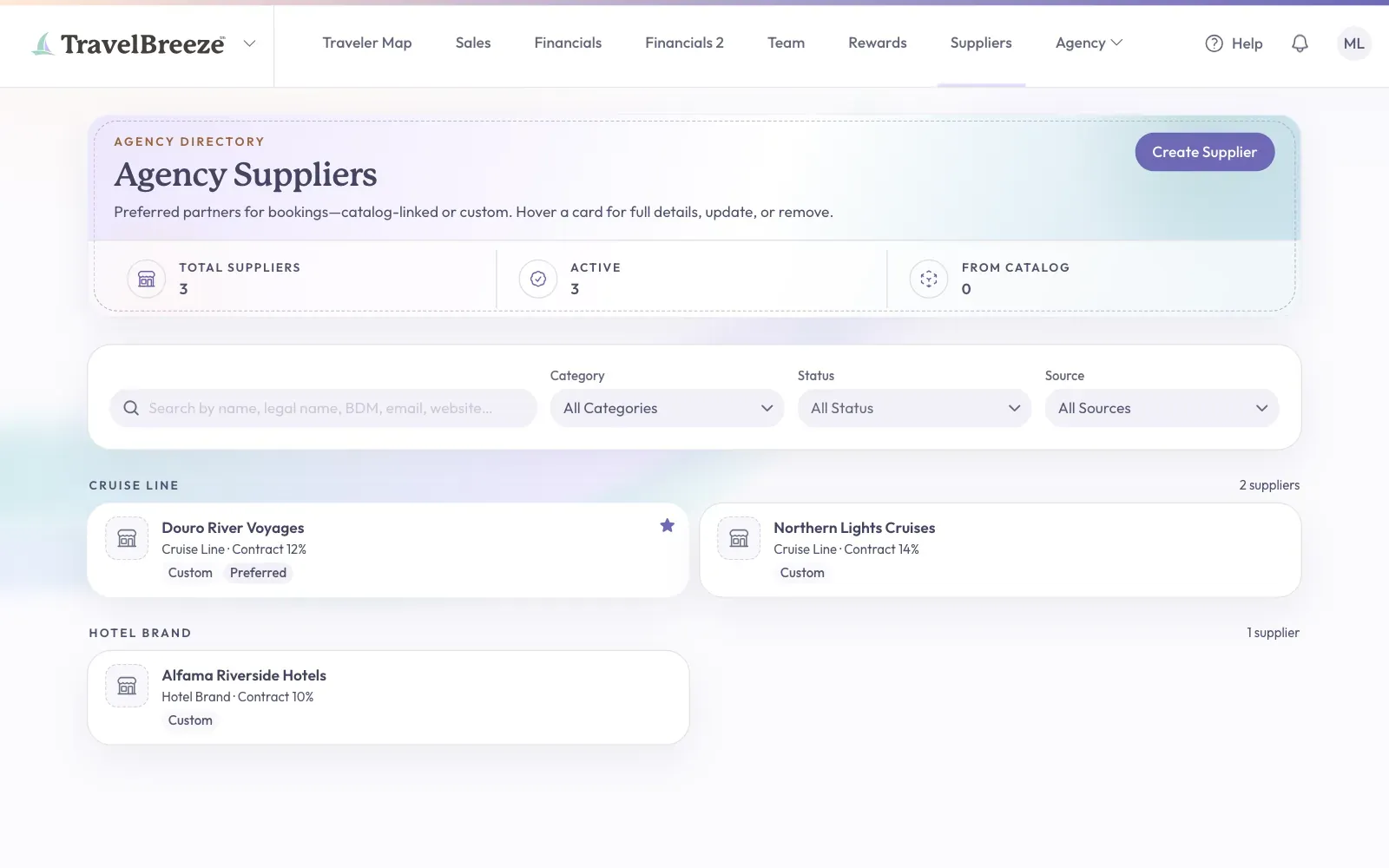
Good to know: You'll only see Back Office Menu if your plan includes it. The free plan does not.
Find A Supplier
-
Click the search box near the top of the page.
-
Type part of the name. The list narrows as you type.
-
Narrow it further with the Category, Status, or Source lists.
-
Rest your pointer on a supplier's card. A panel opens with its full details.
A star and the word Preferred mean your agency likes to use that supplier first.
Create A Supplier
-
Click Create Supplier at the top right of the page.
-
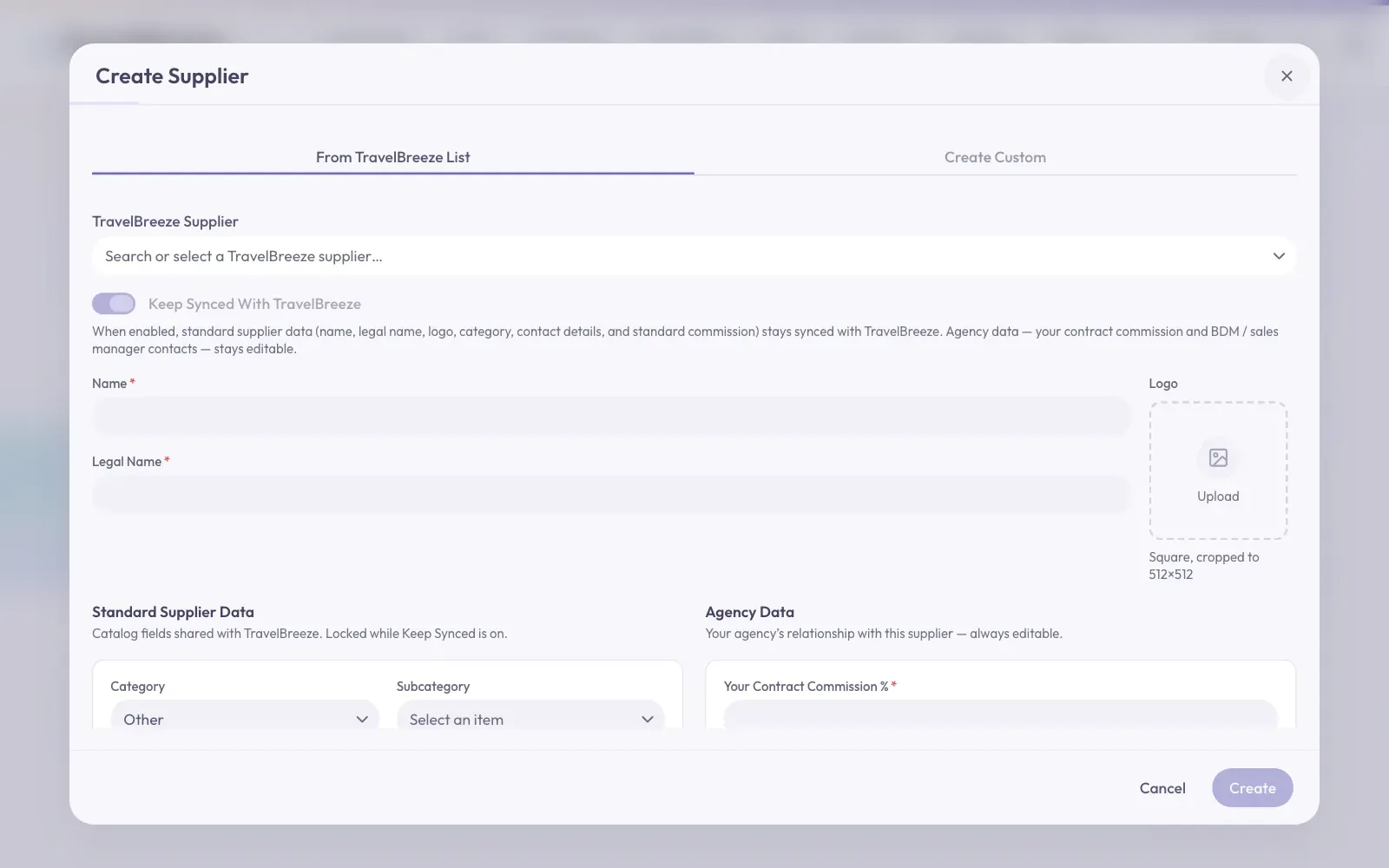
Look at the tabs at the top of the panel. Pick one:
-
From TravelBreeze™ List copies a supplier we already know.
-
Create Custom starts a supplier from nothing.
-
On From TravelBreeze™ List, click the TravelBreeze™ Supplier box and pick a company. It fills in many boxes for you.
-
On Create Custom, type in the Name and Legal Name boxes. The legal name is the company's official name.
-
Find the Your Contract Commission % box. Type your agency's commission as a number. You must fill in this box.
-
Click Create at the bottom of the panel.
You should see "Supplier created", and the new card appears in your list.
Update Or Remove A Supplier
-
Rest your pointer on the supplier's card. A panel opens.
-
Click Update at the bottom of the panel.
-
Change what you need. To feature this supplier, click Mark As Preferred.
-
Click Save Changes at the bottom.
To remove a supplier: Rest your pointer on the card. Click the small remove button at the bottom left of the panel.
Good to know: To stop new bookings without removing a supplier, open Update and click the switch labeled Active, Shown In Booking Flows.
Stuck? Can't see Create Supplier? That button only shows for owners, admins, and staff. Ask someone in one of those roles to help.