
Invite an advisor to bring them into your agency. They get an email with a button to accept.
Good to know: You'll only see this if you are an owner or an admin of your agency. Your plan must also include the agency menus.
Open Your Team Page
-
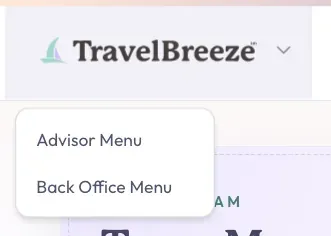
Look at the top left corner of the page. Click the logo. It has a small arrow next to it.
-
Click Back Office Menu.
-
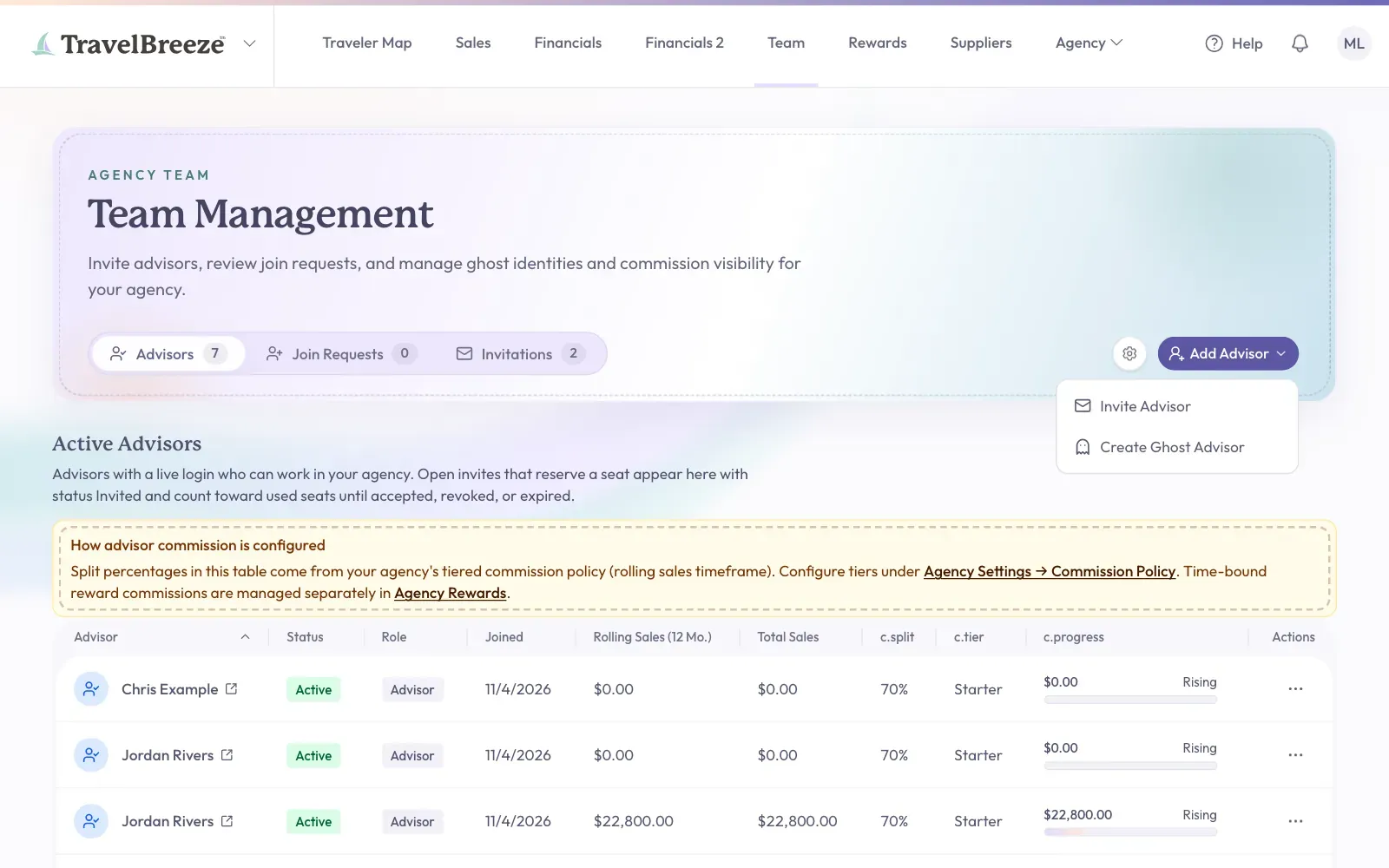
Look along the top of the page and click Team. The Team Management page opens.
Good to know: On a phone, tap the button with three lines at the top left to see the menu.
Send An Invitation
-
On the right of the page, click Add Advisor. A small menu opens.
-
Click Invite Advisor.
-
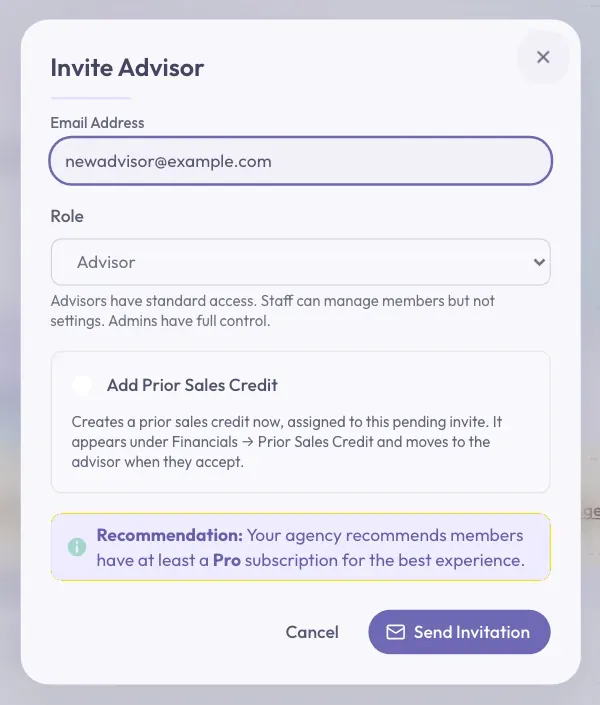
Click the Email Address box. Type the email address of the person you are inviting.
-
Click the Role list and pick what they can do: Advisor, Staff, or Admin. Most people are Advisor. See Change What Someone Can Do In Your Agency.
-
Click Send Invitation at the bottom of the window.
You should see a message saying "Invitation sent to" and their email address. The invitation now appears under the Invitations tab.
Good to know: If your agency pays for seats, each invitation holds one seat until it is accepted or ends. A seat is one paid spot for one advisor.
Stuck? Is Invite Advisor gray? Your agency has no seats left. See Manage Your Team's Subscription Seats.
Give Credit For Past Sales
An advisor may join with sales they made before TravelBreeze™. You can count those sales from the start.
-
In the Invite Advisor window, check Add Prior Sales Credit. This only shows when the Role is Advisor.
-
Type an amount in the Opening Credit Amount box.
The credit moves to the advisor when they accept.
What The New Advisor Does
-
They get an email titled "You've been invited to join" and your agency's name.
-
They click Accept Invitation in the email.
-
If they are not signed in, they click Sign In to Join. If they have no account yet, they click Sign Up instead.
-
They click Join this Agency.
Please tell them the invitation only lasts 7 days.
Check On Your Invitations
-
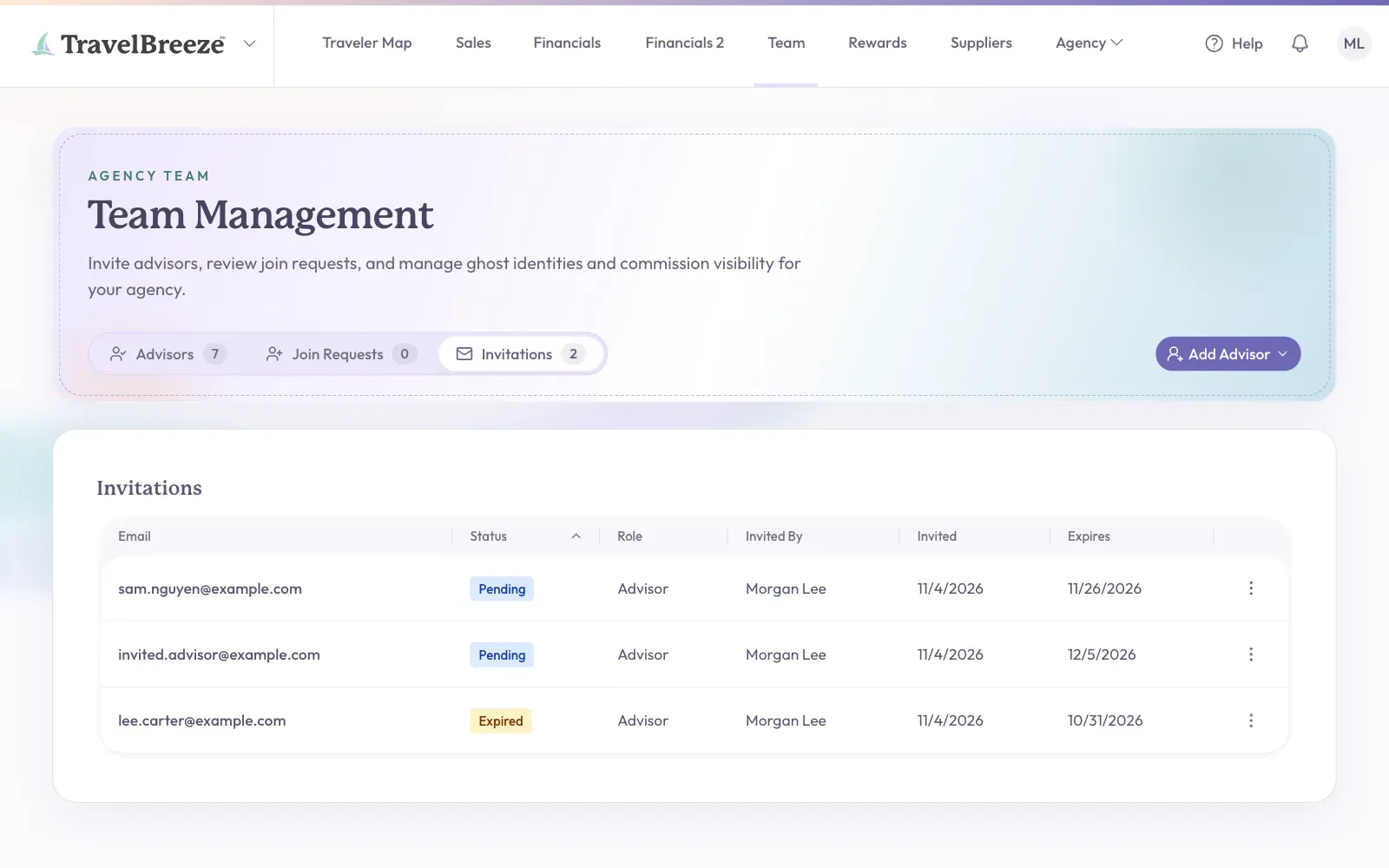
On the Team Management page, click the Invitations tab.
-
Find the person in the list. You can see the status of each invitation.
-
Click the button with three dots at the end of their row. Then pick what you need.
- Extend Expiration Date gives them 2 more months. This also works on an expired invitation. Click Extend Expiration Date again in the window that opens.
- Revoke Invitation cancels it, so they can no longer join with it. Click Revoke Invitation again in the window that opens.
Once someone accepts, they appear under the Advisors tab in the Active Advisors list.
Stuck? Did their email go missing? There is no resend button. Ask them to look in their spam folder. They can also sign in with that same email address. TravelBreeze™ then shows You've Been Invited! with a View Invitation button.
Approve Someone Who Asks To Join
People can also find your agency and ask to join. You get to say yes or no.
-
On the Team Management page, click the Join Requests tab.
-
Find the person's card. Click the button with three dots at its top right corner.
-
Click Approve Request, or click Deny Request to say no.
-
A window opens. Click Approve or Deny at the bottom.
You should see "Request approved! They are now a member." Approved people join as an Advisor. You can change their role afterward.