
TravelBreeze™ can tell you when something happens, like when a traveler sends you a form. You choose what you hear about and how you hear about it.
See Your Notifications
Look at the top right corner of any page. Click the bell. A small number on the bell means you have new notifications. Click one to open it.
Open Your Notification Settings
-
Click the bell at the top right corner of the page.
-
Click the small gear at the top right of the list that opens.
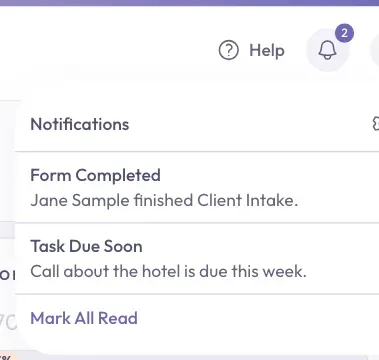
You should now see a page called Notification Preferences.
Choose What You Hear About
The table near the bottom of the page has one row for each kind of event. The Description column says what each one means.
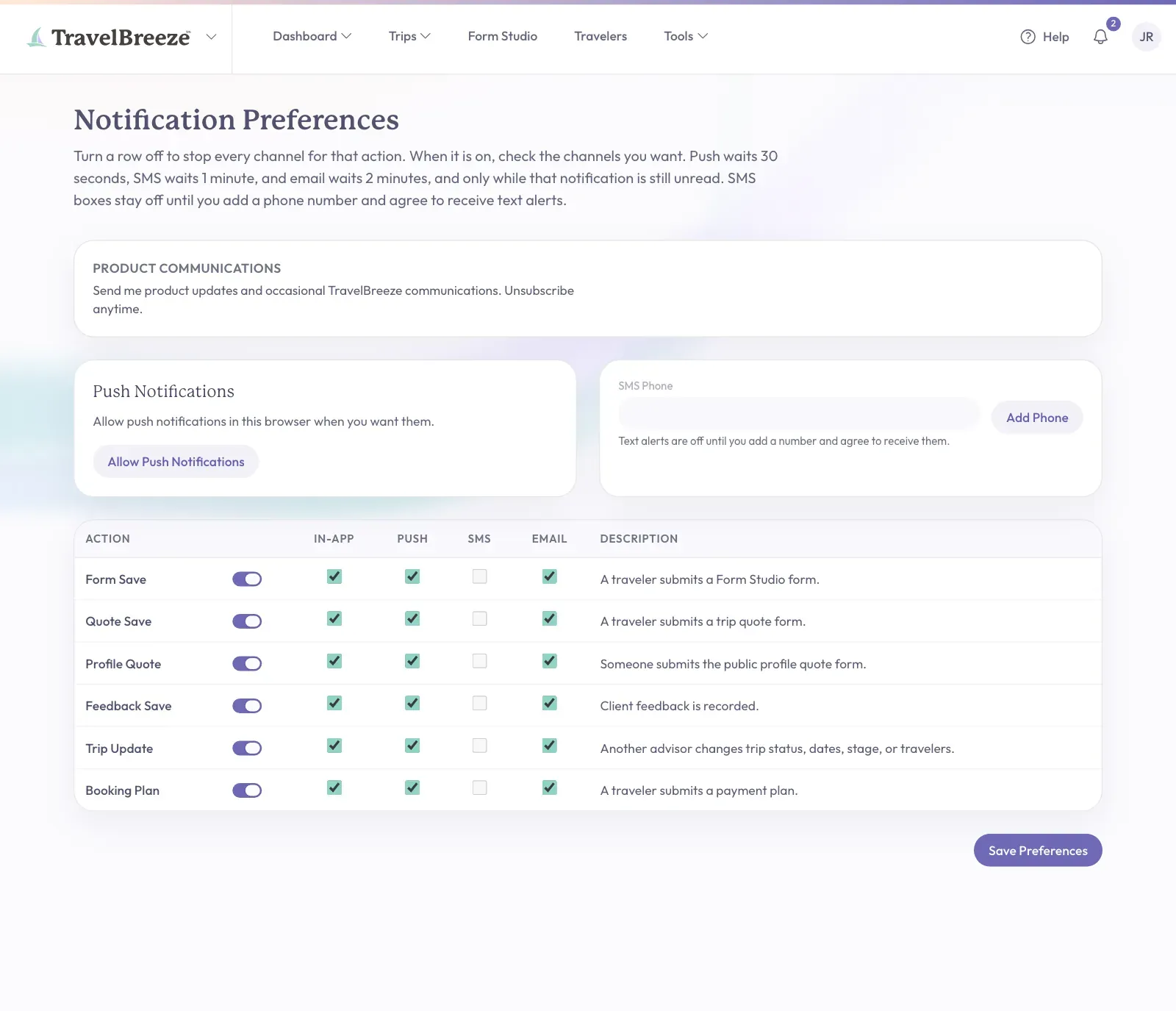
Each row has a switch and four check boxes:
- The switch turns the whole row on or off.
- In-App shows it under the bell.
- Push shows a pop-up from your web browser.
- SMS sends a text message to your phone.
- Email sends you an email.
-
Click the switch to turn a row on or off.
-
Click a check box to pick how you hear about it.
-
Click the Save Preferences button at the bottom right of the page.
The button shows a check mark and says Saved.
Good to know: Until you change them, every row is on, with In-App, Push, and Email checked. Text messages stay off until you turn them on.
Good to know: If you open the notification first, TravelBreeze™ will not send the others. Push waits 30 seconds, SMS waits 1 minute, and Email waits 2 minutes.
Turn On Text Alerts
You need a mobile phone that can get text messages.
-
Find the SMS Phone box near the middle of the page. Click the Add Phone button next to it.

-
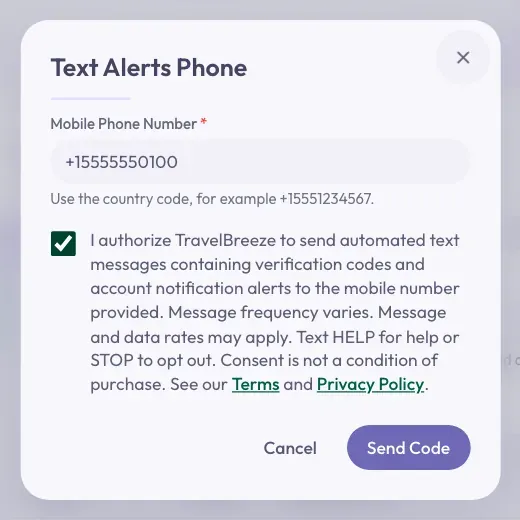
A window opens. Click inside the Mobile Phone Number box and type your number. Start with a plus sign and your country code. In the United States, that looks like +15551234567.
-
Read the words next to the small check box. Click the check box to agree to text alerts. You must check this box to continue.
-
Click the Send Code button at the bottom right of the window.
-
Look at your phone for a text message with a 6-number code. Type the code in the Confirmation Code box.
-
Click the Confirm Code button.
-
The page now says your number is confirmed. Go to the table and check the SMS box for each row you want by text.
-
Click the Save Preferences button at the bottom right of the page.
You should get one text message from TravelBreeze™ to confirm you are signed up.
Careful: Step 8 is easy to miss. Without it, you will not get any text alerts.
To Stop Text Alerts
- Remove your number. Click Remove Phone Number under the SMS Phone box. Click the red Remove Phone Number button in the window to confirm.
- Or reply STOP to one of our text messages. To start again, reply START.
Turn On Browser Pop-Ups
A pop-up is a small message from your web browser, the program you use to visit websites. It works on the computer or phone you turn it on from.
-
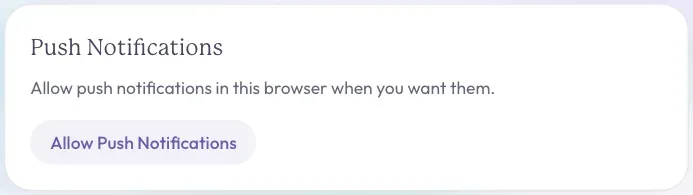
Find Push Notifications near the middle of the page. Click the Allow Push Notifications button.
-
Your web browser shows a small question near the top of the screen. Click Allow. The exact words depend on your browser.
The box now says This browser is allowed to receive push notifications.
Stuck? If a red message says notifications are blocked, your browser has been told to say no. Open your browser's settings for this website and allow notifications. Then click Allow Push Notifications again.
Product Updates From TravelBreeze™
The Product Communications box at the top of the page is for news from us. Click the switch to turn it on or off. It saves by itself.
Stuck? Not getting something you expected? Check that the row's switch is on, and that the right boxes are checked. Then click Save Preferences. Still stuck? Email us at [email protected].