
Your public advisor page can have a quote form. A traveler answers a few short questions there and sends you their request.
This article shows where those requests arrive, and how to pause them when you are busy.
Before You Start
Two things must be set up, or requests cannot reach you:
- Your page needs a Quote Form section.
- Your Email Address must be filled in under Profile Info.
Careful: If Email Address is empty, travelers get an error when they send the form. See Set Up Your Public Advisor Page to fill it in.
What The Traveler Does
A traveler visits your page and clicks to request a quote. They answer questions about where they want to go, who is traveling, when, and their rough budget. Then they type their name and email address and send it.
Find A New Request In Your Email
Each request arrives as an email titled "New quote request from" and the traveler's name.
To answer, just use reply in your email. Your reply goes straight to the traveler.
Find A New Request In TravelBreeze™
Each request also creates a new card in your Travel Pipeline. The Travel Pipeline is a board showing all your trips, from first question to coming home.
Good to know: You'll only see the Travel Pipeline if you belong to an agency and your plan includes it. The free plan does not, so you will get the email only.
-
Look at the top of the page. Click Trips.
-
Click Travel Pipeline in the menu that opens.
-
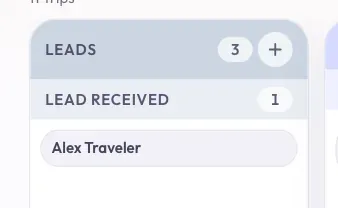
Find the Leads column on the left of the board. A lead is someone who might book with you.
-
Look under Lead Received in that column. New requests appear here, showing the traveler's name.
-
Click the card. A panel opens on the right with the details.
-
Click Open Trip Workspace at the bottom of the panel to see the whole trip.
TravelBreeze™ also connects the request to your traveler list. It looks for a traveler in your agency with the same email address. If there is none, it creates a new traveler for you.
Good to know: You may also get a notification, depending on your notification settings.
Pause New Requests
Use this when you are too busy for new travelers. Your form stays on your page with a message saying you are not accepting new travelers.
-
Open the Profile Builder. Click the small circle at the top right of the page, then click Profile.
-
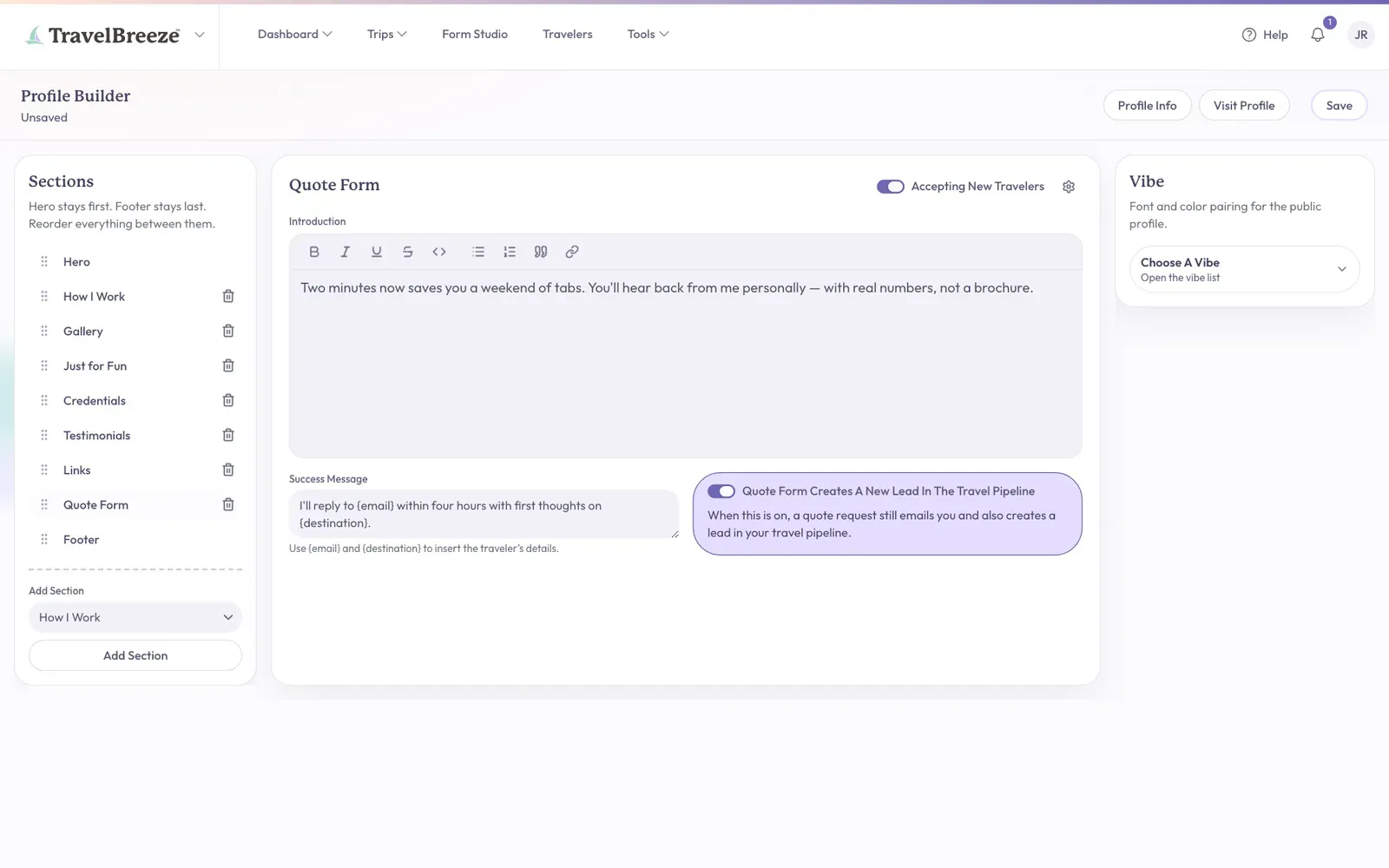
Under Sections on the left, click Quote Form.
-
Look at the top right of the middle area. Click the Accepting New Travelers switch.
-
Click Save at the top right of the page.
To accept requests again, click the same switch and click Save.
Change What Happens After A Request
These are also in the Quote Form section of the Profile Builder.
- Success Message is what travelers read after they send the form. Click Save after you change it.
- Quote Form Creates A New Lead In The Travel Pipeline is a switch. When it is disabled, you get only the email and no new card. This switch saves by itself.
Send A Quote Form Link To A Lead
Some leads show a Quote Form URL in the panel that opens when you click their card. You'll only see it before that traveler has filled in the form.
-
Click the lead's card in the Leads column.
-
Find Quote Form URL in the panel on the right.
-
Click the small copy button next to the link.
-
Paste the link into an email to your traveler.
Stuck? Not getting requests? Fill out your own form with a different email address to test it. Check your spam folder too. Still stuck? Email us at [email protected].