
Your public advisor page is a web page anyone can visit. It tells travelers who you are, and they can ask you for a quote from it.
You build this page in a screen called Profile Builder. Nothing you type goes live until you click Save.
Good to know: Every plan includes a public advisor page, including the free plan.
Open The Profile Builder
-
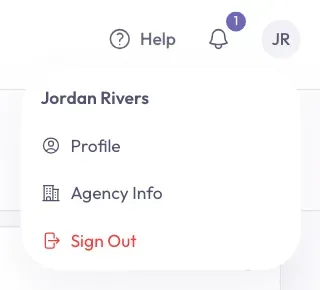
Look at the top right corner of the page. Click the small circle with your photo or your initials.
-
Click Profile in the menu that opens.
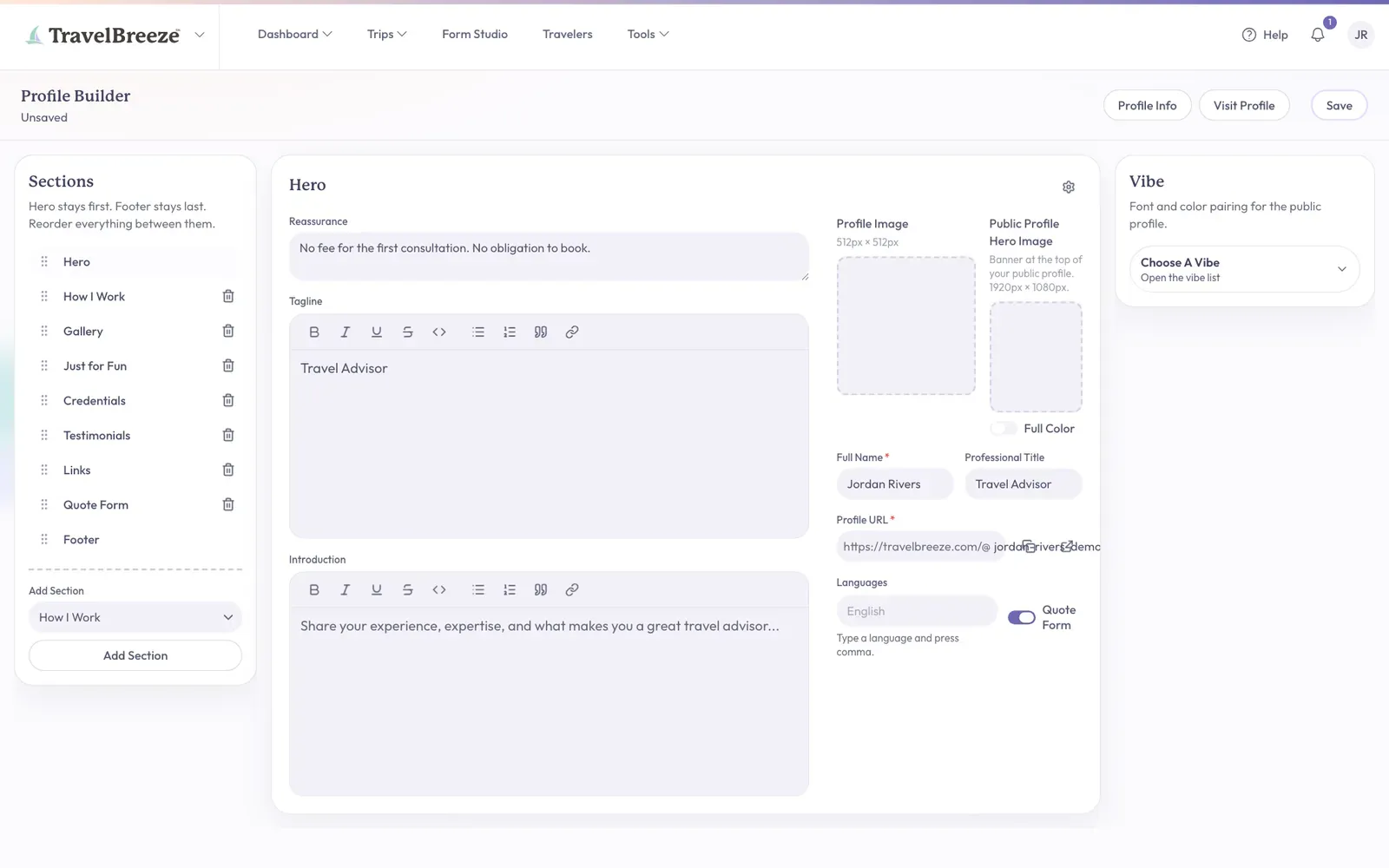
The Profile Builder opens. It has three parts:
- Sections, on the left, lists the parts of your page.
- The middle shows the boxes for the section you picked.
- Vibe, on the right, sets the fonts and colors of your page.
Good to know: A new account may first see Welcome To TravelBreeze™! on a page called Profile Info. Type your name in the Full Name box and click outside the box. Then click Profile Builder at the top right of the page.
Fill In Your Name And Title
-
Under Sections on the left, click Hero. The hero is the big area at the top of your page.
-
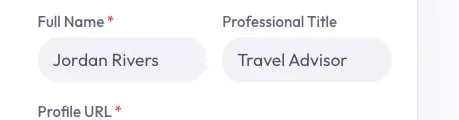
Find the Full Name box in the middle of the screen. Type your name. You must fill in this box.
-
Click the Professional Title box next to it. Type your job title, such as Travel Advisor.
-
Look at the Profile URL box below. A URL is a web address, and this one belongs to your page. TravelBreeze™ fills it in from your name.
Careful: If you change your Full Name later, your Profile URL changes too. Check it again if you have already shared your page.
Add Your Pictures
-
Click the box labeled Profile Image. A window opens so you can pick a picture from your computer.
-
Click your picture, then click Open.
-
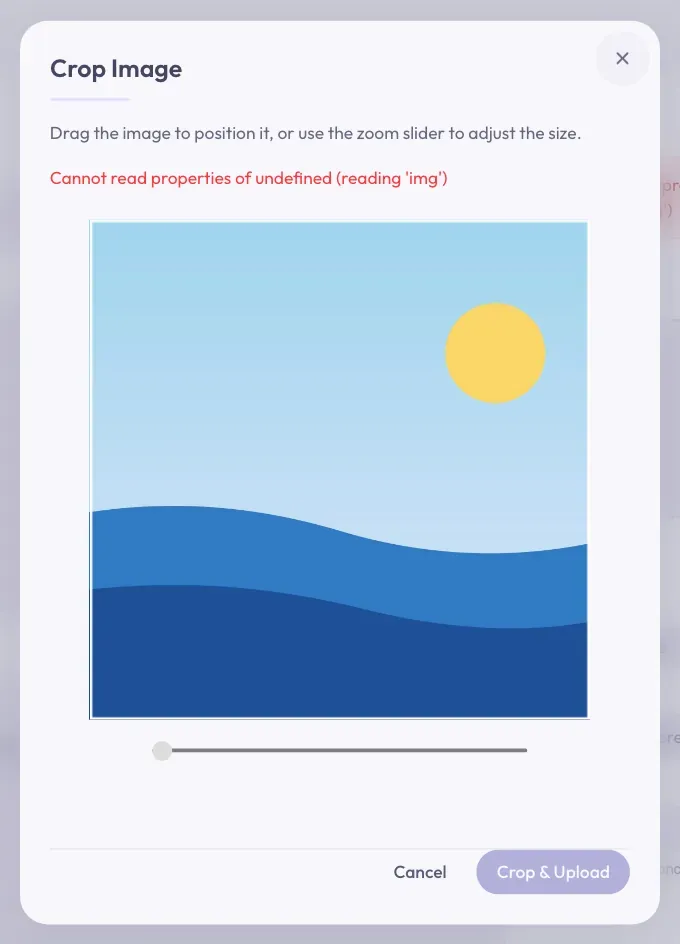
A window called Crop Image appears. Crop means choosing which part of the picture to show. Move the picture until it looks right.
-
Click Crop & Upload at the bottom of the window.
-
Click the wide box labeled Public Profile Hero Image. This picture is the banner at the top of your page. Follow the same steps to pick and crop it.
Good to know: Your banner looks soft and muted at first. Click the Full Color switch under the banner to show its full colors.
Tell Your Story
-
Click the Tagline box in the middle of the screen. Type one short line about what you do.
-
Click the Introduction box below it. Type a few sentences about you and your experience.
-
Click the Languages box on the right to list the languages you speak.
You do not have to fill in every box. Leave a box empty if you are not sure.
Save Your Page
-
Look at the top right of the Profile Builder. Click Save.

-
Look under the words Profile Builder at the top left. You should see "All changes saved".
Good to know: Save stays gray until you change something. That is normal.
Give Travelers Your Email Address
Quote requests go to the email address in your profile information. Without one, a traveler's request cannot be sent. So please do this step.
-
Click Profile Info at the top right of the Profile Builder.
-
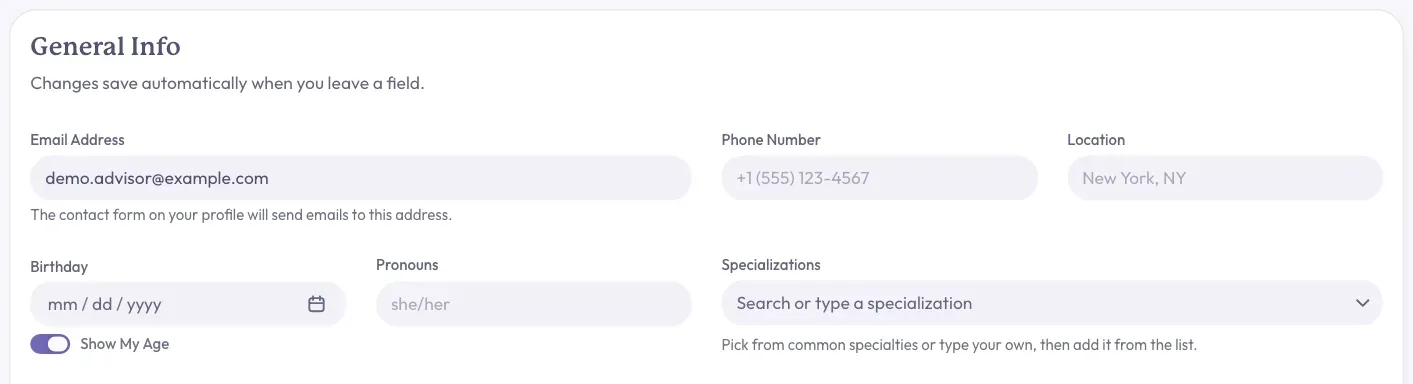
Find the Email Address box under General Info. Type the email address you want to use.
-
Click anywhere outside the box. It saves by itself.
-
Fill in Phone Number and Location too, if you like.
-
Click the small X at the top right of the window to close it.
Choose Your Colors
-
Look at Vibe on the right of the screen.
-
Click the look you like.
-
Click Save at the top right.
Change The Sections On Your Page
Each section is one part of your page, such as Gallery or Testimonials. Hero always stays first, and Footer always stays last.
- To move a section: Press and hold the dots to the left of its name, then drag it up or down.
- To add a section: Pick one in the Add Section list below the sections. Then click the Add Section button under it.
- To remove a section: Click the small trash can to the right of its name.
These three changes save right away, without clicking Save.
Careful: A removed section disappears right away, and TravelBreeze™ does not ask you first. If you add it back, it starts empty.
See Your Finished Page
-
Click Visit Profile at the top right of the Profile Builder.
-
Your public page opens in a new tab. This is what travelers see.
To share your page, copy its web address from the Profile URL box. Send it to anyone you like.
Stuck? If your page says it cannot be found, go back and check Full Name. Your page only appears once your name is saved. Still stuck? Email us at [email protected].
Next, you can upload travel photos and certificates or collect testimonials.