
A testimonial is a few kind words from a traveler about a trip with you. New travelers read them to decide if they can trust you.
There are two ways to get one. You can send a traveler a private link, or you can type in their words yourself.
You do both in the Profile Builder. To get there, click the small circle with your photo or initials at the top right of the page. Then click Profile.
Ask A Traveler With A Private Link
-
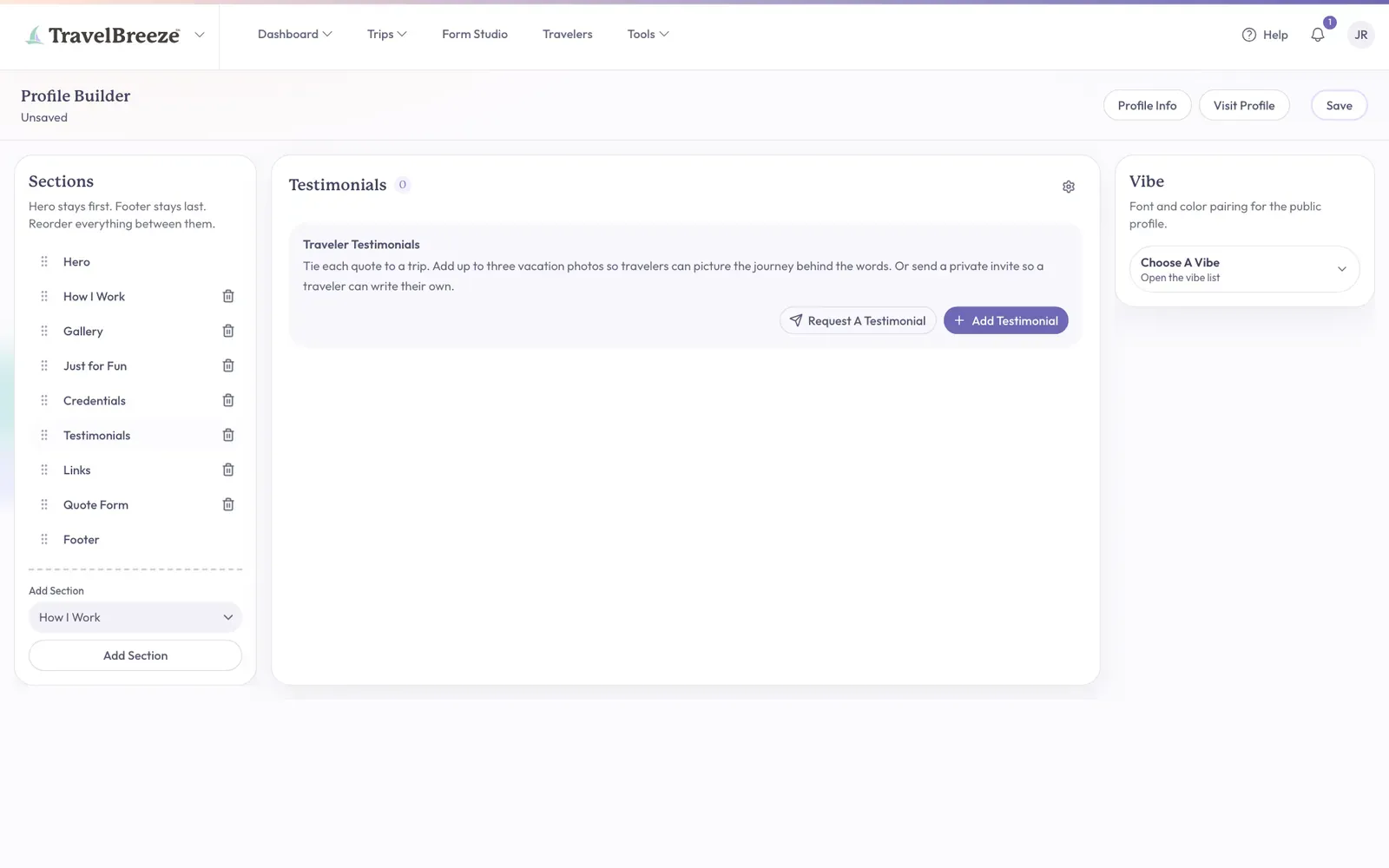
Under Sections on the left of the screen, click Testimonials.
-
Find Traveler Testimonials in the middle of the screen. Click Request A Testimonial.
-
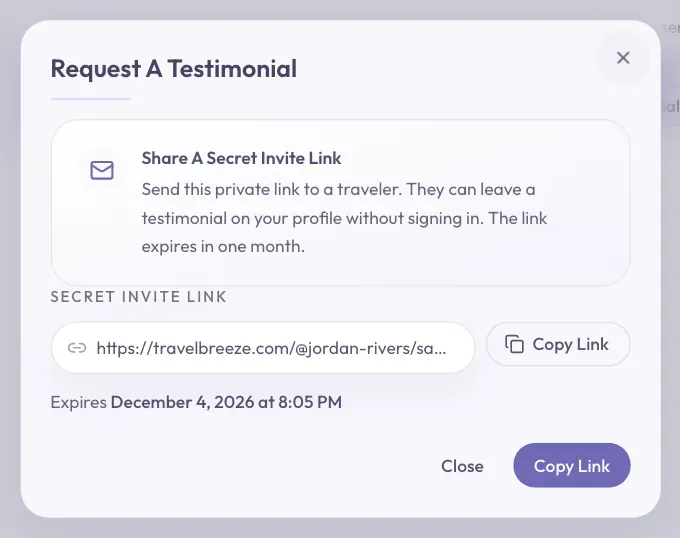
A window opens and creates your link. Wait a moment for it to appear under Secret Invite Link.
-
Click Copy Link. You should see "Invite link copied".
-
Click Close at the bottom of the window.
-
Open your email and start a message to your traveler. Paste the link into the message and send it.
Careful: Anyone with this link can leave a testimonial until it expires. Send it only to the traveler you are asking.
Good to know: The link lasts one month. The window shows the exact date next to Expires. Click Request A Testimonial again any time you need a new link.
What Your Traveler Sees
Your traveler does not need an account. When they open the link, they see a page saying you asked for a testimonial.
- They type their name in Your Name and their words in Your Testimonial. Both are required.
- They can also fill in Trip Destination and upload up to three Trip Photos.
- They click Submit Testimonial, then see a thank you message.
Careful: Their testimonial appears on your page right away. It does not wait for you to approve it. You can remove it later.
Good to know: If the Profile Builder was open while your traveler wrote this, reload the page before you change anything. Otherwise saving could wipe out the new testimonial.
Type In A Testimonial Yourself
Use this when a traveler already sent you kind words in an email or a card.
-
Under Sections on the left, click Testimonials.
-
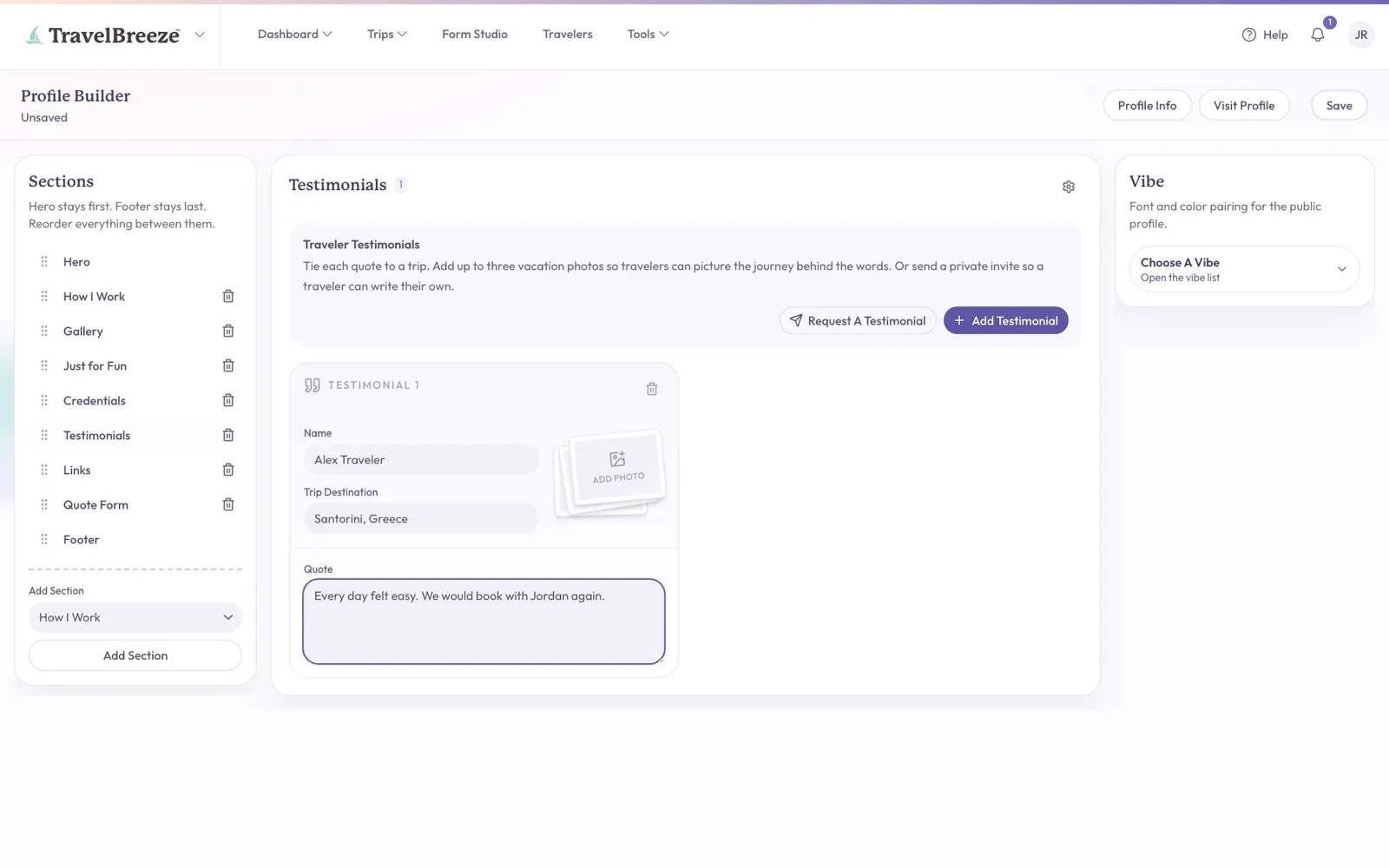
Click Add Testimonial in the middle of the screen. A new card appears below.
-
Click the Name box. Type the traveler's name.
-
Click the Trip Destination box. Type where they went.
-
Click the Quote box. Type their words.
-
You can add up to three vacation photos on the right of the card.
-
Click Save at the top right of the page.
Remove A Testimonial
-
Under Sections on the left, click Testimonials.
-
Find the card you want to remove. Click the small trash can at its top right corner.
-
Click Save at the top right of the page.
Check Your Page
-
Click Visit Profile at the top right of the Profile Builder.
-
Scroll down your page in the new tab. You should see your testimonials.
Careful: Keep a Testimonials section on your page. Without one, a new testimonial has nowhere to appear.
Stuck? If your traveler says This Invite Has Expired, click Request A Testimonial and send a new link. Still stuck? Email us at [email protected].