
Each booking shows what it should earn. You can check this any time, without changing anything.
What The Words Mean
- Agency Commission is the commission your agency earns from the supplier on this booking.
- Advisor Commission is the part of that for the advisors on this booking. TravelBreeze™ works it out from the primary advisor's commission tier. A tier is a percent based on your agency's policy and recent sales.
- Advisors are the people sharing that amount. If you are the only advisor, the whole amount is yours. If others are on the booking, you each get a split.
The Quick Look
-
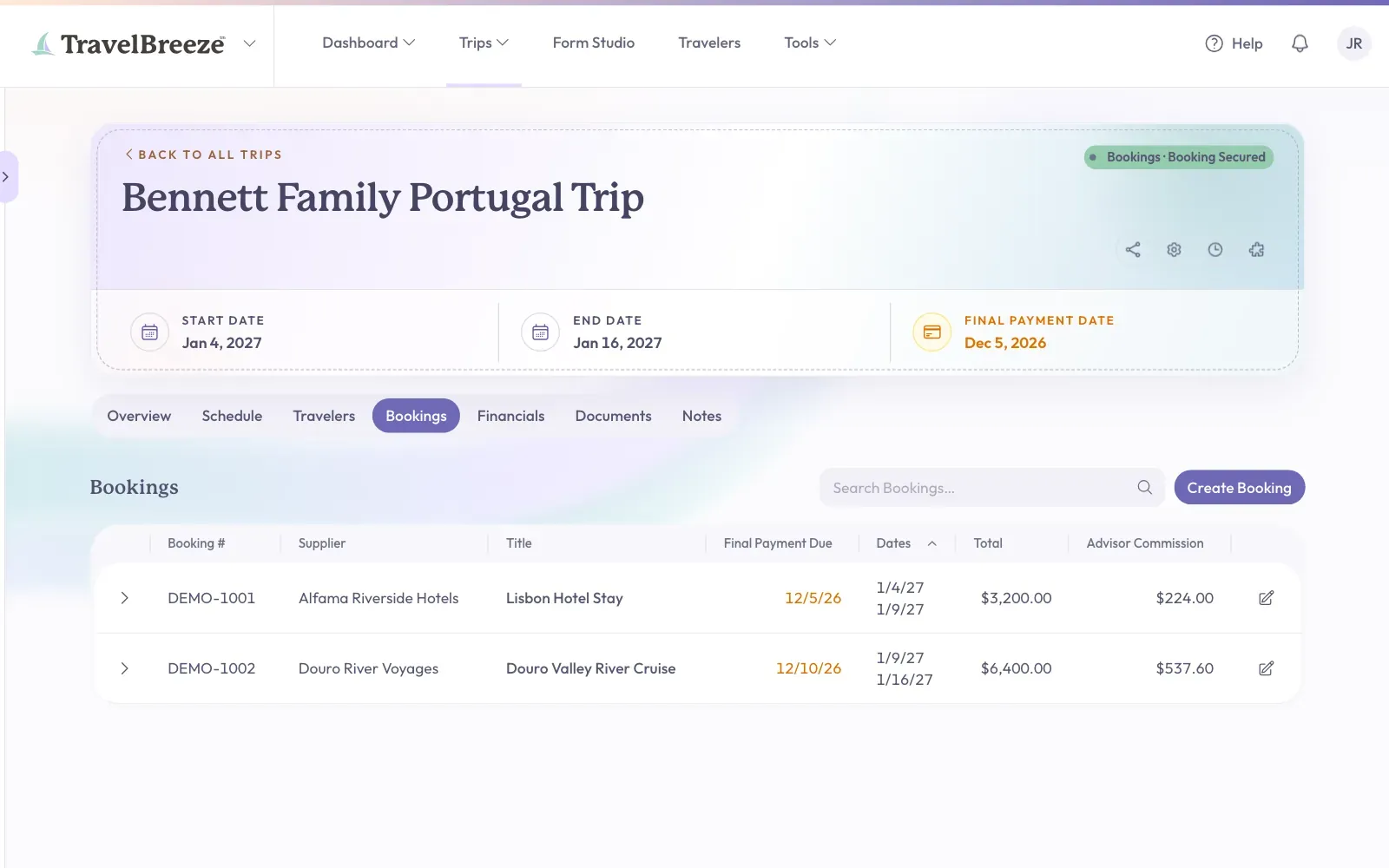
Open the trip and click the Bookings tab under the trip name.
-
Find your booking in the list. Look at the Advisor Commission column. That is the amount for the advisors on this booking.
-
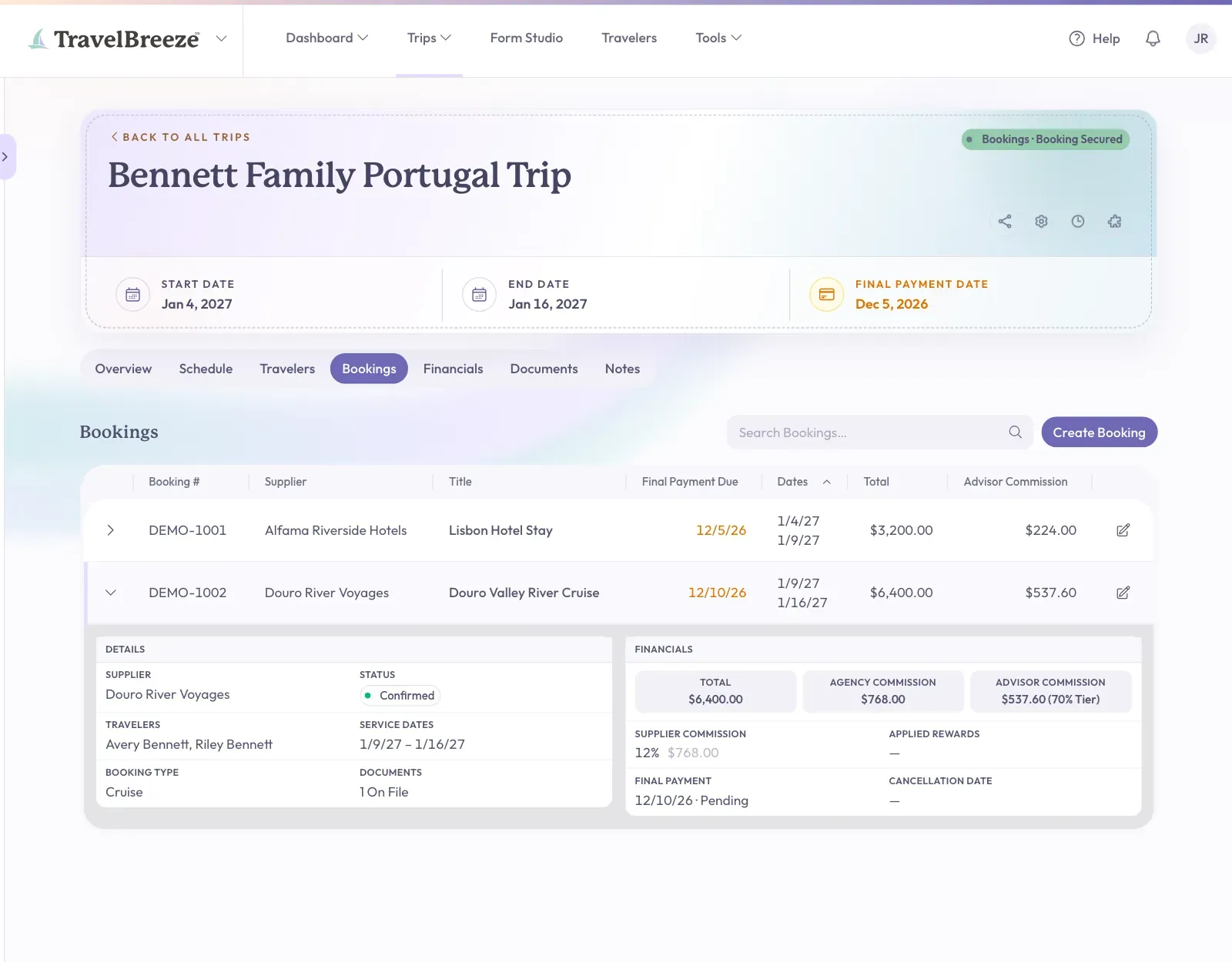
For more, click anywhere on the row. It opens below.
-
Look at Financials. You will see Total, Agency Commission, and Advisor Commission. The tier percent shows next to the amount.
See How It Was Worked Out
-
On the trip page, click the Overview tab.
-
Find the Commissions card. It lists each booking and its amount.
-
Below the list, you can see Total Agency Commission and Total Advisor Commission for the whole trip.
-
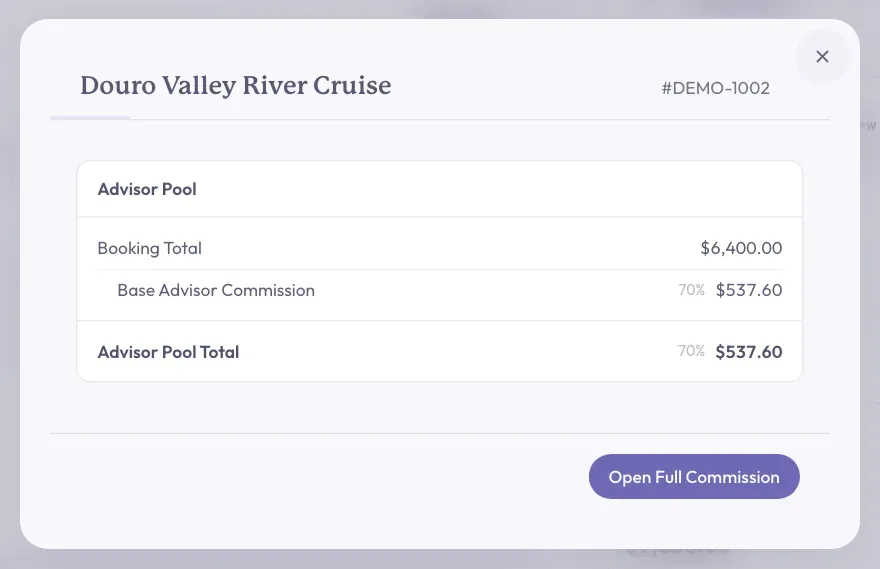
Click a booking in the card. A window opens.
-
Read down the Advisor Pool section. It shows Booking Total, Base Advisor Commission, any rewards, and Advisor Pool Total.
-
If more than one advisor is on the booking, each person's share is listed too.
-
To see every detail, click Open Full Commission at the bottom right of the window.
See The Full Details
-
On the Bookings tab, click the pencil button at the far right of the booking's row.
-
In the Update Booking panel, click the Commission tab.
-
Look at the Charges table. It shows Agency Commission % and Estimated Total Commission.
-
Scroll down. You may see Rewards, if your agency has any that apply.
-
At the bottom, Advisors lists each Advisor, their Split, and their Amount.
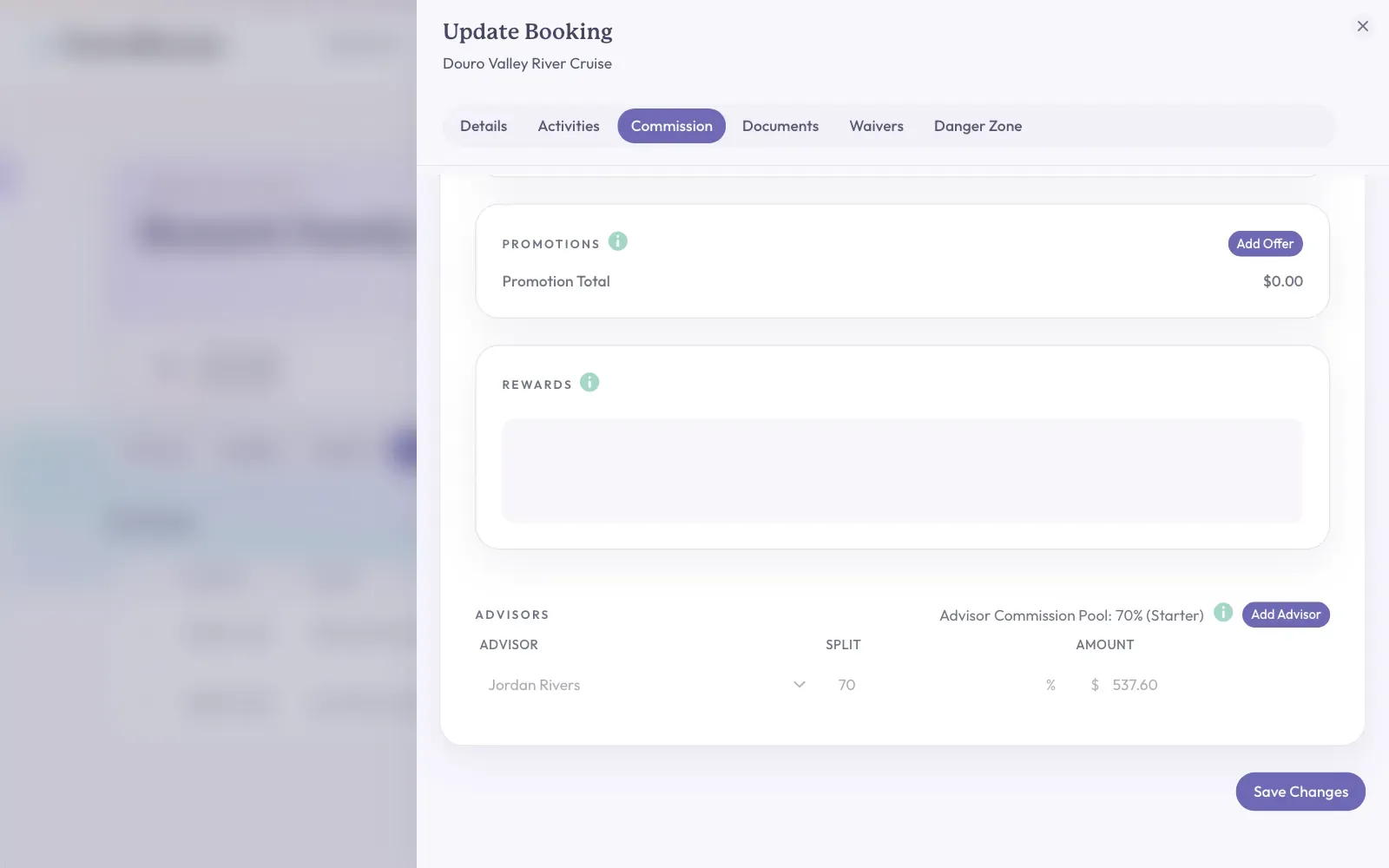
Careful: This is a form you can change. If you only came to look, do not click Save Changes. Close the panel with the X at the top right.
Good to know: Want to see all your bookings together, including what has been paid? Click Dashboard at the top of the page. Then click My Commissions.
If An Amount Looks Wrong
- It shows "—" or nothing. The booking may have no total cost or commission yet. Check the Commission tab.
- It is not commissionable. The Commissionable switch in the Charges table is off. A booking like this earns nothing and does not count toward your sales totals.
- The percent looks off. Agency Commission % often comes from your agency's rate with that supplier. A small lock next to it means that rate is in use. To change it, click the lock, then click Override. Please only do this if you are sure.
- It is a draft. A draft booking does not count toward your commission tier. See What A Draft Booking Is.
Stuck? Your commission tier is set by your agency's policy and your recent sales. If it looks wrong, please ask your agency owner or admin.