
When a form is ready, you can email it to your traveler. They get a link and fill it in on their computer or phone. Their answers come back to you. They do not need an account.
Send The Form
-
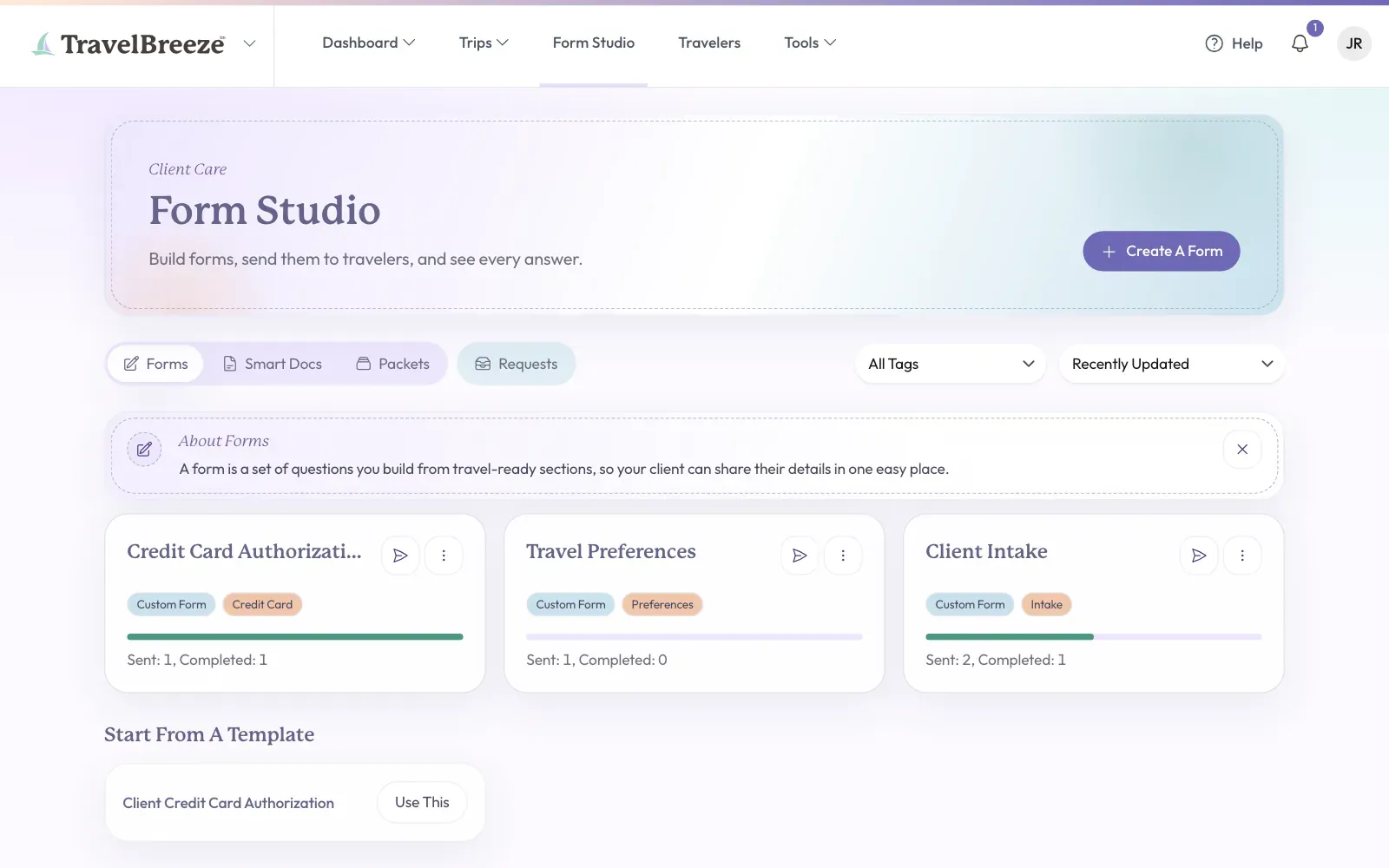
Look at the top of the page and click Form Studio.
-
Click the tab that holds your form: Forms, Smart Docs, or Packets.
-
Find your form's card. At the top right of the card, click the small paper airplane.
-
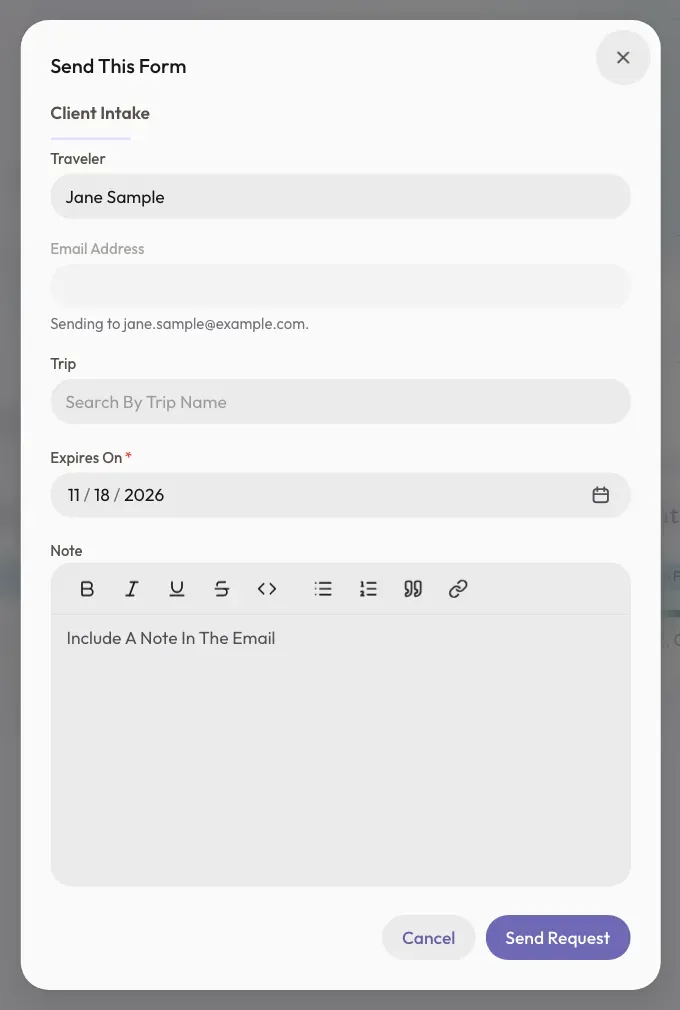
A window called Send This Form opens. Click the Traveler box and type the first letters of their name.
-
Click their name in the list.
-
Not in the list? Type their email in the Email Address box instead.
-
If you want, choose a trip in the Trip box. You must choose one if the form shows trip details.
-
Check the Expires On date. This is the last day the link works. It starts 14 days from today.
-
You can type a message in the Note box if you want to. It goes in the email.
-
Click Send Request at the bottom right of the window.
You will see Form sent. The Requests tab opens, with your traveler's row at the top.
When You Type An Email Address
TravelBreeze™ checks if a traveler in your agency already has this email. A short message under the box tells you what will happen.
- A traveler has this email: the request is added to that traveler.
- No traveler has it: TravelBreeze™ creates a new traveler. You can type a First Name and Last Name. If you leave them blank, the name comes from their answers or their email address.
If Sending Does Not Work
- The request is saved, but the email didn't send. Open it to copy the link. Click the row on the Requests tab. Click Send Again, or click Copy Link and paste the link into your own email.
- Cannot Be Contacted under a name means this traveler is marked Do Not Contact or Deceased. You cannot send to them.
- Missing Email Address under a name means they have no email. Type one in the Email Address box.
- This form shows trip details. Choose a trip. Choose a trip in the Trip box.
- A message saying the form has no questions yet means the form is empty. Add a question and save it first.
- A form in this packet was removed. Update the packet and try again. Open the packet, take out the missing step, and save it.
What Your Traveler Does
You can share these steps with your traveler.
-
Open the email. It comes from TravelBreeze™. The subject line has your advisor's name and the name of the form.
-
Click the Complete Form button in the email. The form opens in your web browser.
-
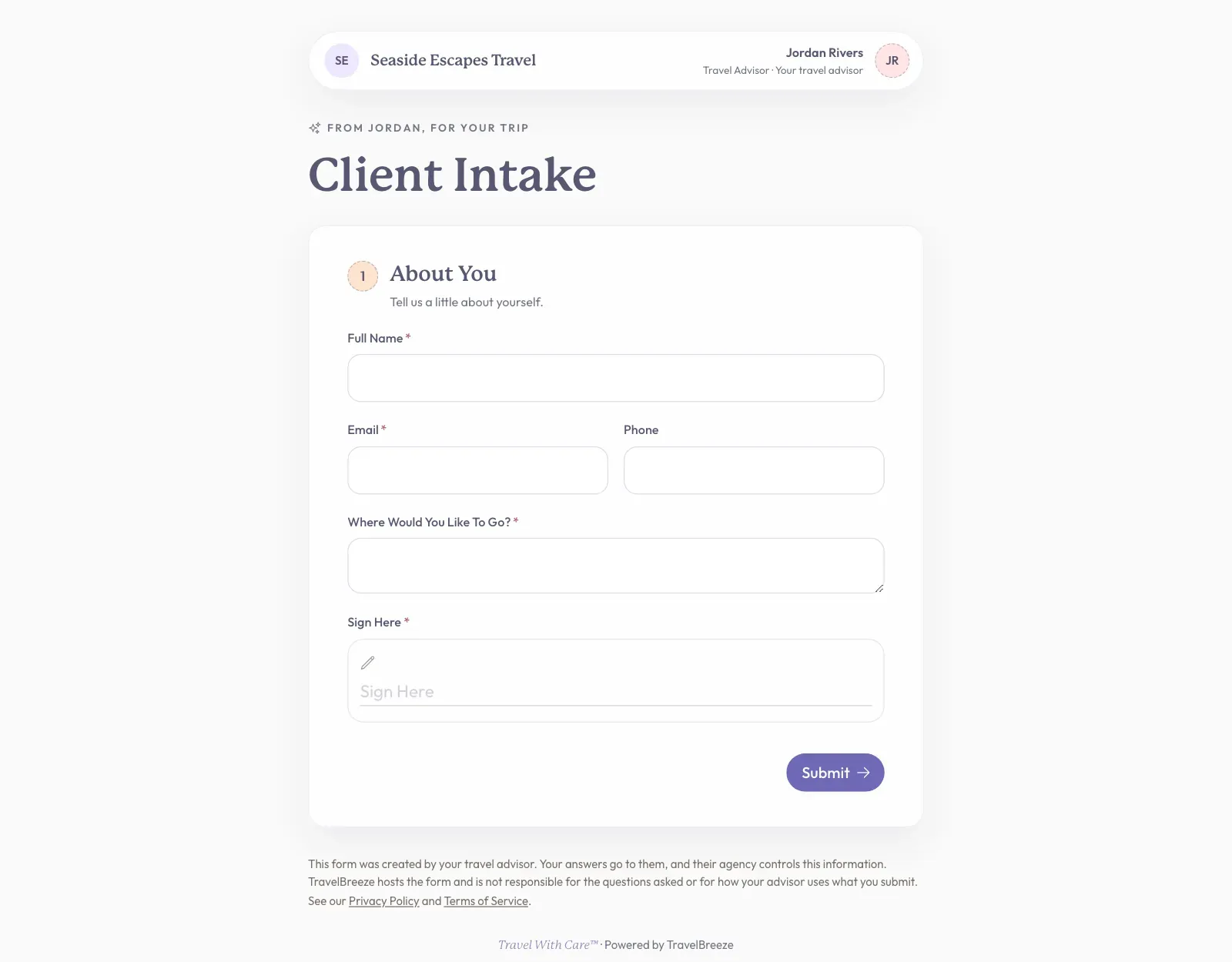
Answer the questions. A question with a red star must be answered.
-
To sign a form, type your name in the Sign Here box.
-
Click the big button at the bottom right of the page. Your advisor may have changed its words. It often says Send To My Advisor.
If something is missing, a message appears under that question. Fix it and click the button again.
When it works, you will see Thank You.
Careful: Finish the form in one sitting. Your answers are not saved until you click the big button. If you close the page or refresh it, you start over.
Good to know: If the form says Complete this once for each traveler, click Create Another Traveler to add the next person. You can add up to 20 people.
Good to know: A question that asks for a file takes a PDF or a picture, up to 10 MB. Click Choose A File.
Stuck? If you see This Form Has Expired, the last day has passed. Ask your advisor to send it again. If you see This Request Was Canceled, your advisor no longer needs this form.
After Your Traveler Sends It
You can read their answers on the Requests tab. Read See A Traveler's Answers.