
Each form you send shows up on the Requests tab. It tells you who has opened it and who has finished it. When a traveler finishes, you can read their answers there.
Find Your Requests
-
Look at the top of the page and click Form Studio.
-
Under the big Form Studio heading, click Requests.
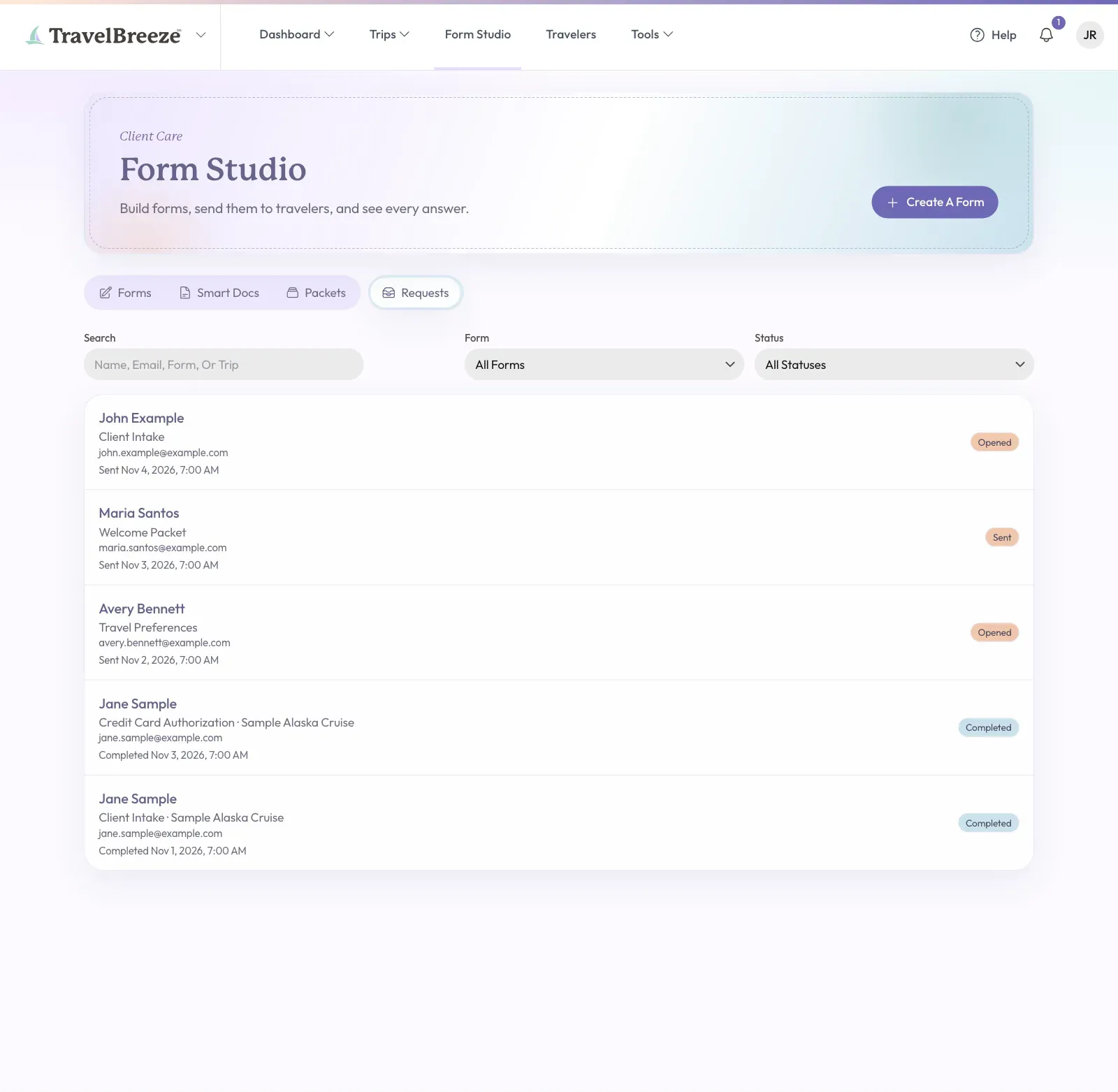
Each row shows who you sent it to, the form's name, the trip, and the date. On the right, you will see one of these words:
- Sent means your traveler has not opened it yet.
- Opened means they opened it but have not finished.
- Completed means they finished, and you can read the answers.
- Expired means the last day passed before they finished.
- Canceled means someone stopped the request.
Good to know: When a traveler finishes a form, TravelBreeze™ can also send you a notification. Read Turn On Notifications And Text Alerts.
Find One Request
- To find a person, form, or trip, type in the Search box.
- To see one form, click the Form box and pick it.
- To see one status, click the Status box and pick it.
On a form's card, you can also click the three dots, then View Requests.
Find Requests On A Traveler's Page
-
Open the traveler.
-
Click the Forms tab in the row of tabs under their name.
You will see every request for this person. Click a row to open it. To send them another form, click Send A Form at the top right.
Read The Answers
-
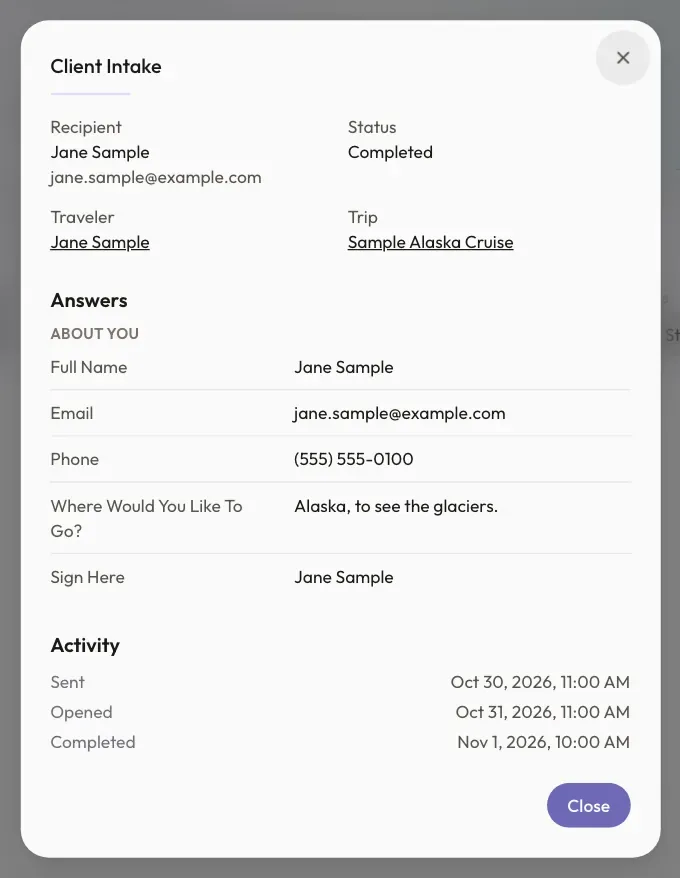
On the Requests tab, click your traveler's row. A window opens.
-
Read the top part. It shows the Recipient, Status, Traveler, Trip, and your Note.
-
Scroll down to Answers. They only appear after your traveler finishes.
-
Under Activity, see each thing that happened and when.
-
Click Close at the bottom right when you are done.
For a Smart Document, click View The Signed PDF under Answers to open the finished PDF.
See Hidden Answers
Some answers are private, like a passport number. They show the word Hidden at first.
-
Click Show Sensitive Answers, to the right of Answers.
-
Read the answers. Each look is written down under Activity.
Only the person who sent the form, the agency owner, and agency admins can do this. For a credit card, read Collect A Credit Card Authorization.
Save Answers To The Traveler's Profile
Some answers fill in empty boxes on the traveler's profile by themselves. A form link can be forwarded to someone else, so an answer never replaces what is already there.
Look under Traveler Profile in the window. If it says The profile says something else, so it was not changed., you choose what happens.
-
Read the answer and decide if it is right.
-
To use the new answer, click Update Profile next to it.
You will see Traveler profile updated.
Send It Again, Copy The Link, Or Cancel
These buttons are at the bottom of the window, until your traveler finishes.
- Send Again emails the same link again. If the request expired, it also adds 14 more days.
- Copy Link copies the link, so you can paste it into your own email. You will see Link copied.
- Cancel Request stops the link. It asks you first. Click Cancel Request again to confirm, or Keep Request to change your mind.
Careful: Your traveler can send a form only once. If they need to change something, send them the form again.
Who Can See Requests
- Advisors see requests they sent, and requests sent to travelers they own.
- Agency owners, admins, and Staff see every request in the agency.
Stuck? Cannot find a request? Check the Form and Status boxes. Set them to All Forms and All Statuses.