
When your traveler pays, write it down here. TravelBreeze™ then shows the payment as paid, and updates what is left to pay.
Good to know: Recording a payment does not charge anyone. The money moves outside of TravelBreeze™. This only keeps your records right.
Record A Payment
-
Look at the top of the page and click Trips.
-
In the menu that opens, click All Trips.
-
Find your trip in the list and click it.
-
Near the top of the trip page, click Financials.
-
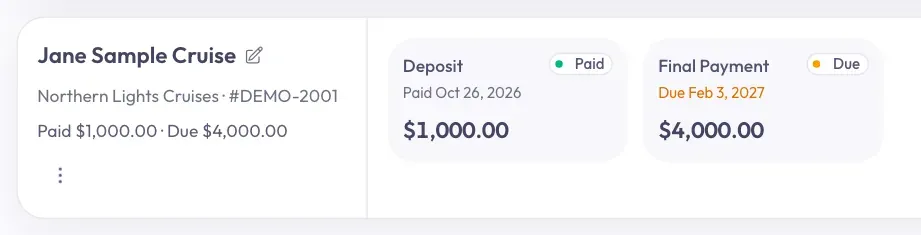
Find the invoice. Each payment has its own box, with a date and an amount.
-
Click the box for the payment your traveler made. A window opens.
-
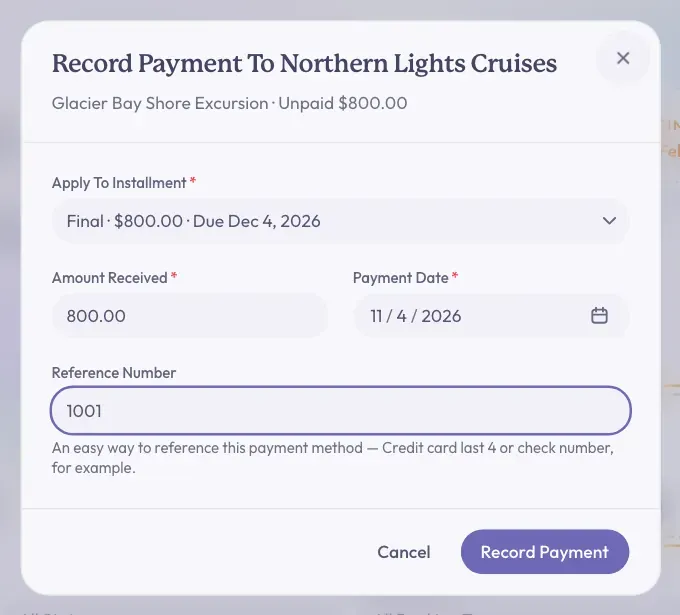
Check the Apply To Installment box. It shows which payment this money is for.
-
Check the Amount Received box. Change it if your traveler paid a different amount.
-
Check the Payment Date box. It starts on today's date. Change it if they paid on another day.
-
You can use the Reference Number box if you want to. Type something to help you find this payment later, like a check number.
-
Click Record Payment at the bottom right of the window.
You will see the message Payment recorded. The box now says Paid, with the date you entered. The Paid and Remaining amounts at the top of the Financials area also change.
Careful: For a card payment, type only the last 4 numbers in Reference Number. Never type the whole card number.
Good to know: The window title says Record Payment To, then the supplier's name. It is still the payment from your traveler, so you are in the right place.
If The Amount Is Different
- Your traveler paid less. Type what they paid. The rest stays due.
- Your traveler paid more. Type what they paid. The window tells you the extra goes to their later payments, starting with the soonest.
Fix A Payment You Recorded
-
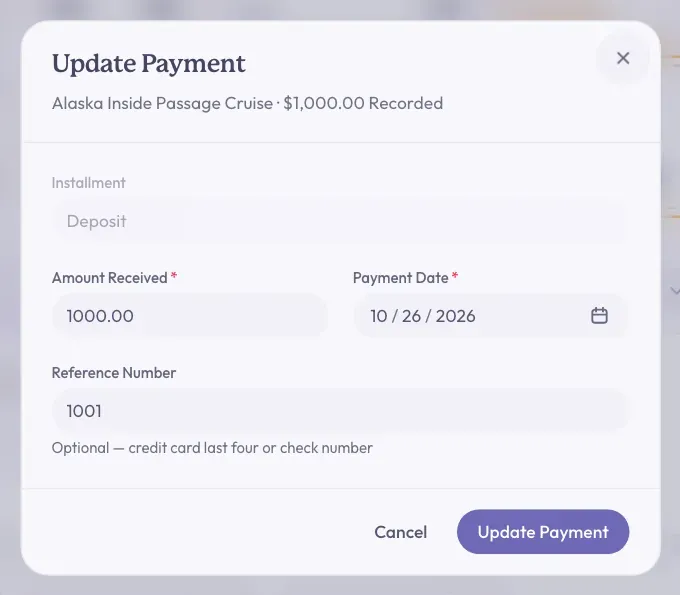
On the Financials tab, click the payment's Paid box. A window opens.
-
Change the Amount Received, the Payment Date, or the Reference Number.
-
Click Update Payment at the bottom right.
The button shows a check mark and says Saved.
What To Do Next
If your traveler's dates change, read Set Up A Payment Plan.
Stuck? If you see No unpaid installments on this invoice, the invoice has no payments left to record. You may need to set up a payment plan first.