
A payment plan is a list of dates and amounts your traveler will pay. For example, a deposit today and the rest before they travel. These dates also show on your calendar and help you see what is due soon.
Set Up A Plan On An Invoice
-
Look at the top of the page and click Trips.
-
In the menu that opens, click All Trips.
-
Find your trip in the list and click it.
-
Near the top of the trip page, click Financials.
-
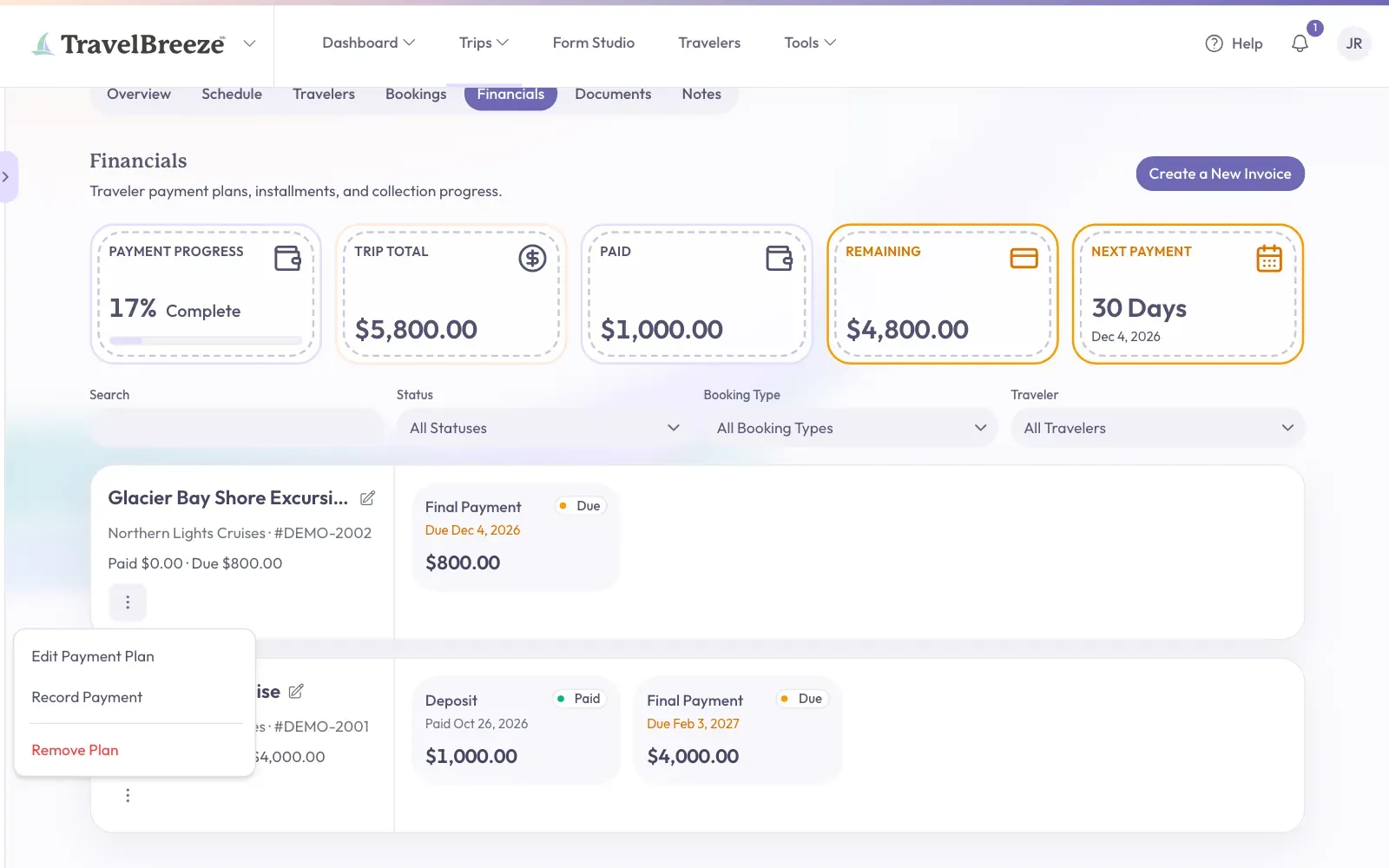
Find the invoice. Click the button with three dots on it.
-
Click the first choice in the menu. It says Set Up Payment Plan if the invoice has no dates yet. It says Edit Payment Plan if it already has some.
-
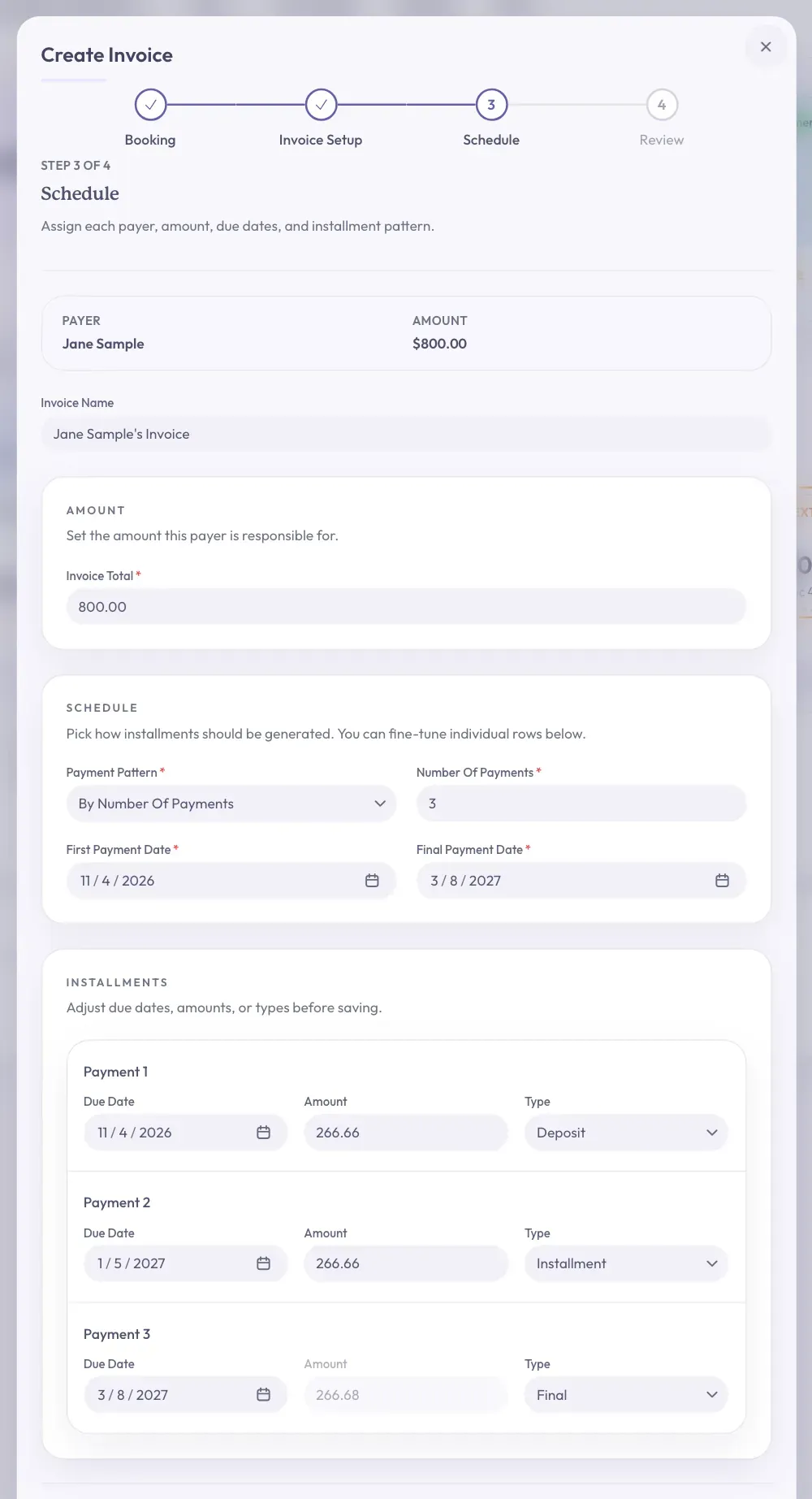
Check the Invoice Total box. It usually matches what this person owes.
-
Click Payment Pattern and choose how to split the payments. The list below explains each choice.
-
Fill in the boxes that appear for that choice. See the list below.
-
Look at the Installments list at the bottom. You can change any date or amount there.
-
Click Continue at the bottom right of the window.
-
On the Review step, check the dates and amounts.
-
Click Save Payment Plan at the bottom right.
You will see a message that your payment plan was saved. Each payment now has its own box on the invoice.
The Payment Patterns
- Single Payment is one payment for the full amount. Fill in Payment Due Date.
- By Number Of Payments splits it evenly. Fill in Number Of Payments, First Payment Date, and Final Payment Date.
- By Dollar Amount uses the same amount each time. Fill in Installment Amount and both dates.
- Weekly, Biweekly, and Monthly repeat on a schedule between the two dates.
Good to know: Changing a pattern or a date rebuilds the list. Make your small changes last, right before you click Continue.
Stuck? If you see Installment amounts must add up to the invoice total, the amounts in your list are off. Fix them until they add up.
Change A Plan You Already Saved
Follow the same steps. When you save, you may see a window called Regenerate Schedule?. It means your unpaid payments will be replaced with the new ones.
Click Regenerate Schedule to go ahead, or Cancel to go back.
Good to know: Payments you already recorded stay locked. They do not change.
Spread Out What Is Left
Your traveler may have paid part of an invoice, and now someone else will pay the rest. Or you may want to put the rest on a new invoice.
-
Click the button with three dots on the invoice.
-
Click Split Remainder. You only see this after a payment is recorded and some money is still due.
-
Follow the steps in the window, then click Split Remainder at the bottom right.
The recorded payments stay on the first invoice. What is left moves to new invoices.
Your Traveler Can Ask For A Plan Too
Your traveler can do this on the shared trip page. On the Bookings tab, they click Request Payment Plan on a booking with money still due.
Careful: When your traveler submits this, it replaces the unpaid payments on that booking. Nobody has to approve it first. If dates look different than you expected, check the trip's Financials tab.
What To Do Next
When your traveler pays, read Record A Payment From A Traveler.