
A packet puts your saved forms together. Your traveler gets one email and fills in one step at a time. It saves them from getting many separate emails.
You need at least one saved form first. Read Create A Form or Smart Documents For Signatures.
Build A Packet
-
Look at the top of the page and click Form Studio.
-
Under the big Form Studio heading, click Packets.
-
Click Create A Form at the top right of the page.
-
Click Packet. A new page opens.
-
Click the Title box and type a name, like "Trip Paperwork".
-
You can type in the Description box if you want to. It goes in the email to your traveler.
-
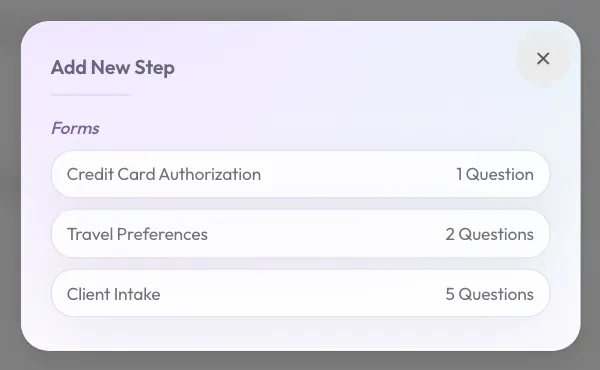
Click Add New Step at the bottom left of the frame. A window opens with your saved forms and Smart Docs.
-
Click the form you want.
-
Repeat steps 7 and 8 for each step you need.
-
To change the order, use the small arrows above the step. To take a step out, click the small trash can.
-
Click Save at the top right corner of the page.
The button turns green and says Saved. Then you go back to the Packets tab, and your packet is there as a card.
Stuck? If you see Title Is Required, type a name in the Title box. If you see Add At Least One Step, click Add New Step.
Good to know: A packet cannot hold another packet. A form can only appear once in a packet.
Send A Packet
A packet is sent the same way as a form. Read Send A Form To A Traveler.
What Your Traveler Does
-
Click Complete Form in the email.
-
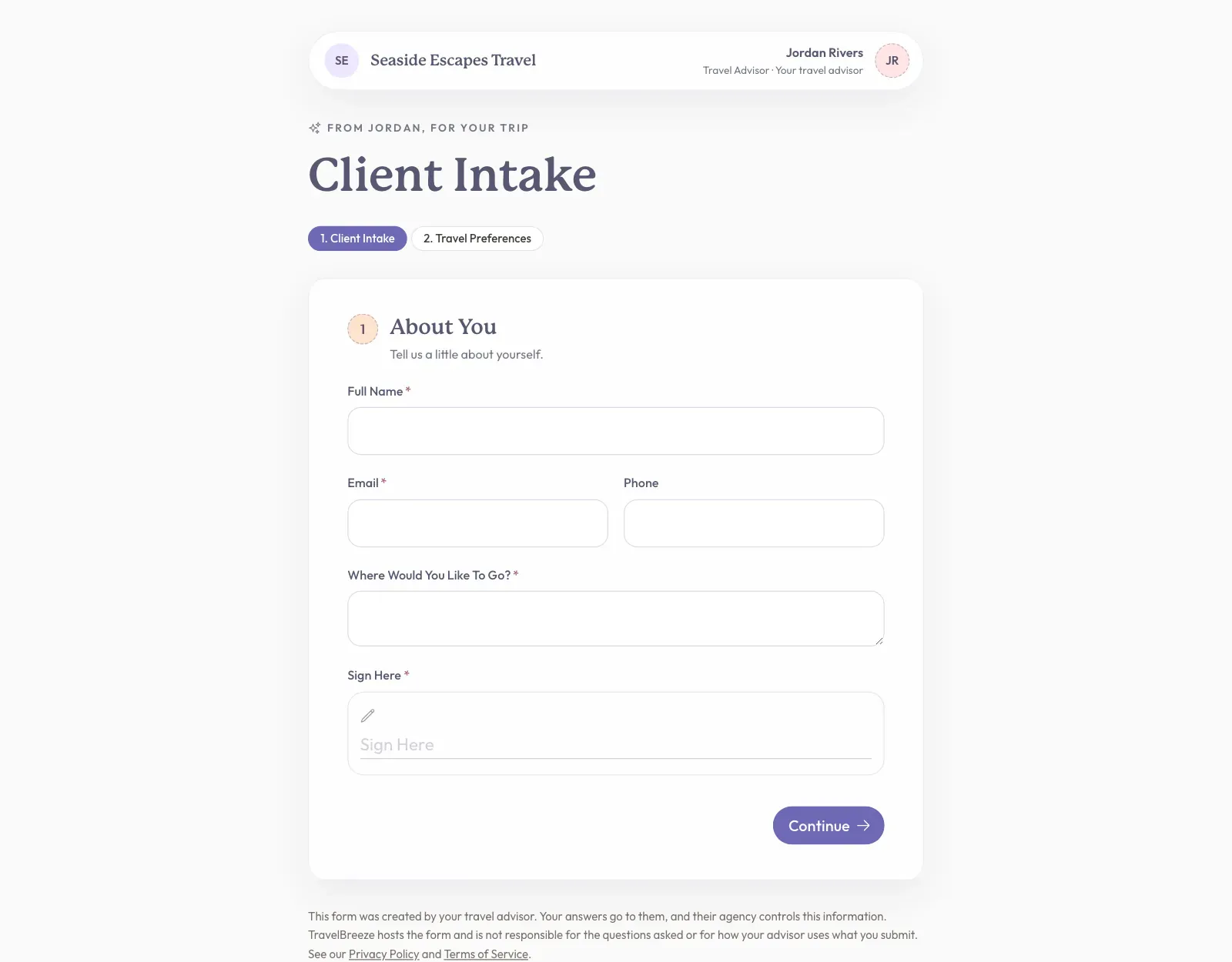
Fill in the first step. Numbered steps near the top of the page show where you are.
-
Click Continue at the bottom right. This checks your answers and opens the next step.
-
To go back, click an earlier step.
-
On the last step, click the big button at the bottom right. Now everything goes to your advisor.
When it works, you will see Thank You.
Careful: Nothing reaches your advisor until the button on the last step is clicked. Please stay on the page until you finish.
See The Answers
Open the request on the Requests tab. Each step has its own heading under Answers. Read See A Traveler's Answers.